How to Use Brave Tor Browsing to Hide IP on Computer
The Brave browser has many unique and built-in features unavailable on other browsers. One such feature is Tor Browsing mode. Tor automatically hides the user’s location and network details and maintains strict privacy. We can easily switch to Tor Private Browsing Mode from the More menu on the Brave computer.
You can continue reading the page content for detailed explanations and practical steps to follow along.
You must be familiar with the incognito private browsing mode. It is used when one does not want to leave a trace behind their browsing activities.
The incognito mode is a pretty nifty feature that almost all browsers have. Your browsing history, including cookies, is not retained on your computer when you use Incognito mode.
The private browsing mode makes users feel safe, knowing nobody can know what they are doing online. Brave browser has a private mode with a twist. It makes the users feel extra safe when browsing the web in secret.
The Private Window in Brave with Tor is a more advanced version of the Incognito Mode. Thanks to Tor, it hides the user’s IP address since the user does not directly visit the site.
If you have been using the Brave browser and are unfamiliar with private browsing with Tor, you must start using it. It differs from private browsing, which does conceal not only your browsing data but also your IP address. Brave Private Tor Browsing.
Private browsing with Tor is unique because it utilizes Tor as a web proxy to conceal your IP address when accessing the web. Brave does not simply connect to a webpage when you are within a Tor Private Window. Instead, you join a Tor network chain of three computers, one after the other, and finally, to the website of your choice.
Private Window with Tor
Private browsing with Tor has many benefits. It hides your IP address from others, adding an extra layer of security.
Here are the steps to launch private browsing with Tor:
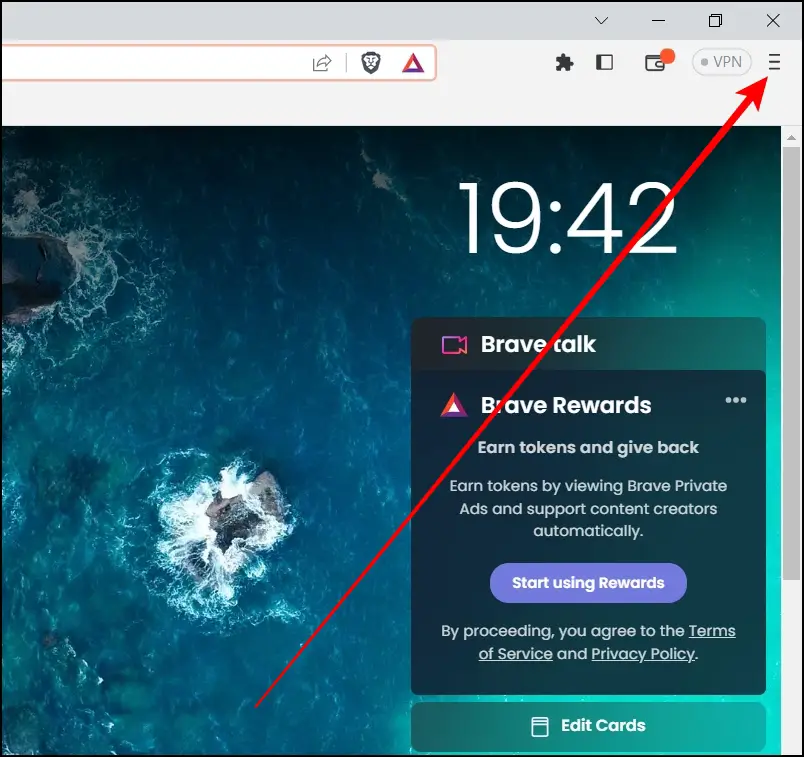
- Launch Brave browser, and click on the More menu.
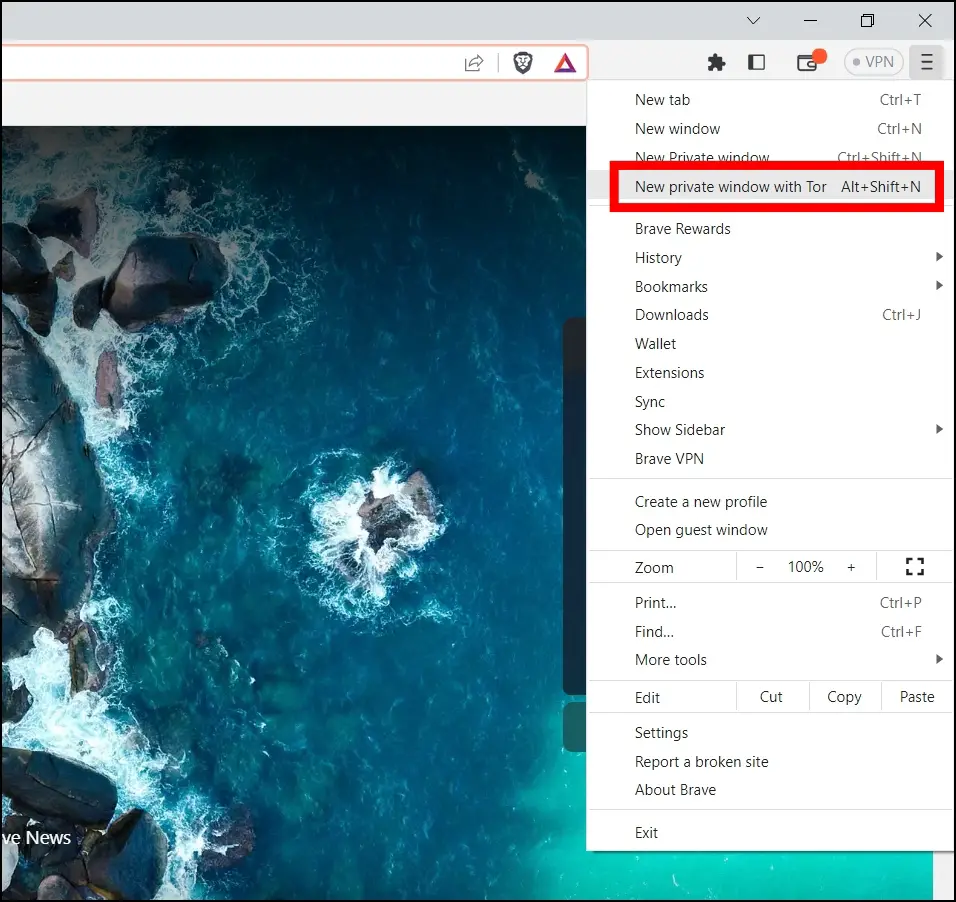
- Select the New Private window with Tor from the menu.
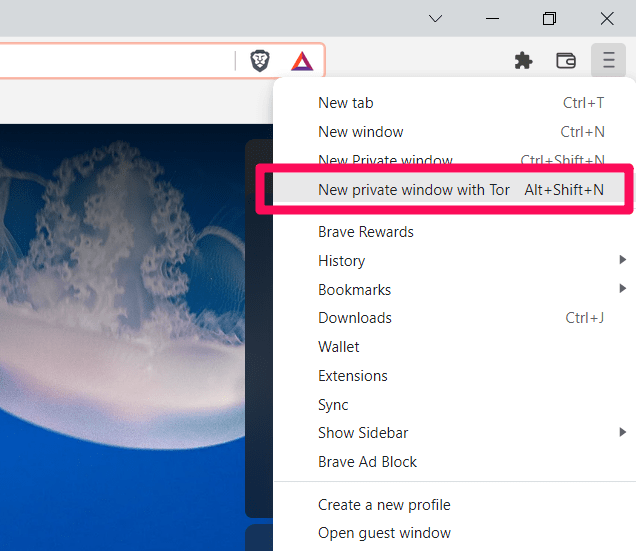 It will launch private browsing.
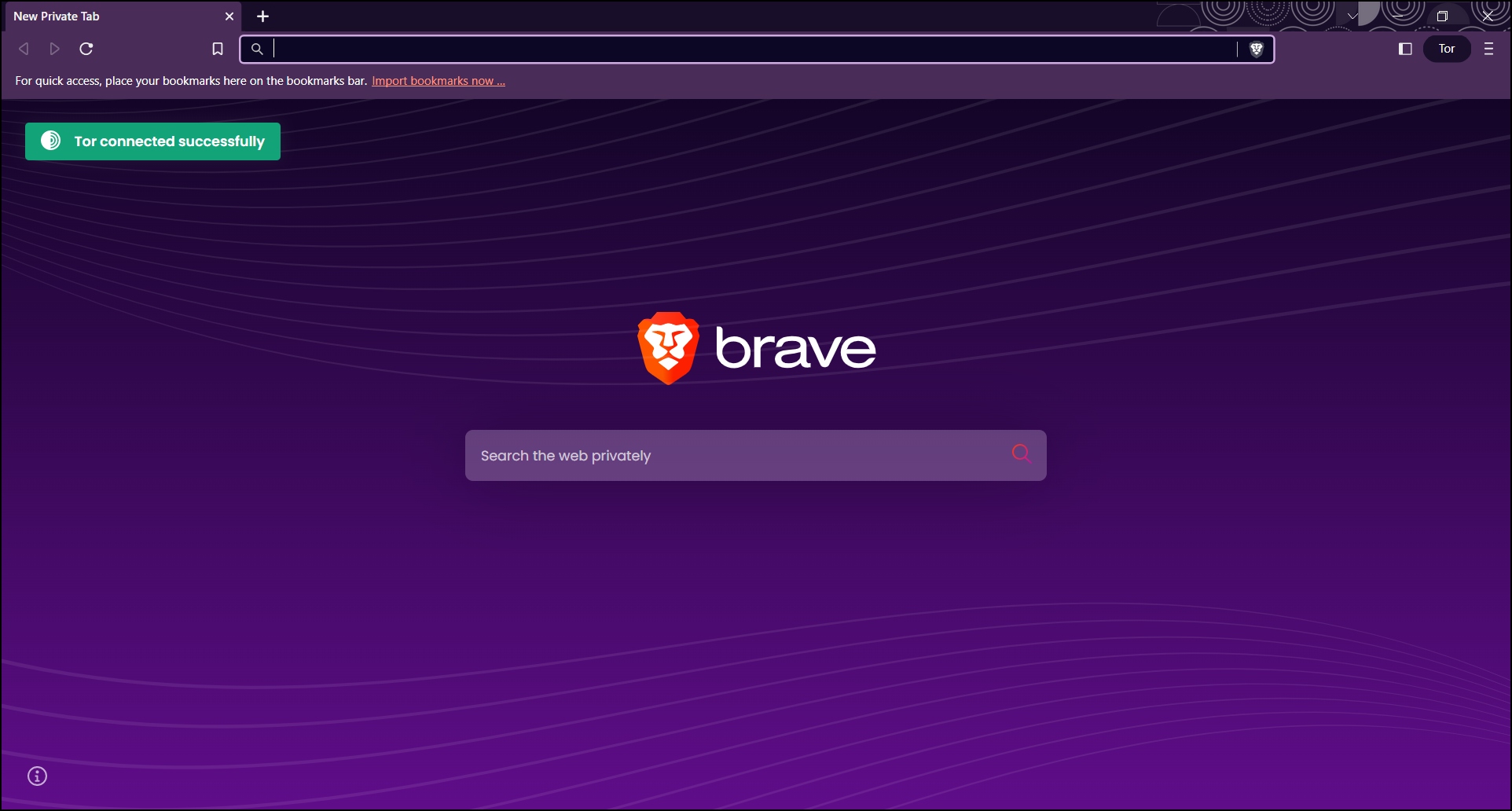
 - Check for connection status to change from Tor is connecting to Tor connected successfully on the new open tab.
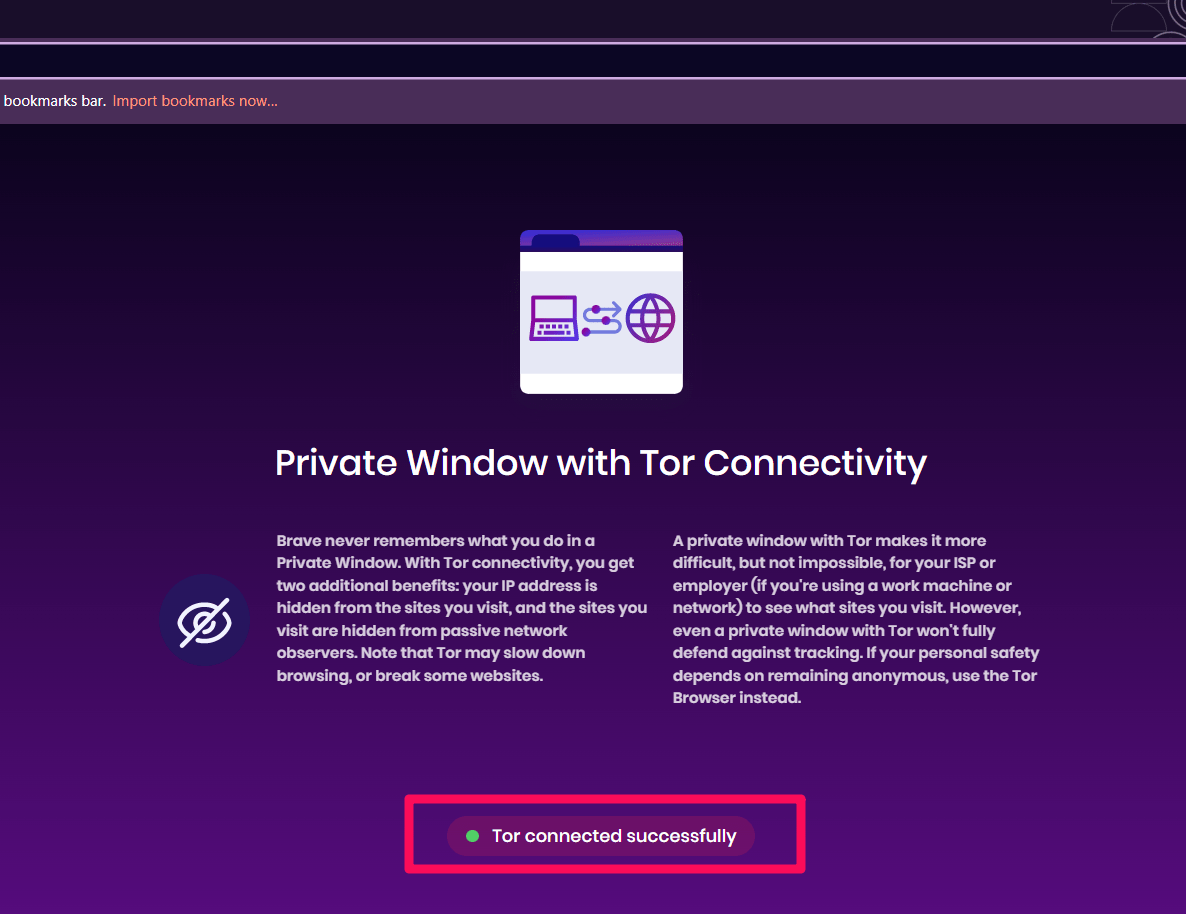 It may take a few seconds but be patient.
You can now start browsing the internet privately with Tor browsing enabled within the Brave browser.
Alternatively, you can use the Brave keyboard shortcut. Press the Alt + Shift + N keys for Windows and Cmd + Option + N on Mac simultaneously to access the private window with Tor.
Bottom Line
Brave browser is a great browser filled with several features. This privacy-centric browser has a unique take on the private or incognito mode. You can use the private window with Tor to browse the internet freely. You can use the feature to browse any website or search for anything online.
Private browsing with the Tor feature gives users the gift of anonymity. Using Tor as a proxy, the user’s IP address is kept under wraps. The user is connected to three computers, one after the other, with only one knowing where the connection is coming from. The other two do not know. The website the user visits knows that the data has been changed but does not know the user’s IP address.
You can use the private window with Tor for extra security. This feature is perfect for hiding your IP address while enjoying Brave’s other features. Using it is easy, and you can even access the private window with Tor with the help of a keyboard shortcut.
Lastly, if you’ve any thoughts or feedback on How to Use Brave Tor Browsing to Hide IP on Computer, then feel free to drop in below comment box. You can also report the outdated information.
Please share the article if you find it helpful:
Aksheya Gowekar
Aksheya is a Bachelor of Business Administration in Marketing and pursuing a Master’s degree. She is a technology and cloud computing enthusiast. She has 4+ years of experience in content editing and writing helpful guides on computing software, mobile applications, and browser technology. The Brave is her day-to-day browser. Connect with her on LinkedIn.
Related topics

How to Protect your Ad Privacy in Chrome on Computer
How to Enable or Disable Lock for Incognito on Chrome browser
How to Disable Cross-Site Tracking on Safari iPhone
How to Get Rid of Privacy Error on Chrome browser
How to Enable Privacy and Security Settings in Opera Computer
How to Browse Safely and Privately on Internet
Share us your thoughts and feedback Cancel reply
This website uses cookies to ensure you get the best user experience.
Read our Privacy Policy.
Как включить и использовать Tor в браузере Brave
Если вы хотитевключить и использовать Tor в браузере Brave, это пошаговое руководство будет вам полезно. Вот как включить Tor в браузере Brave, используя встроенные настройки и редактор реестра. Это позволит вам открыть личное окно с включенным Tor для анонимного доступа в Интернет.
Что такое режим Tor в браузере Brave?
Проще говоря, Tor помогает вам анонимно пользоваться Интернетом. Он работает как прокси. Тем не менее, когда вы включаете Tor в браузере Brave, весь ваш исходящий и входящий трафик будет перенаправлен в сеть Tor, что позволит вам замаскировать свое местоположение и устройство, чтобы разблокировать регионально заблокированный контент и установить более безопасное соединение.
По умолчанию браузер Brave не имеет встроенного VPN или чего-то подобного. Вот почему, если вы хотите замаскировать свой IP-адрес, у вас есть два варианта. Во-первых, вы можете установить приложение VPN на свой компьютер или установить его и расширение. Во-вторых, вы можете включить и использовать Tor.
Когда вы включаете эту функцию, освобождается еще одна опция, называемая «Новое личное окно с Tor». Воспользовавшись этой опцией, вы сможете получить доступ к Интернету анонимно, не устанавливая стороннее приложение VPN или прокси-сервер.
Как включить и использовать Tor в браузере Brave
Чтобы включить и использовать Tor в браузере Brave на ПК с Windows, выполните следующие действия:
- Откройте браузер Brave и перейдите в разделНастройкипанель.
- Переключитесь наКонфиденциальность и безопасностьраздел.
- Отправляйтесь вТор окнараздел.
- ПереключитьЛичное окно с Torкнопку, чтобы включить его.
- Нажмите на гамбургер-меню и выберитеНовое приватное окно с Torвариант.
Сначала вам нужно открыть браузер Brave и нажать на значокНастраивайте и управляйте BraveКнопка, которая отображается в правом верхнем углу экрана, чтобы открыть панель настроек. Далее переключитесь наКонфиденциальность и безопасностьвкладка.
Альтернативно вы можете открыть браузер Brave и ввести в адресной строке следующее: храбрый://settings/privacy.
Здесь вам нужно отправиться вТор окнараздел и найдитеЛичное окно с Torвариант. Затем нажмите соответствующую кнопку, чтобы включить ее.
Теперь вы можете нажать на кнопку меню и выбратьЛичное окно с Torвариант или нажмите сочетание клавиш:Alt+Shift+Н. Возможно, вам придется подождать несколько секунд, пока он не подключится к сети.
Читать: Как изменить поисковую систему по умолчанию в браузере Brave
Как включить Tor в браузере Brave с помощью реестра
Чтобы включить Tor в браузере Brave с помощью реестра, выполните следующие действия:
- НажиматьWin+R> типregeditи нажмите кнопкуХОРОШОкнопка.
- Нажать наДавариант в командной строке UAC.
- Перейдите кBrave вХКЛМ.
- Щелкните правой кнопкой мышиBrave > Новое > Значение DWORD (32-разрядное).
- Назовите это какTorDisabled.
- Закройте редактор реестра и перезагрузите компьютер.
Давайте углубимся в эти шаги подробно.
Чтобы начать, нажмитеWin+R, типregeditи нажмите кнопкуХОРОШОкнопка. Если появится приглашение UAC, нажмите кнопкуДакнопку в командной строке UAC.
Далее вам нужно перейти по этому пути:
Однако если вы не можете найти этот путь, вам необходимо создать его вручную. Для этого щелкните правой кнопкой мыши Политики > Создать > Ключ и назовите его BraveSoftware. Затем щелкните правой кнопкой мыши BraveSoftware > Создать > Ключ и установите имя Brave.
Как только вы получите вышеупомянутый путь, щелкните правой кнопкой мыши поBrave ключ, выбратьСоздать > Значение DWORD (32-разрядное)и установите имя какTorDisabled.
По умолчанию он поставляется с данными значения0и вам нужно сохранить это, чтобы включить Tor в браузере Brave.
После этого закройте все окна и перезагрузите компьютер, чтобы изменения вступили в силу. Если вы хотите отключить Tor, вы можете открыть то же значение REG_DWORD и установить данные значения как1.
Читать:Как удалить все параметры криптовалюты из браузера Brave
Почему Tor не работает на Brave?
Есть две причины, по которым Tor не работает в браузере Brave. Во-первых, вам нужно дать ему несколько минут, чтобы установить соединение между вашим компьютером и сетью Tor. Поскольку он не подключается постоянно автоматически, вам нужно нажать на значокОтключенокнопку для подключения. Во-вторых, если вы установили для данных значения значения TorDisabled REG_DWORD значение 1, это не сработает. Вам необходимо открыть редактор реестра и изменить данные Value на правильные.
How to Enable and Use Tor in Brave Browser?
Brave browser is a privacy-focused browser that allows users to surf the web while maintaining online anonymity. One of the features that make Brave browser stand out from other browsers is its built-in Tor integration, which makes it easy for users to enable and use the Tor network. By enabling Tor in Brave browser, users can access the internet through an encrypted and anonymous network, ensuring their online activity remains private.
Enabling and using Tor in the Brave browser is a straightforward process that can be completed in a few simple steps. Once enabled, the browser will create a new window that connects to the Tor network. This window will allow you to browse the internet with enhanced privacy and security features, as well as access .onion sites. In this article, we will provide you with a step-by-step guide on how to enable and use Tor in the Brave browser so that you can enjoy a safer and more private browsing experience.
What is Tor in Brave browser?
Tor (The Onion Router) is a network designed to provide users with anonymity and privacy online. When you use Tor in Brave browser, your internet traffic is routed through a series of nodes, making it more difficult for anyone to trace your online activity back to you. The Tor network achieves this by encrypting and bouncing your internet traffic through several nodes, making it difficult to track where the data is coming from or going to.
Enabling Tor in the Brave browser allows you to use the Tor network without having to download and install the standalone Tor browser. This makes it easy for users to browse the internet anonymously and securely. Additionally, Brave browser with Tor enabled provides users access to .onion sites, which are websites only accessible through the Tor network. These sites are typically used for anonymous communication and can include marketplaces, forums, and other types of websites.
How to Enable and Use Tor in Brave browser?
Enabling and using Tor in the Brave browser is a simple process. Follow the steps below to enable Tor in the Brave browser:-
Step 1. Open Brave browser on your computer.
Step 2. Click on the hamburger menu icon (three lines) in the top-right corner of the browser window.
Step 3. From the dropdown menu, click on “Settings.”
Step 4. In the Settings menu, click “Privacy & Security” in the left sidebar.
Step 5. Scroll down to the “Tor windows” section and toggle on the switch “Private window with Tor” to enable Tor.

Once you enable Tor, you can open a new private window will the Tor network by clicking on the hamburger menu and selecting the New private window with Tor option or pressing the keyboard shortcut Alt+Shift+N. You can now use the Brave browser with Tor enabled.
Note that when Tor is enabled, your browsing history, cookies, and other data will be automatically cleared when you close the Tor window.
How to Enable Tor in Brave browser using Windows Registry?
Here are the step-by-step instructions for turning on Tor in Brave browser using Registry:-
Step 1. Press Windows + R keyboard shortcut to open the Run dialog box.
Step 2. Then, type regedit and click OK.
Step 3. Click Yes on the UAC prompt if prompted.
Step 4. Navigate to the following key in the left sidebar of Registry Editor:-
Note: If the BraveSoftware key does not exist under the Policies folder, create it by right-clicking on Policies and selecting the New > Key option, and naming it as BraveSoftware. Then, right-click on BraveSoftware and select New > Key option and set the name as Brave.
Step 5. Now, right-click on the right side of the Brave key and select New > DWORD (32-bit) Value.
Step 6. Name the new REG_DWORD as TorDisabled.
Step 7. By default, it will have Value data of 0; this means Tor is enabled in the Brave browser.
Step 8. Close the Registry Editor.
Step 9. Restart your computer to apply the changes.
To disable Tor, follow the same steps and set the Value data of the TorDisabled DWORD value to 1.
2 Ways to Enable and Use Tor in Brave Browser (Phone, PC)?

Brave browser is known for its popular and unique features unavailable on other web browsers. One such feature is the “Private window with Tor” mode which is quite popular among user who wants to browse the web more anonymously. In this read, you will learn how to enable and use Tor in Brave browser on your phone and PC.
Table of Contents
What is Private Window with Tor in Brave Browser?
When you use Tor connectivity, the browser does not connect you directly to a site like it normally does. Instead, you will be connected to a chain of three different systems in the volunteer-run Tor network, one after another, and only then to the website you are trying to visit or open.
In the connection that the browser made between these three Tor systems or computers, only one knows where your connection is coming from, and only one knows where it’s going. Plus, another computer or system is in the middle of those two.
In Layman’s terms, your request goes through several computers which mask your connection or IP address, adding an extra layer of security. The site does not know your IP address but knows the data you are trying to access is manipulated.
How to Enable and Use Tor in Brave Browser (PC)?
Here’s how you can toggle a new private window with Tor connectivity in Brave browser on your Mac or Windows computer:
Step 1: Open the Brave browser on your system.
Step 2: Click on the hamburger menu at the top.
Step 3: Select a New private window with Tor from the menu options.
Alternatively, you can press the Alt+Shift+N key on Windows or Option+Command+N key on macOS.
Step 4: Wait for a few seconds and check for the connection status on the new tab.
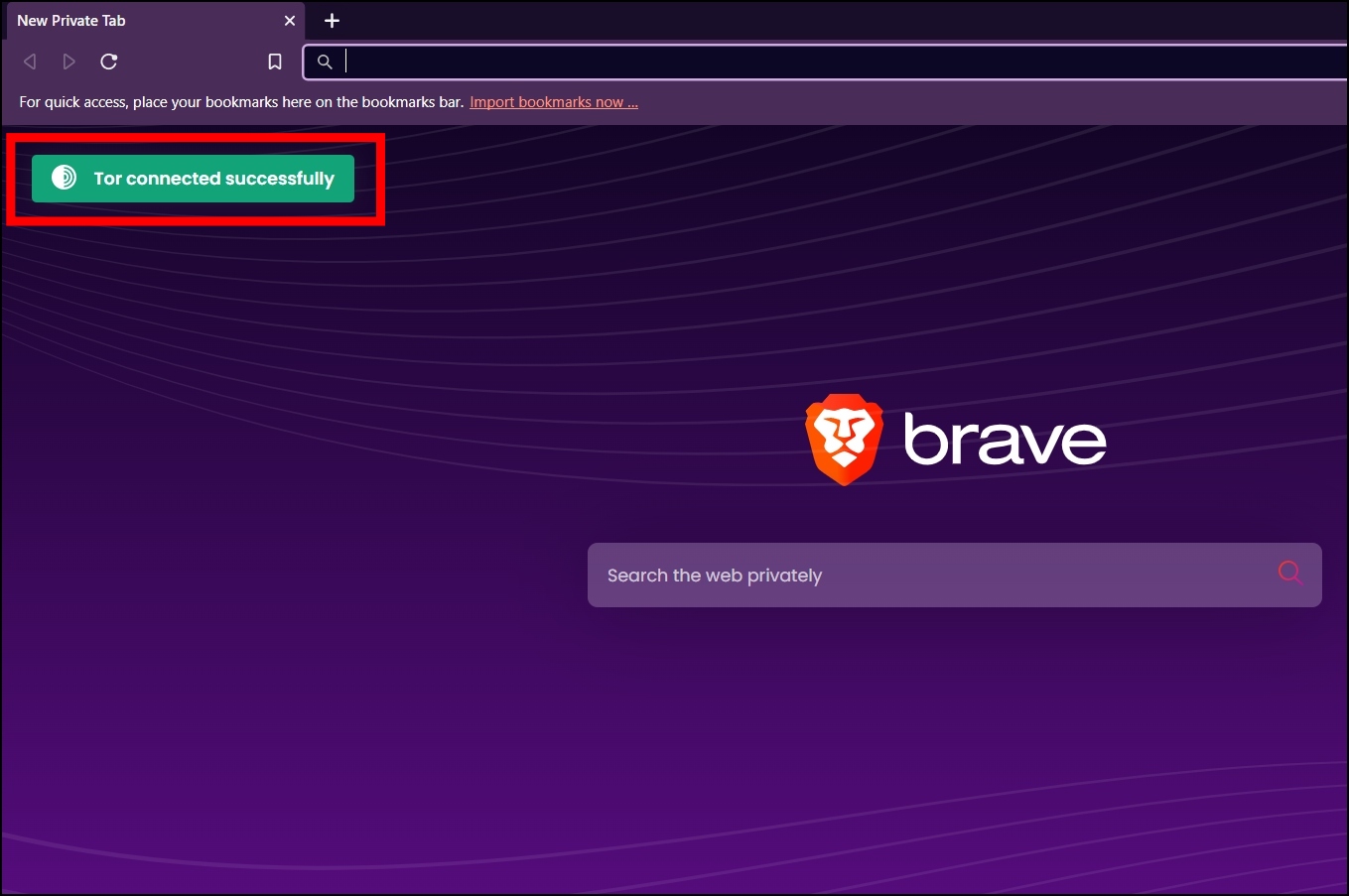
Once you see the Tor connected successfully status, you can start browsing the internet more securely with Tor browsing enabled within the Brave browser.
Make Brave Use Tor By Default Using Registry
You can also enable Tor in the browser using the registry. This will configure the browser to use the Tor network by default every time you open the browser. Follow the below-mentioned steps to do so.
Step 1: Press the Windows+R key at once to the Run window.
Step 2: Type regedit and hit enter.
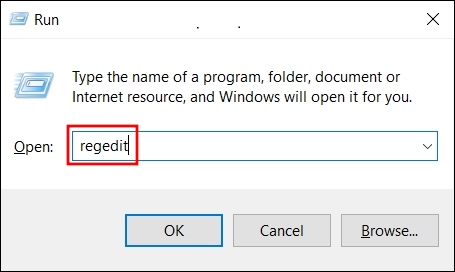
Step 3: Tap Yes on the User Account Control prompt.
Step 4: Enter HKEY_LOCAL_MACHINE\SOFTWARE\Policies in the path or scroll down the sidebar and head over to Policies.
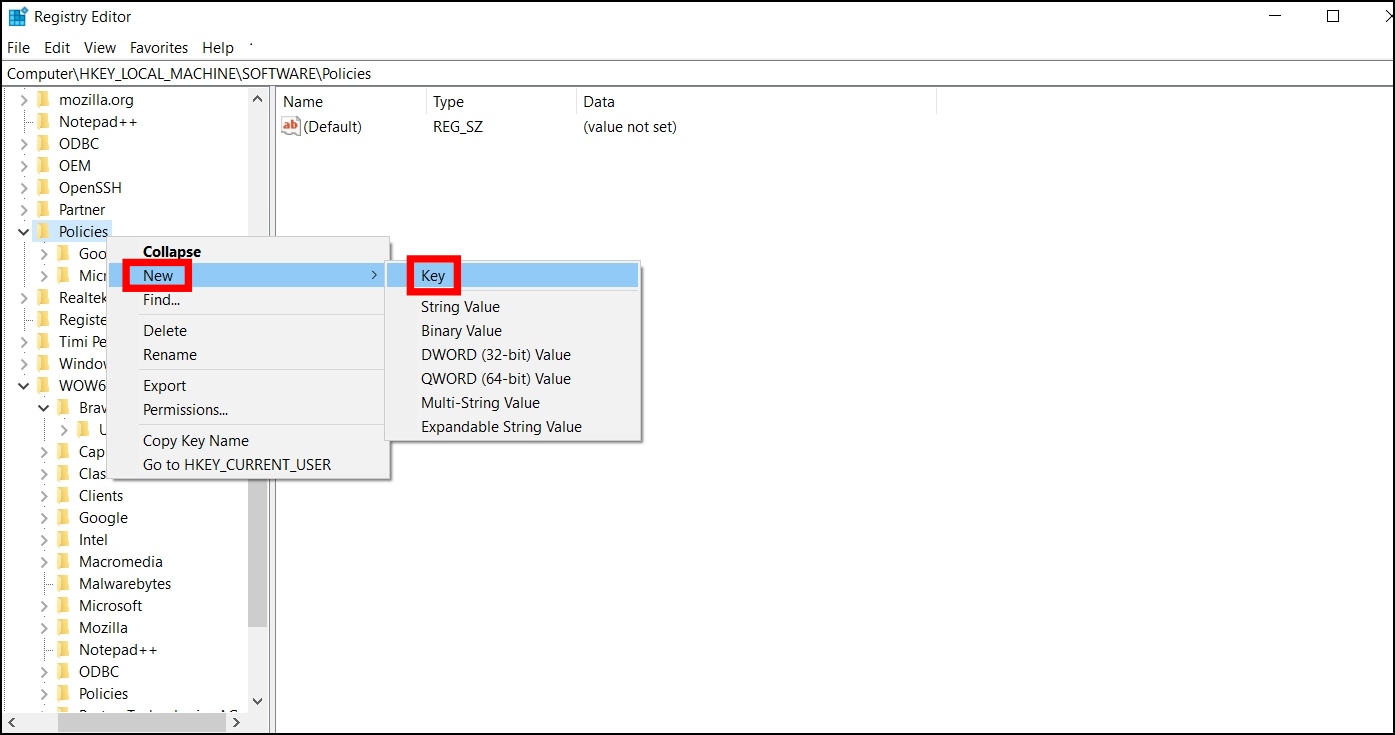
Step 5: If you are not seeing BraveSoftware, right-click on Policies and select New > Key and name it as BraveSoftware.
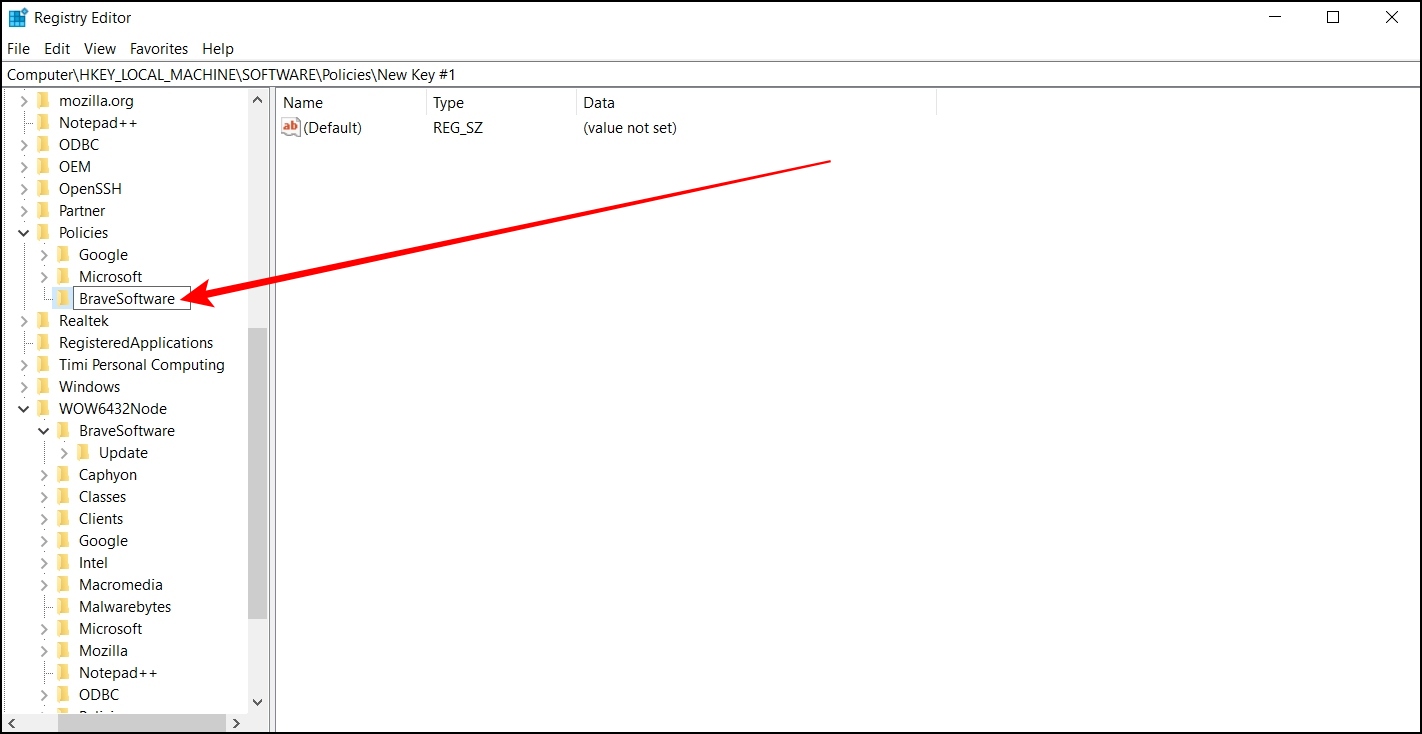
Step 6: Now, right-click on BraveSoftware, and select New > Key.
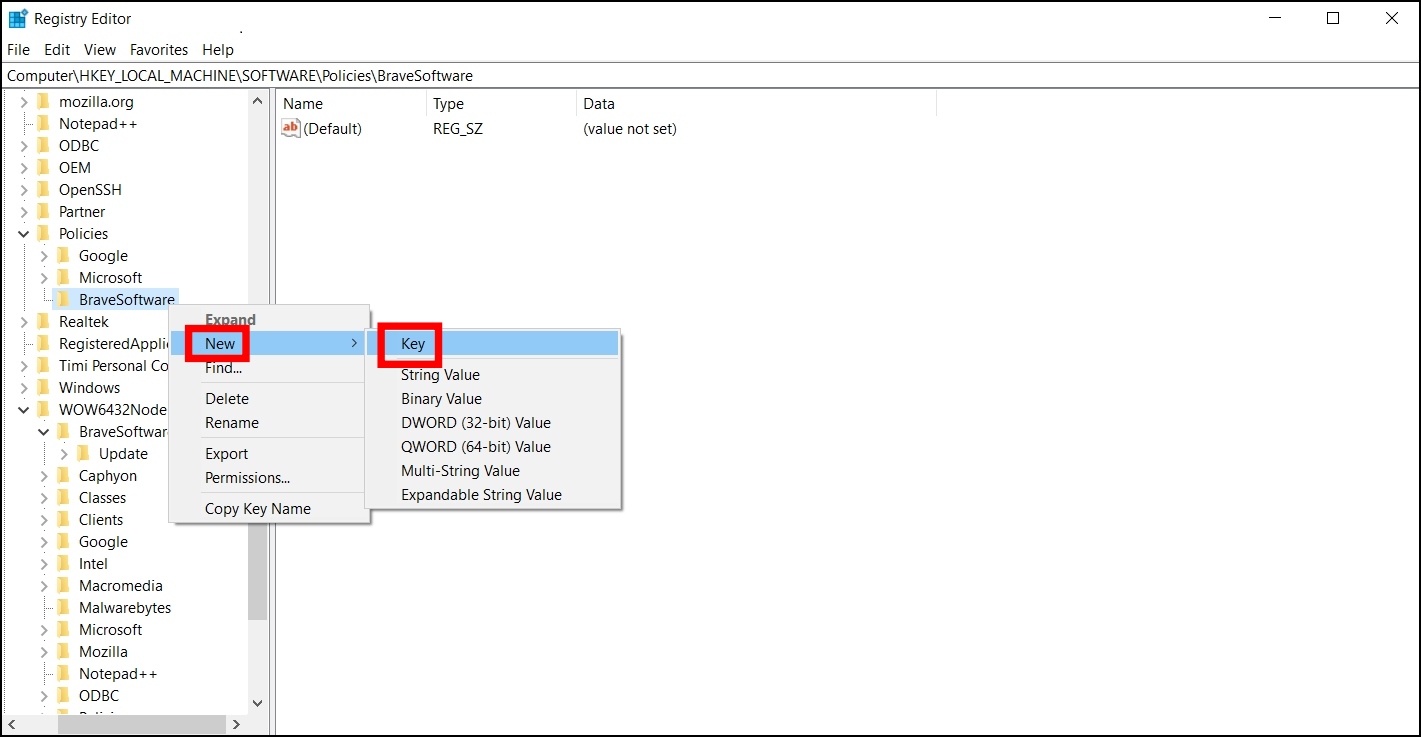
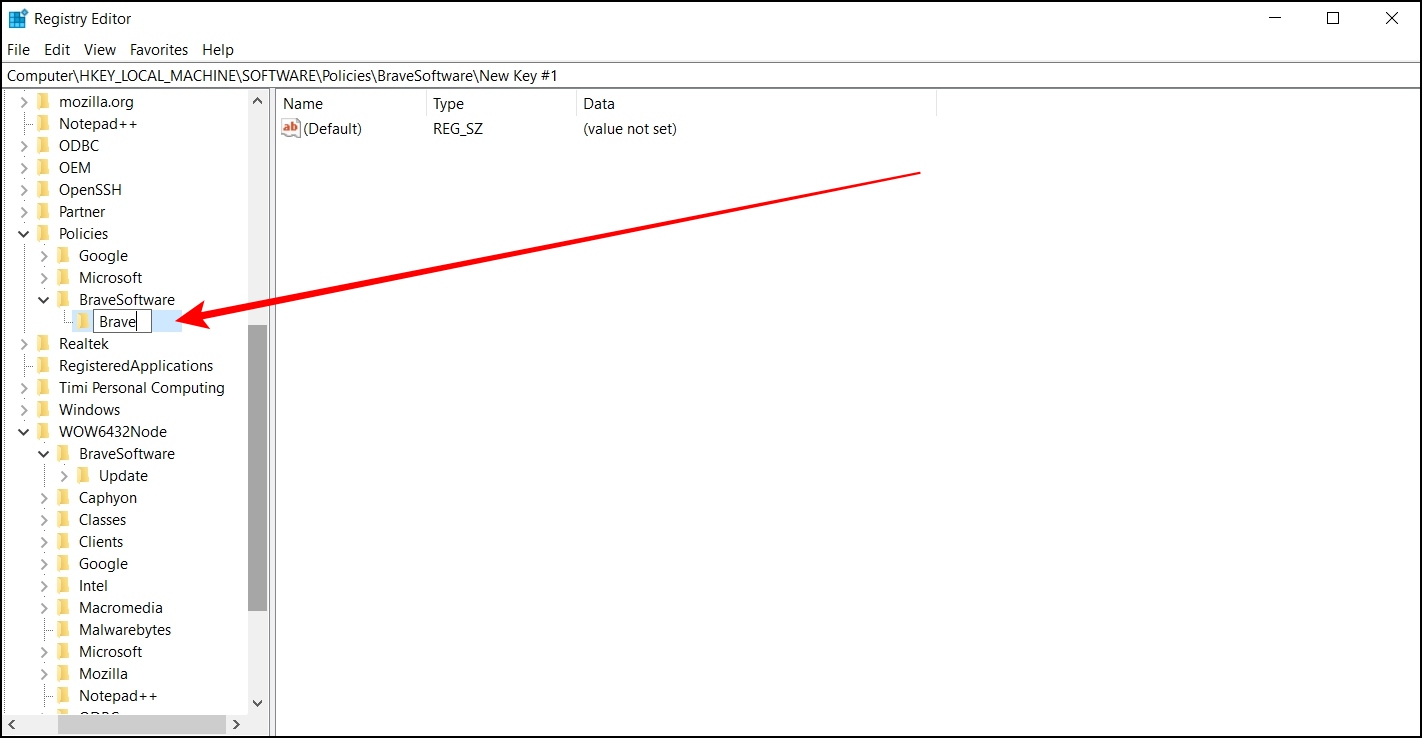
Step 7: Set the name of the key as Brave.
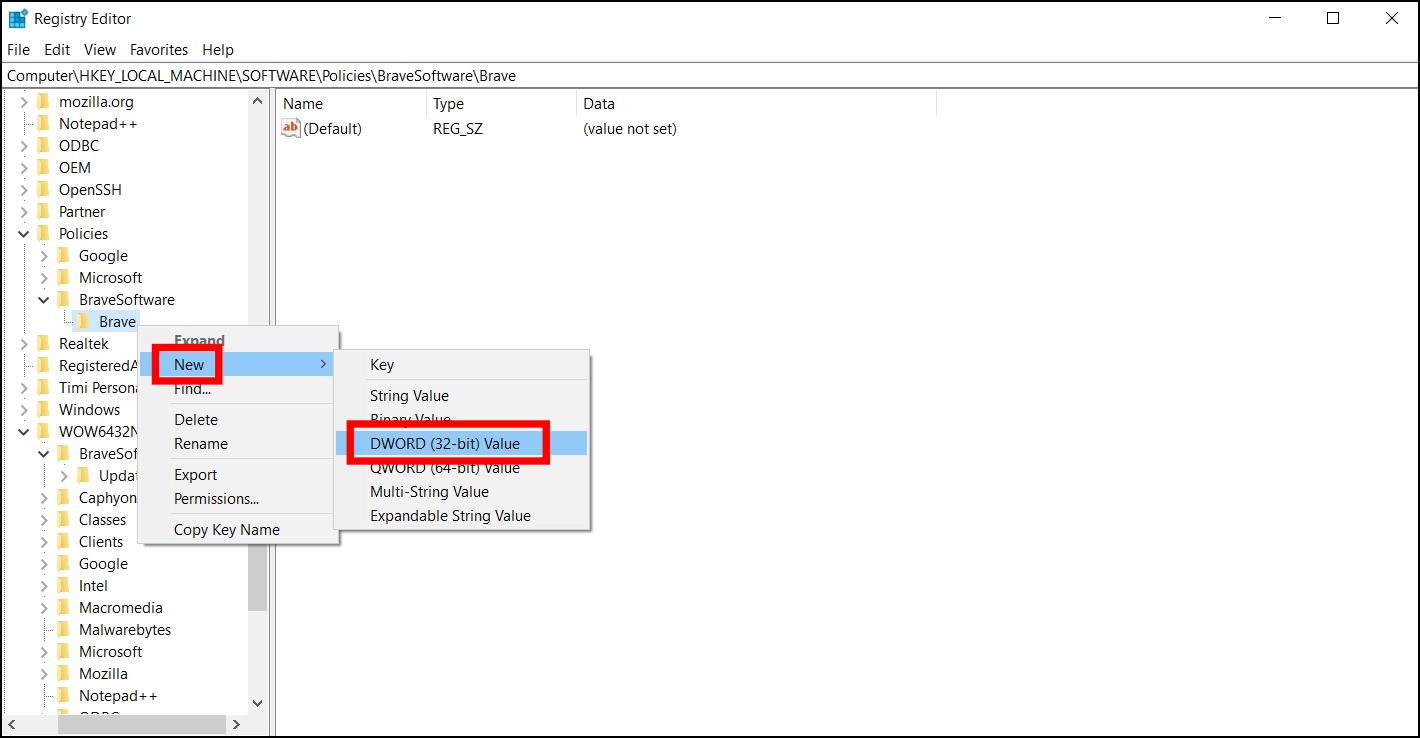
Step 8: Next, right-click on the Brave key, and select New > DWORD (32-bit Value).
Step 9: Set the name as TorDisabled.
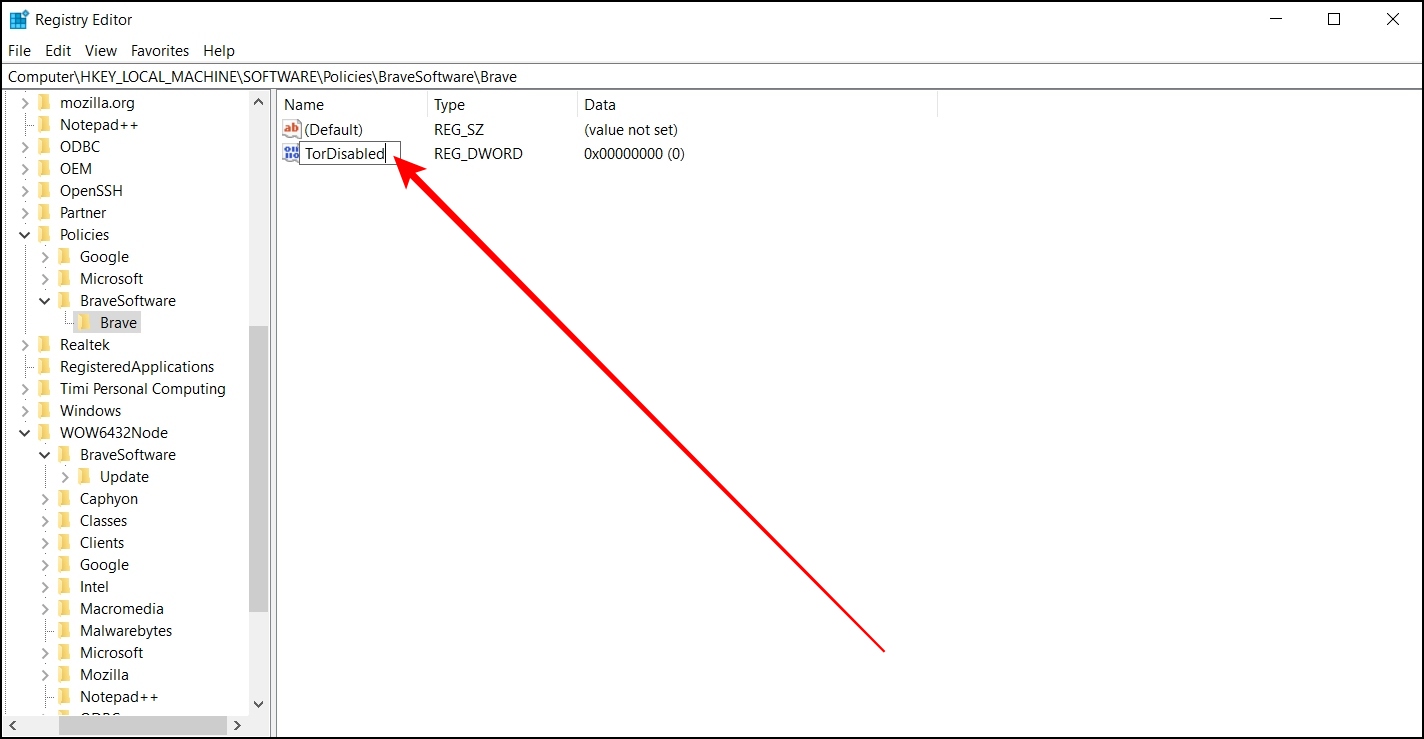
After following all the steps, restart your computer to get Tor enabled by default in Brave browser. To disable Tor, you need to same page and right-click on TorDisabled > select Modify, set its Value data to “1″, and save the changes.
Can You Use Tor in Brave Browser on Phone?
While the Private window with Tor is unavailable for the Brave mobile browser, you can prevent the browser from recognizing your device by blocking fingerprinting. Follow the below steps to do so.
Step 1: Open the Brave app on your phone.
Step 2: Tap the three-dots icon at the bottom and select Settings.
Step 3: Click on Brave Shields & Privacy under Features.
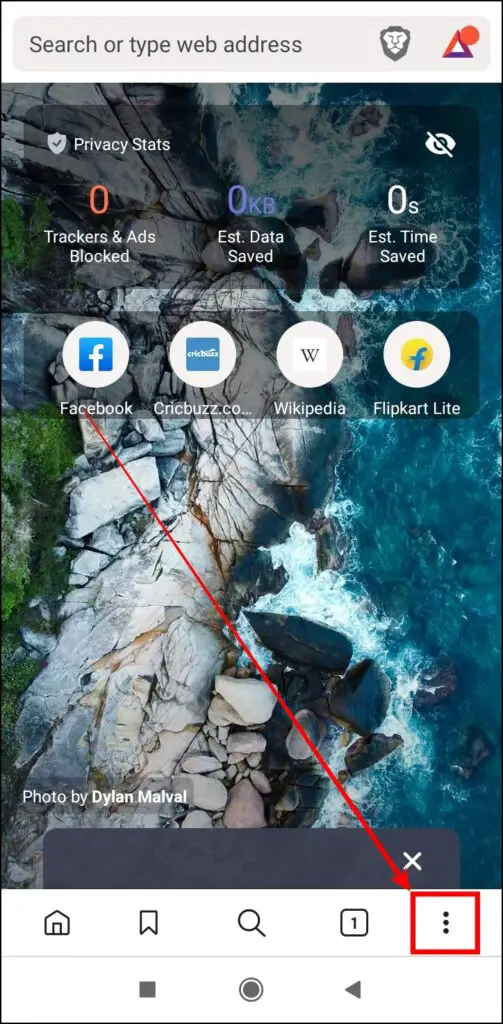
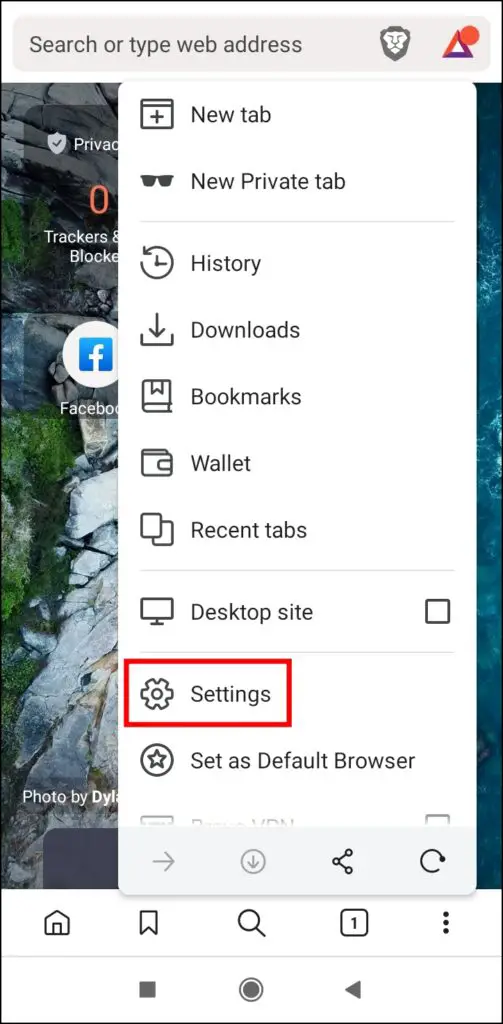
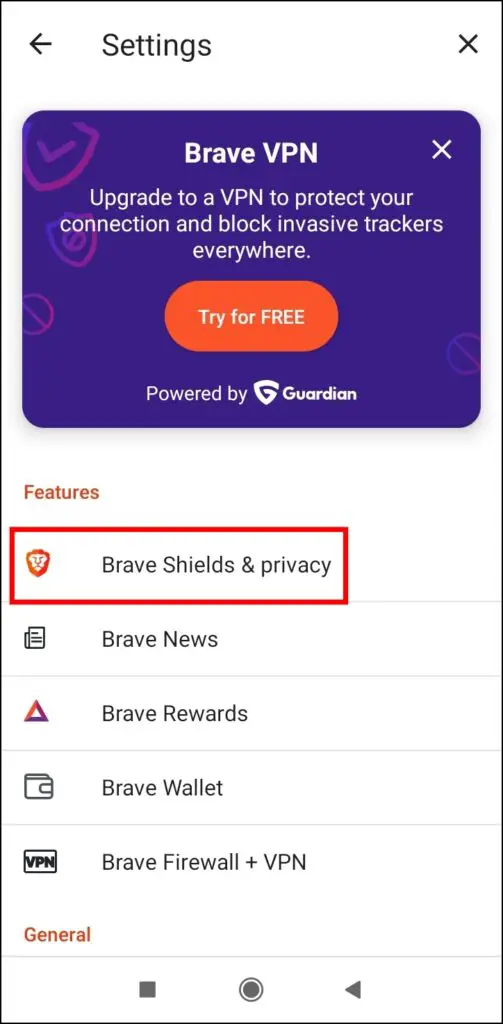
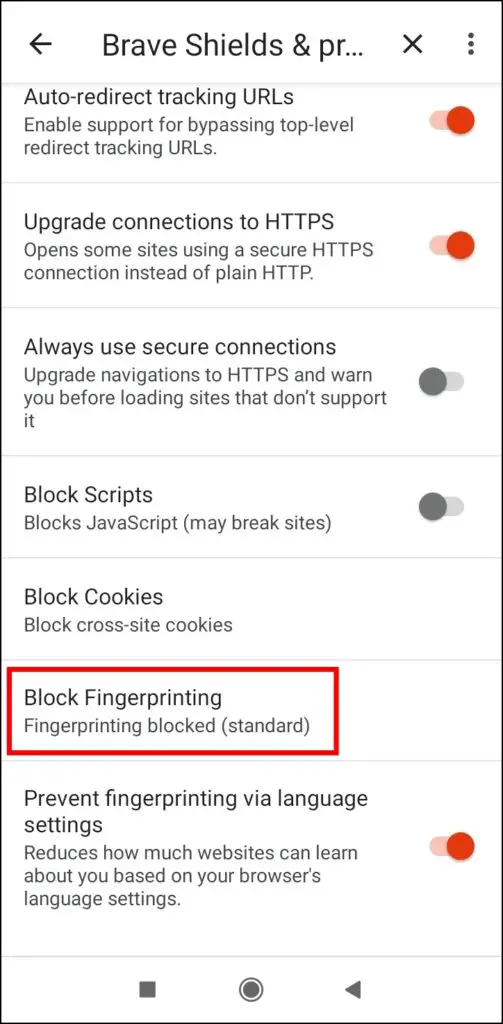
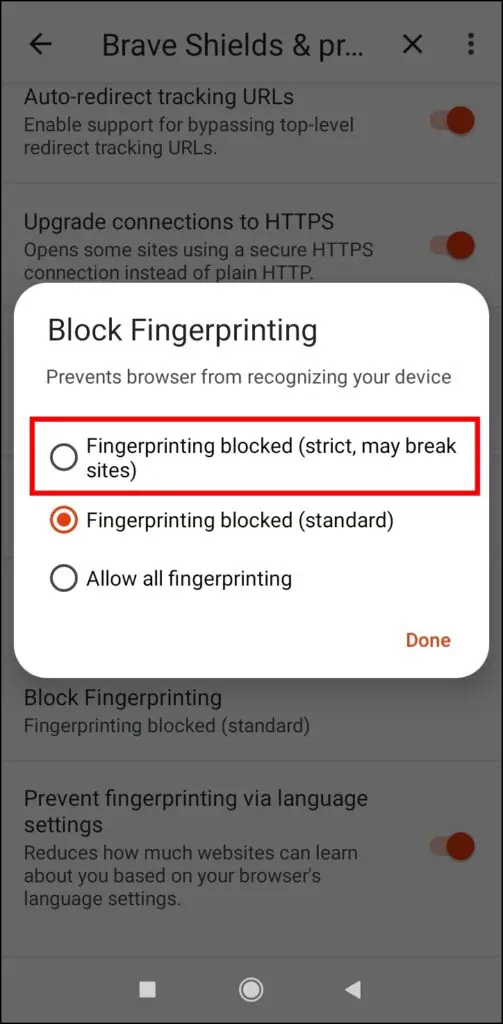
Step 4: Scroll down and tap on Block Fingerprinting under Brave Shields global defaults section.
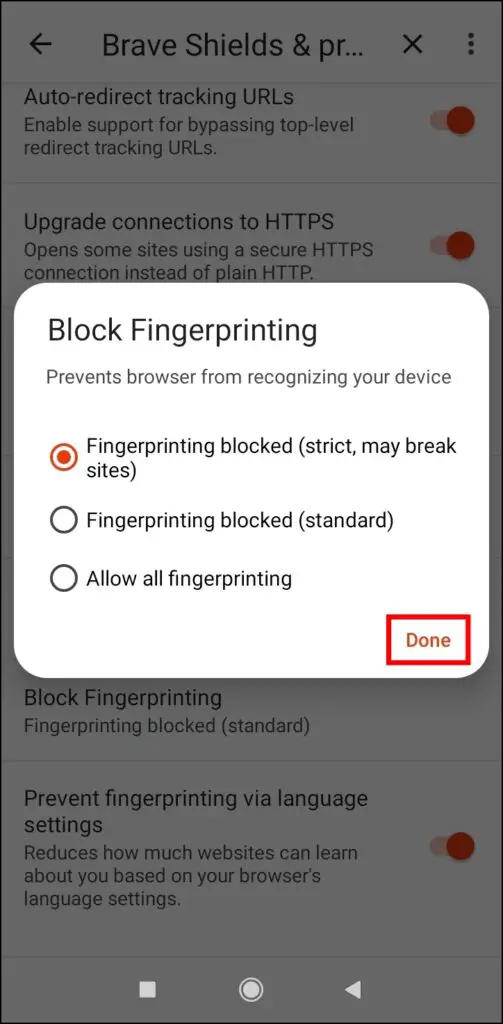
Step 5: Select Fingerprinting blocked (strict, may break sites), then tap Done. Once you do, it will prevent the browser from recognizing your device.
Step 6: Now, on the home page, tap the three-dots icon and select the New Private tab to browse the web more securely.
Brave “Private Window with Tor” vs. “Private Window with VPN”
The “Private window with Tor” in Brave browser is just a regular private window that uses Tor as a proxy and does not have any other privacy protections from the Tor browser.
You get all the standard private browsing mode features (such as no cookies, cache, extensions, and browser history storage). But additionally, it also has Tor as a web proxy so that your connection or IP address will be hidden, and your Internet service providers can’t see what you are doing.
VPN and “Private Window with Tor” in Brave are completely different. As we mentioned, in Brave Tor, you will be connected to a chain of three different computers while VPN routes your traffic via a protocol to a server owned by a VPN provider.
You can say that, in VPN, your request is passed through only by the VPN server, while “Private Window with Tor” in Brave browser routes your request via onion routing protocol with a chain of three different systems, and these servers are randomized so that your traffic is never intercepted directly.
Frequently Asked Questions
Q. Does Brave Private Browsing use Tor?
Yes, Brave has been giving a dedicated feature named “Private Window with Tor” since 2018, giving users an extra layer of security by masking their IP address.
Q. How Do I Open a Private Window With Tor in Brave Mobile?
There is no Tor option available for the Brave mobile browser, but you can browse the private window more securely by preventing the browser from recognizing your device by blocking fingerprinting.
Q. Is Brave Tor the Same as Tor Browser?
“Private window with Tor” on Brave is not equivalent to the Tor browser itself, as the Tor browser can provide complete anonymity and leak proofing.
Brave Tor is not an alternative to the Tor browser, but it can be considered an introduction to using Tor as the browser itself warns you not to use the “Private window with Tor” and to use the Tor browser if you want to stay anonymous completely.
Q. Does Brave Tor Make You Completely Anonymous Online?
Although your IP address will be hidden, and the requests sent via Tor proxy, cannot make you completely anonymous. Brave also warns users that if they want to stay anonymous completely, they recommend you use the Tor browser and not Brave’s Private window with Tor.
Wrapping Up
This is how you can enable and use Tor in Brave browser on your Phone and PC. I hope the above article helped you use “Private window with Tor” in Brave browser. If you have any queries about the article, let us know in the comments below. Stay tuned on Browser To Use for more such articles and How-tos.