Ошибка синего экрана (BSOD) Video Scheduler Internal Error в Windows: как исправить?
Ошибки встречаются на всех компьютерах, ваш ничем не отличается от прочих. Надо понимать, что это всего лишь машина, которая сталкивается с самыми разнообразными проблемами аппаратного или программного обеспечения.
Наиболее критической ошибкой в Windows является разрушительный BSOD (Blue Screen of Death) или «синий экран смерти» с грустным смайликом, сопровождаемый сообщением о сути проблемы. В этом материале мы расскажем о распространенной ошибке, которая описывается загадочной фразой «Video Scheduler Internal Error».
Неопытному пользователю словосочетание кажется пугающим и чуть ли не фатальным, но есть способы устранения этой ошибки без необходимости переустанавливать систему с форматированием диска. Сама по себе перезагрузка компьютера серьезной проблемой не является, но вот потеря данных может вызвать серьезные последствия. Мало кто хотел бы с ними столкнуться, особенно, если в наличии нет резервной копии данных.
Ниже рассмотрим несколько вариантов действий, которые помогут вернуть компьютер в рабочее состояние.
Почему появляется ошибка BSOD Video Scheduler Internal Error на ПК с Windows?
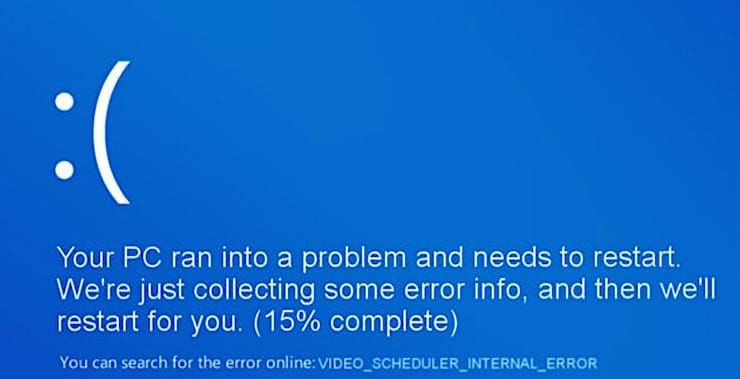
Прежде чем перейти к первой шагу в устранении проблемы, важно узнать причину, по которой она вообще возникает. Это поможет определить, насколько логичны планируемые нами к выполнению на компьютере действия и связаны ли они с факторами, которые могут вызвать внутреннюю ошибку BSOD Video Scheduler на ПК с Windows 10. Вот несколько причин, по которым появляются ошибки типа «синий экран смерти» на ПК с Windows:
1. Проблемы с графическим адаптером (видеокартой). Эти проблемы могут носить как программный, так и аппаратный характер. Устаревшие драйвера имеют отношение к программным причинам, а неисправная видеокарта – уже аппаратные проблемы, которые решаются только заменой или ремонтом устройства.
2. Поврежденные системные файлы. Трудно определить, как именно повреждены существующие системные файлы, но это может быть связано с установкой нового программного обеспечения или наличием вредоносного файла. Резкое отключение компьютера от источника питания без проведения надлежащих предварительных процедур тоже может привести к повреждению системных файлов во время их обработки при работе компьютера.
3. Заражение вирусами. Вредоносные программы и подобные им небольшие зловредные средства каждый день создаются киберпреступниками. Они хотят нарушить конфиденциальность пользователей и получить доступ к их компьютеру. Воздействие таких программ тоже может стать причиной его неисправности.
4. Повреждение реестра Windows. Еще одной причиной, вызывающей ошибку BSOD Video Scheduler на ПК с Windows 10, является вмешательство в реестр Windows. Реестр – это иерархическая база данных всех настроек компьютера, которая лежит в основе работы любой системы. Простые изменения в настройках реестра могут привести компьютер к нестабильному состоянию.
5. Недавние аппаратные / программные изменения. Любое новое оборудование, недавно подключенное к компьютеру, может быть с ним несовместимо, что приведет к появлению «синего экрана смерти». Аналогично, если вы установили новое программное обеспечение или обновили существующее, это тоже может привести к конфликту с существующими системными файлами и вызвать нестабильное поведение Windows.
Как исправить ошибку Video Scheduler Internal Error на ПК с Windows
Существует довольно много шагов для устранения BSOD типа Video Scheduler Internal Error на ПК с Windows. Большинство из них – простые и быстрые решения, которые вы, возможно, много раз и так периодически выполняли на своем компьютере. Вот список таких понятных и необходимых действий:
Запустите антивирус
Первый шаг, который рекомендуется выполнять всегда, даже если ваш компьютер работает стабильно – это проверить систему на наличие вирусов. Это наиболее распространенное действие для всех проблем, с которыми вы сталкиваетесь на вашем компьютере, включая BSOD Video Scheduler Internal Error в Windows. Если у вас отсутствует сторонний антивирус в системе, не бойтесь, ведь в ней присутствует встроенный Защитник Windows. Этот установленный по умолчанию антивирус от Microsoft по мнению многих специалистов работает довольно хорошо и помогает бороться с вредоносным ПО, обеспечивая безопасность вашей системы.
Можно посоветовать использовать Advanced System Protector, одну из лучших программ для обеспечения безопасности. Среди всех аналогов ASP выделяется с помощью своего простого и понятного интерфейса и регулярно обновляет определения вирусов.
Загрузить Advance System Protector можно здесь.
Внимание: никогда не устанавливайте и не запускайте на компьютере два разных антивируса, поскольку каждый из них идентифицирует другой, как потенциальную угрозу, что может привести к системным проблемам.
Установите доступные обновления Windows
Другой быстрой возможностью избавиться от внутренней ошибки BSOD Video Scheduler в Windows 10 является проверка обновлений Windows и установка подготовленных обновлений. Microsoft время от времени выпускает обновления и исправления программного обеспечения, чтобы пользователи могли наслаждаться стабильной, беспроблемной и удобной работой.
Примечание. Также возможно, что ошибка BSOD произошла из-за установки недавнего обновления Microsoft. В этом случае проверьте наличие недавно установленного обновления по пути: Панель управления → Программы → Программы и компоненты → Установленные обновления и удалите его.
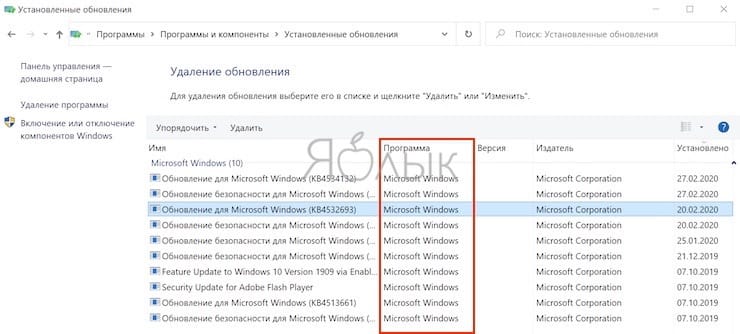
Удалите последние аппаратные / программные дополнения
Следующим возможным решением будет удаление всех периферийных устройств, подключенных к вашему компьютеру, включая USB-флешки. Вполне возможно, что конкретное оборудование может вызвать конфликт, и отключение этого устройства может устранить ошибку BSOD Video Scheduler Internal Error в Windows. Но клавиатуру с мышью от компьютера все же отключать не стоит.
Аналогично оборудованию проверьте, не устанавливали ли вы недавно в систему новую программу или приложение. Мы уже касались темы удаления обновлений на предыдущем шаге, теперь понадобится вернуться к тем же настройкам по пути: Панель управления → Программы → Программы и компоненты и проверить наличие установленных приложений.
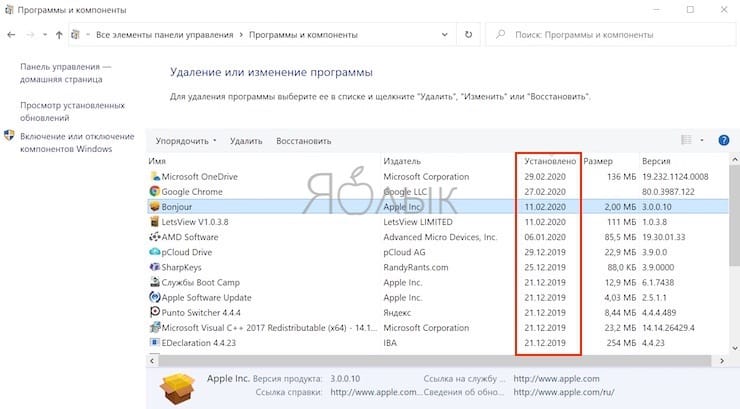
Удалите все программы, установленные в течение нескольких последних дней, а затем проверьте свою систему на наличие этой проблемы.
Проверьте драйверы видеокарты
Само слово VIDEO в описании ошибки ясно указывает на неполадки с графикой в вашем компьютере. Пора перейти к следующему этапу устранения неполадок, связанному с видеокартой. Если проблема носит аппаратный характер, тогда лучше всего обратиться к специалисту. Но сперва можно самостоятельно проверить драйверы для видеокарты. Драйвер – это небольшая программа, которая осуществляет взаимодействие между оборудованием и операционной системой. Чтобы обновить драйверы, откройте «Диспетчер устройств» и выполните следующие действия:
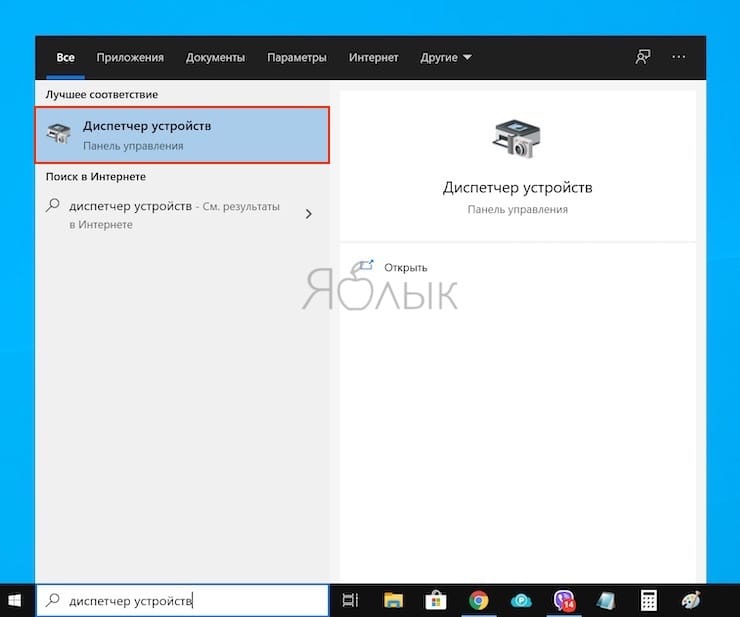
1. Откройте «Диспетчер устройств», введя эту фразу в строку поиска в левом нижнем углу экрана.
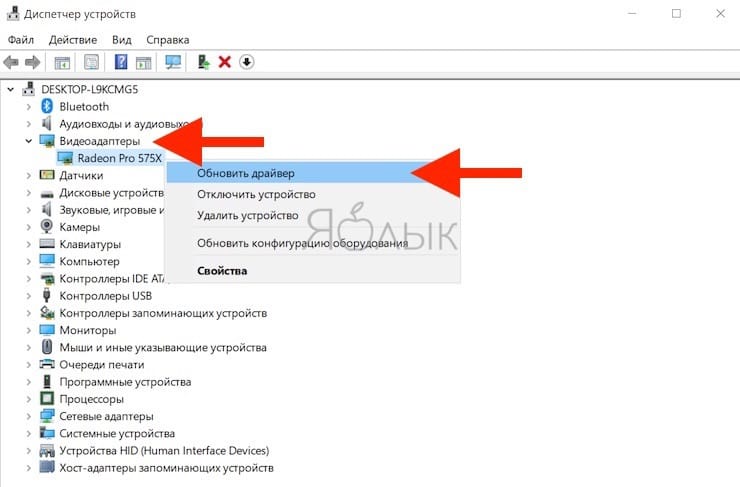
2. В новом окне найдите раздел «Видеоадаптеры» и нажмите на стрелку перед ним.
3. Будет показано название видеоадаптера. Щелкните правой кнопкой мыши на имени и выберите «Обновить драйвер». Windows автоматически выполнит поиск последнего обновления для вашей видеокарты и установит его.
4. После установки обновления перезагрузите компьютер, чтобы изменения вступили в силу.
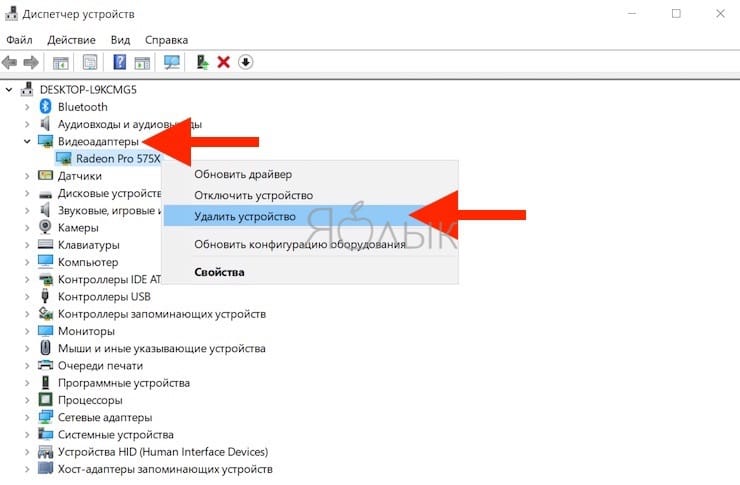
Если обновление драйверов не помогает устранить внутреннюю ошибку BSOD Video Scheduler в Windows, то следующим шагом будет переустановка видеодрайверов. Выполните те же действия, чтобы открыть диспетчер устройств и найти видеоадаптеры.
Теперь в появляющемся при клике правой кнопкой мыши на устройстве меню выберите третий вариант – «Удалить устройство».
Закончите цепочку действий и перезагрузите компьютер. В Windows 10 любой неустановленный драйвер по умолчанию автоматически будет устанавливаться при перезагрузке компьютера. Но если этого не произойдет, вы можете загрузить исполняемый файл из центра загрузки Windows или с сайта производителя графической карты.
Проверьте системные файлов и жесткий диск на повреждения
Чтобы проверить системные файлы на ошибки, приготовьтесь почувствовать себя программистом. На самом деле этот процесс требует не написания кода, а просто ввода некоторых команд в окне операционной системы MS DOS. Вам нужно будет запустить Check Disk, System File Checker и DISM. Сначала откройте командную строку в режиме администратора, выполнив следующие действия:
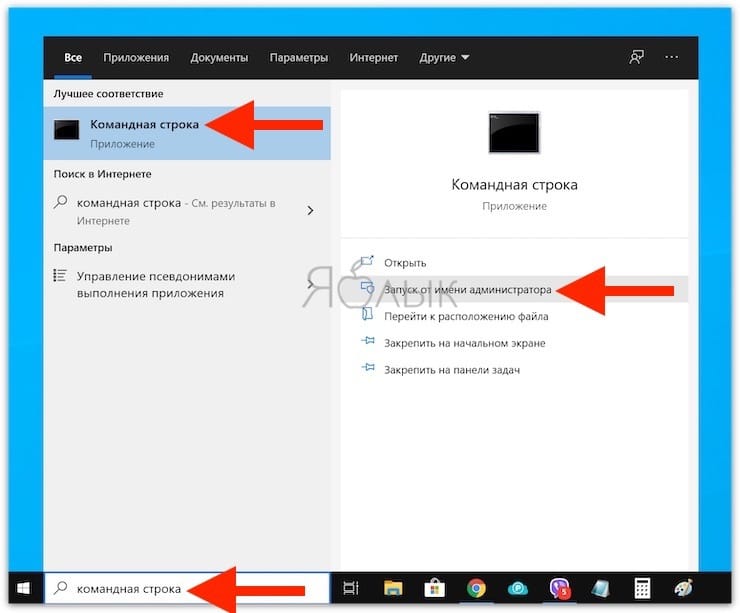
1. Введите в строке поиска в левом нижнем углу экрана «Командная строка» и в результатах поиска щелкните правой кнопкой мыши по «Командной строке», выбрав «Запуск от имени администратора».
2. Откроется новое черное окно с белыми символами. Введите следующую команду, чтобы проверить жесткий диск на предмет логических или физических повреждений.
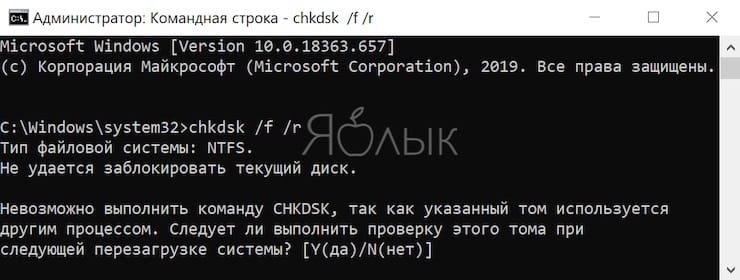
Примечание. Если вы видите сообщение об ошибке, в котором говорится, что команда проверки диска не может быть запущена, нажмите «Y» и перезагрузите компьютер. Процесс начнется автоматически при следующей загрузке.
3. Чтобы проверить наличие системных файлов и исправить их при необходимости, введите следующую команду в командной строке в режиме администратора.
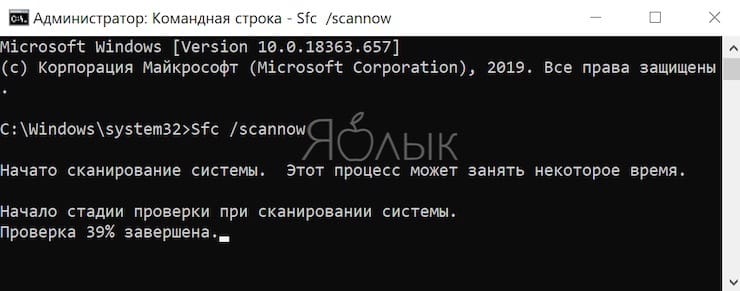
4. Последним шагом работы в командной строке будет запуск Системы обслуживания образов развертывания и управления ими или DISM.
Dism /Online /Cleanup-Image /StartComponentCleanup
Dism /Online /Cleanup-Image /RestoreHealth
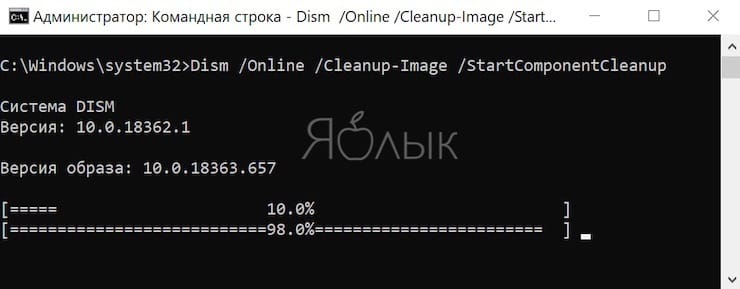
Примечание: Команды надо выполнять последовательно, одну за другой.
5. Перезагрузите компьютер, и он попробует сам исправить ошибку BSOD Video Scheduler в Windows.
Запустите очистку диска
Очистка диска помогает удалить ненужные файлы с вашего компьютера и устранить ошибку BSOD Video Scheduler Internal Error в Windows. Рекомендуется выполнять этот шаг не реже одного раза в месяц на вашем компьютере, даже если он находится в идеальном стабильном состоянии.
1. Откройте Проводник, нажав клавишу Windows и букву E.
2. Нажмите на «Этот компьютер» в списке слева. Затем щелкните правой кнопкой мыши на локальном диске C и выберите «Свойства».
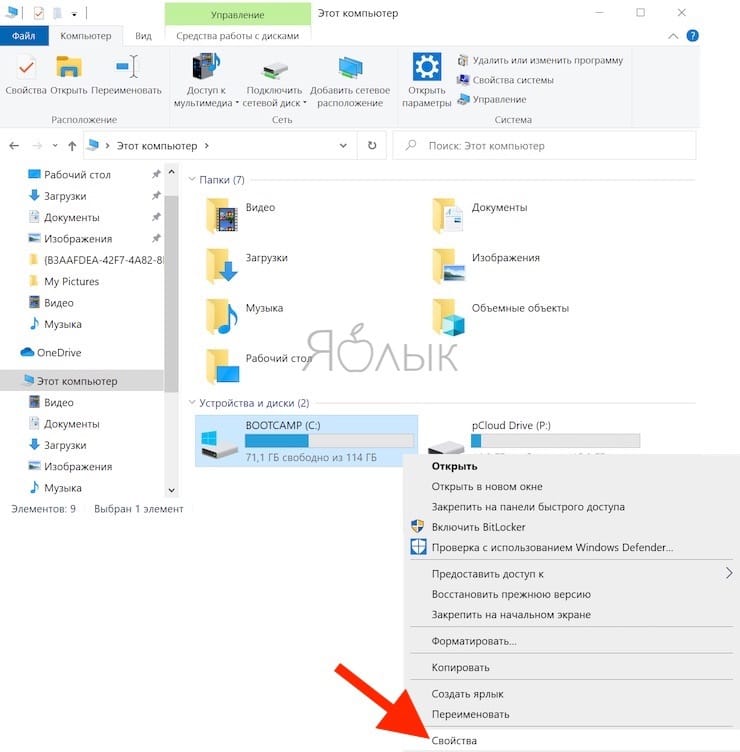
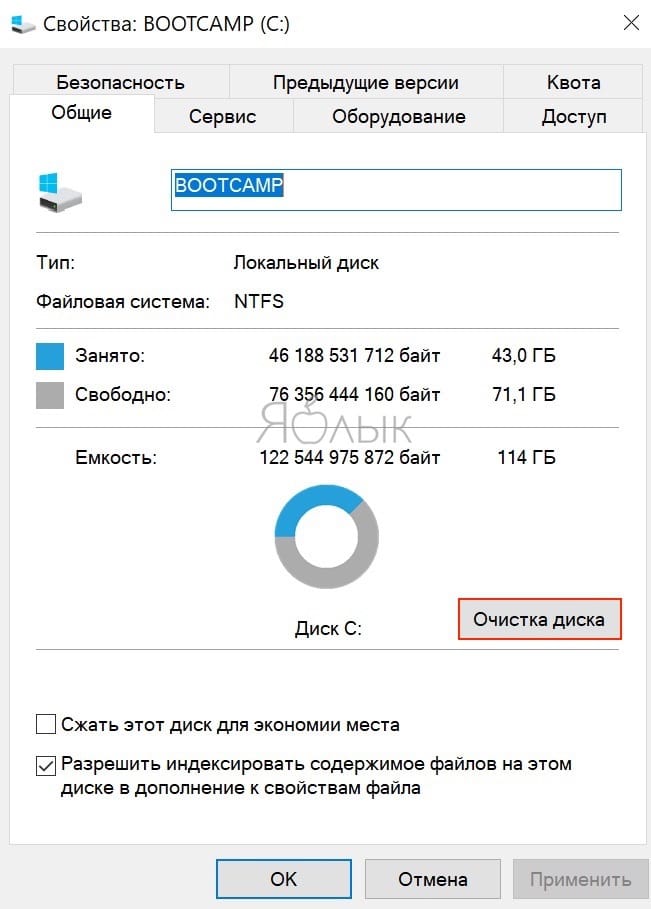
3. В новом окне на вкладке «Общие» нажмите на «Очистка диска».
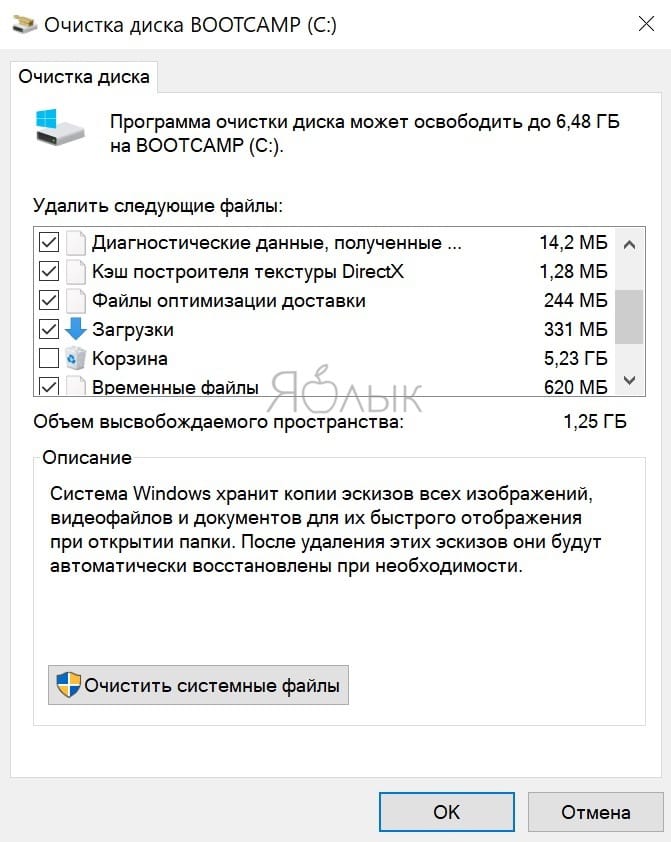
4. Появится новое окно со списком файлов, которые можно удалить. Выберите все и нажмите внизу кнопку «Очистить системные файлы».
5. После завершения процесса очистки перезагрузите компьютер, чтобы изменения вступили в силу.
Восстановление системы
Восстановление системы помогает восстановить компьютер до предыдущего стабильного состояния. Данная процедура не удаляет личные файлы, но единственным нюансом этого шага является то, что после восстановления компьютера до предыдущего состояния вы потеряете все изменения настроек и установленные программы, сделанные после создания этой точки восстановления системы. Чтобы решить проблему BSOD Video Scheduler Internal Error в Windows, инициируйте восстановление системы, выполнив следующие шаги:
1. Введите «Восстановление» в поле поиска.
2. В открывшемся новом окне нажмите кнопку «Восстановление».
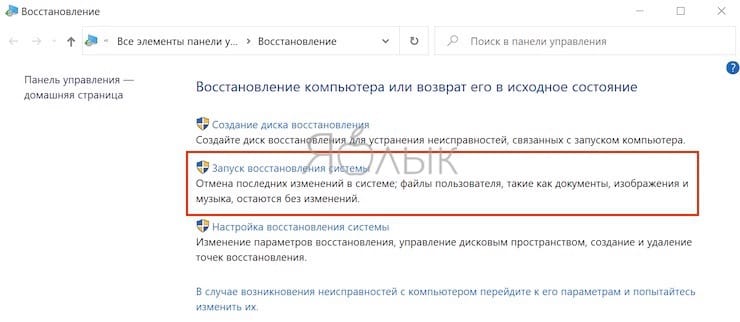
3. Выберите пункт «Запуск восстановления системы».
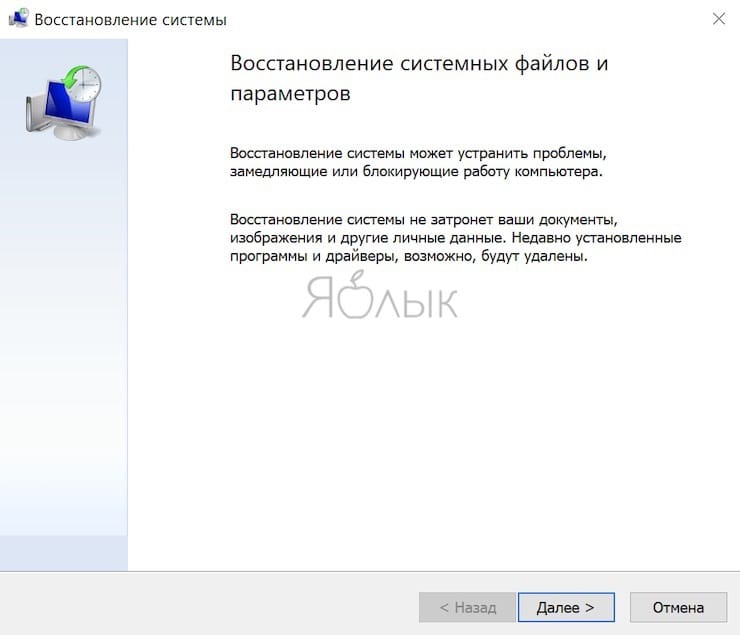
4. Нажмите «Далее» и следуйте инструкциям на экране.
Проверьте физическое состояние видеокарты
Если вы знаете, как открыть корпус вашего компьютера, то можете физически проверить видеокарту. Это позволит убедиться хотя бы в правильном ее подключении и отсутствии видимых повреждений. В противном случае вам понадобится отнести устройство в ближайший сервисный центр для диагностики и ремонта.
Восстановите ваш компьютер до заводских настроек
Если все вышеупомянутые шаги не работают, то, к сожалению, единственная оставшаяся опция для устранения ошибки BSOD Video Scheduler Internal Error в Windows – это восстановление компьютера до заводского состояния.
Easy Ways to FIX: Video Scheduler Internal Error

Summary: Recently Windows users have reported that a blue screen is bugging them with a stop code Video Scheduler Internal Error. We’re sharing the best possible methods to fix it as quickly as possible. This error may be caused by several reasons and cause damage to your system. Read this blog to learn more about this problem.


Multiple things can be annoying while working on your Windows 10 PC, such as unnecessary advertisements popping up while browsing, a program that keeps asking for permission before running, or an application crashing every time you try to run it. But such troubles are nothing compared to experiencing a blue screen on your system with a stop code – Video Scheduler Internal Error.
Such Blue Screen of Death errors can make you feel a little overwhelming, mainly when they occur out of nowhere and you don’t know what to do next. But, worry not! Here are some effective solutions to help you fix the problem.
What is Video Scheduler Internal Error & Why it occurs?
Video Scheduler Internal Error is a Blue Screen of Death (BSOD) error caused by faulty hardware, incompatible or outdated graphic card drivers, damaged system files, malware attacks, etc. This error may crash your Windows, make your system reboot unexpectedly, or not boot at all. Several users have also reported this error while using the Skype application. There are several queries posted around the internet, such as:
- Video Scheduler Internal Error on Boot
- Video Scheduler Internal Error Skype
Irrespective of the reasons and situations, you may fix this error by attempting the best DIY methods we’ve shared in this blog.
How to Fix Video_Scheduler_Internal_Error?
Before we jump on to the other technical methods, here are a few quick fixes that may help you straight away.
Quick Fixes:
- Dust off your system to clean it up and ensure that the GPU (Graphical Processing Unit) gets enough air to work properly.
- Check if you have made any recent hardware changes on your system. If yes, revert the changes.
- Temporarily disable the antivirus program, reboot your system (if possible), and re-enable it.
After all quick fixes, you can follow the given troubleshooting methods.
Method 1: Run Malware Scan for your PC
- Press Windows + I to open Settings and go to Update & Security.
- Navigate to Windows Security and go to Virus & threat protection.
- Next, check if any action is required and follow the instructions to fix this blue screen error.
- Once done, reboot your system and check if the Video_Scheduler_Internal_Error is gone.
Method 2: Disable Hardware Acceleration
- Open Control Panel and navigate to View by given at the top-right corner and select Large Icons.
- Reboot your system and check if the problem is fixed.
Method 3: Run CHKDSK Command
Caution: This method checks and fixes the corruption on the hard drives while marking bad sectors on the hard drive. However, when it reads and keeps the bad sectors, it prevents Windows from storing data from these sectors, which causes data loss. So we’d suggest you take a backup of your system (if possible) and then proceed.
- In the Windows Search bar, type cmd to open Command Prompt.
- Click Run as administrator.
- Wait until the process is done. It may take some time to fix hard drive corruption.
- Once done, close the command prompt window and reboot your system.
Note: If you have no data backup, don’t worry! You can recover your lost data using reliable data recovery software, such as Stellar Data Recovery Professional. It is a DIY tool that efficiently retrieves data in case of deletion, formatting, corruption, malware attack, etc. It can also restore data from crashed, unbootable, or BSOD-affected Windows PCs and laptops. You can watch this video to learn more:
Method 4: Run SFC Scan
- Run Command prompt as administrator.
- In the command prompt window, type DISM.exe /Online /Cleanup-image /Restorehealthand press Enter.
- Wait until the process is done. This command will help Windows to show files that need to be fixed.
- After that, type SFC/Scannow and press Enter.
- It will fix the corrupted or damaged system files. Close the window now and restart your system to check if Video Scheduler Internal Error Windows 10 error is gone.
Method 5: Update Graphic Cards Driver
- Press Windows + X and choose Device Manager.
- Locate the Display adapters category and expand it.
- Click on the driver and click Update driver.
- Click Search automatically for drivers on the following prompt.
- Windows 10 will start looking for the latest driver software available.
- Once the process is completed, you may reboot your Windows 10 to check if the stop code Video Scheduler Internal Error is gone.
Note: Sometimes, your system may have problems with your current graphics. For this, you may visit the official site of the graphic card manufacturer and download the latest driver software to fix the problem.
Method 6: Install Windows Update
Installing Windows update with new security patches and features is essential for your PC’s smooth performance. However, if some updates are missing and you’re facing a blue screen error on your screen, try installing the latest Windows update by following the given steps:
- Type Settings in the Windows search box or press Windows + I to open System Settings.
- Next, locate Update & Security and follow Windows Update > Check for updates.
- Follow the instructions given on the following prompt to install the latest Windows update (if any).
- Once done, reboot your system and see if your PC is back to normal.
Method 7: Reset this PC
If none of the other methods works, try resetting your PC. However, this process may lead to permanent data loss, because to run this process, it is recommended to remove everything from your system and bring it back to the default configuration. If you have a backup, proceed further without any second thoughts. If not, use a powerful data recovery software to recover your lost, deleted data from the system.
After data recovery, follow the given steps:
- Press Windows + I and choose Update & Security > Recovery.
- There, click Get started mentioned under Reset this PC.
- On the next prompt, choose to Remove everything to make this process a success.
- After that, select ‘Just remove your files’ and click Next.
- A warning message will appear, showing that your data will be gone.
- Click Next > Reset and then Continue (if prompts).
- Let the process end. Finally, reboot your system.
Fix BSOD Errors Like A Pro!
Video Scheduler Internal Error on your Windows 10 appears with a blue screen. It may occur under any circumstance and due to any reason. This blog provides you with the best possible methods to fix this BSOD error. All are DIY methods, meaning you can attempt them easily by following the instructions. However, a few ways, such as running CHKDSK and Resetting PC, may cause you data loss. You don’t have to worry if you have a backup or keep a powerful data recovery software handy for such situations.
About The Author
Mansi Verma is a Senior Technology Writer at Stellar®. She is a Tech enthusiast, holding over 8 years of experience in Data Recovery, IoT, Artificial Intelligence, and the Robotics technology domain. She loves researching and providing DIY solutions to solve Windows technical issues. In her spare time, she likes reading novels, and poetry. She also enjoys Travelling, Rafting, Trekking, etc.
7 comments
Any idea what would cause this BSOD error exactly ONCE a day? It always happens within 5
15 minutes of booting up the PC for the day either from sleep mode or when its powered off. After a forced restart the PC runs absolutely perfect as long as it isn’t put into sleep mode or turned off, then it repeats itself. I’ve tested it by leaving it on for 2-3 days and it does everything it’s supposed to do normally without crashing while running some very demanding games and apps at highest possible graphics.
I’ve done pretty much everything in this list to try to fix it and nothing seems to resolve it. I’ve even formatted and reinstalled fresh OS to no avail.
Hi James,
You can follow the below mentioned steps to fix this issues:
1. If you’ve recently installed hardware or software, it’s possible this is what’s causing your problem. Especially if the Video Scheduler Internal Error began right after installing something new, try removing it. Both new hardware and the system drivers installed by it can cause trouble, as can standalone software.
For software, the built-in Windows System Restore tool can be handy, especially if you manually created a restore point before you added the new hardware or software.
2. Heavy graphics cards can begin to bend in the slot after a while, which can cause the error. If this is happening, try turning your PC on its side and see if the error goes away.
3. Disable or turn off hardware acceleration in your browser. Open Chrome browser, select Menu > Settings > Advanced > System and uncheck the Use hardware acceleration when available box.
Hope this helps you out.
Any idea what would cause this BSOD error exactly ONCE a day? It always happens within 5
15 minutes of booting up the PC for the day either from sleep mode or when its powered off. After a forced restart the PC runs absolutely perfect as long as it isn’t put into sleep mode or turned off, then it repeats itself. I’ve tested it by leaving it on for 2-3 days and it does everything it’s supposed to do normally without crashing while running some very demanding games and apps at highest possible graphics.
I’ve done pretty much everything in this list to try to fix it and nothing seems to resolve it. I’ve even formatted and reinstalled fresh OS to no avail.
This blog provides the best possible methods to fix BSOD errors. I can easily follow the quick fixes mentioned in the blog and resolve the video scheduler’s internal errors. Thanks a lot for sharing.
Hi Etta,
Great to know that your issue got fixed. Keep reading us for much such updates related to such errors.
Deep knowledge required for writing such a blog and providing DIY methods. You must have encountered with the same that is why know all these things or you must be living in such a environment where people deal with all these sort of errors or similar issues. Great job done. Keep posting.
Hi Jack,
Its glad to know that you love the article. Keep reading us and follow us for more such updates.
How To Fix A Video Scheduler Internal Error Bsod In Windows 10
The blue screen of death (BSOD) comes in several forms, each of which can affect your PC’s functionality. Among them is the video_scheduler_internal_error, which can show up when you’re surfing the web or using certain software on your Windows computer. Fortunately, there are several possible fixes to the video scheduler internal error in Windows 10.
What is Video Scheduler Internal Error in Windows 10?#
The video scheduler internal error is a common cryptic Windows 10 stop code error, which indicates that the video scheduler has detected a fatal violation. The error is caused by different things including changes in software or hardware, malware or virus infection, corrupted Windows registry, overclocked graphics card, incompatible security software, or outdated graphics card drivers in the operating system. When you get the video scheduler error, your computer may freeze for a few minutes and then restart, all of which can be frustrating for many users especially if you didn’t save your work.
How to Fix the Video Scheduler Internal Error in Windows 10#
This section outlines some of the possible solutions you can use to fix the video scheduler internal stop code error in Windows 10. Follow each step in order until the error does not reappear.
Quick Fixes#
Clean the dust off your PC and ensure your graphical processing unit (GPU) is getting adequate airflow (see our guide on how to clean your PC).Check for any hardware malfunction especially in the GPU.If the error appeared after you installed software or made changes to hardware on your PC, revert such modifications.Run an antivirus scan. The video scheduler internal stop code error may happen because of a malware or virus infection. If you’re using Windows Defender or a strong, reliable third-party antivirus software, scan your PC to rule out the existence of viruses and any such threats.Temporarily disable your antivirus software as they could cause conflicts with your video card or the operating system and bring up the stop code error. If the antivirus isn’t the problem, re-enable it to keep your PC protected.Disable or turn off hardware acceleration in your browser. Open Chrome browser, select Menu > Settings > Advanced > System and uncheck the Use hardware acceleration when available box.
Run CHKDSK to Check Hard Drive Errors#
Chkdsk or check disk is a utility in Windows 10 Command Prompt that checks for any logical and physical errors in the file system and file system metadata of a disk volume. If there are any malfunctioning or damaged sectors on the disk or hard drive, the chkdsk command marks them as bad and recovers any information that’s still intact. You can run chkdsk from the Command Prompt or from My Computer. For this guide, we’ll use the Command Prompt. The /f /r /x are parameters that perform different functions as follows:
/f attempts to fix any errors that the chkdsk utility finds/r locates bad sectors and recovers any readable information/x forces the volume you’re checking to be dismounted before chkdsk begins the scan
If chkdsk doesn’t find any errors, you’ll get a message saying no errors were found, but if it finds errors, you’ll be prompted to restart your computer to repair the file system or schedule it for the next time you restart your PC.
Run an SFC Scan to Check Windows System Files#
The System File Checker (SFC) scan scans your PC and repairs the system files. Also, it inspects all important Windows files and replaces any that have a problem. Check out our guide on how to run an SFC scan to fix or repair corrupt system files.
Update the Graphics Card Driver#
An outdated or corrupted graphics card driver may cause the video scheduler internal error in your PC. Thankfully, Windows makes it easy to update your drivers. Note: Sometimes your computer may not be able to handle your current graphics card settings. In such cases, you can adjust the settings for quality or performance via the card’s software or control panel. If you’re using an NVIDIA graphics card, see our guide on how to update NVIDIA drivers for best performance
Update Windows#
Windows Updates may seem annoying especially if they tend to show up every often. However, these updates come with new patches or software updates that are important for the proper running of your PC. To check for updates, Select Start > Settings > Update & Security > Windows Updates and check for updates. If there are any pending updates, make sure to download and install them to your PC and then restart it once they’re installed. Learn more from our guides on how to fix a stuck Windows 10 Update and how to update Windows without Windows Update.
Reinstall Graphics Card#
If you have a spare or separate graphics card, install it to see if you still get the video scheduler internal stop code error. Alternatively, check if the video card is damaged and reinstall if there are no issues. If you’re not sure how to do this, seek advice from an expert technician to inspect your computer for you or consult your device manufacturer’s support team for assistance.
Perform a Factory Reset#
If all else fails, get a fresh start with Windows 10 by performing a factory reset. You can refresh Windows and keep your files and apps, or remove everything. Make sure you backup everything you want to keep before resetting your PC.
Fix Annoying BSOD Errors for Good#
We hope you found this guide helpful in solving the video scheduler internal stop code error on your PC. Share with us which solution worked for you by leaving a comment below.
Video Scheduler Internal Error: 6 Easy Fixes
Find out how to solve this on Windows 10 & Windows 11
- The Video Scheduler Internal Error usually occurs due to problems with your graphics card.
- The most common cause for the Video Scheduler Internal Error is related to your drivers, so be sure that you’re using the latest version.
- An outdated system can also lead to problems such as this, therefore, keep it up to date.
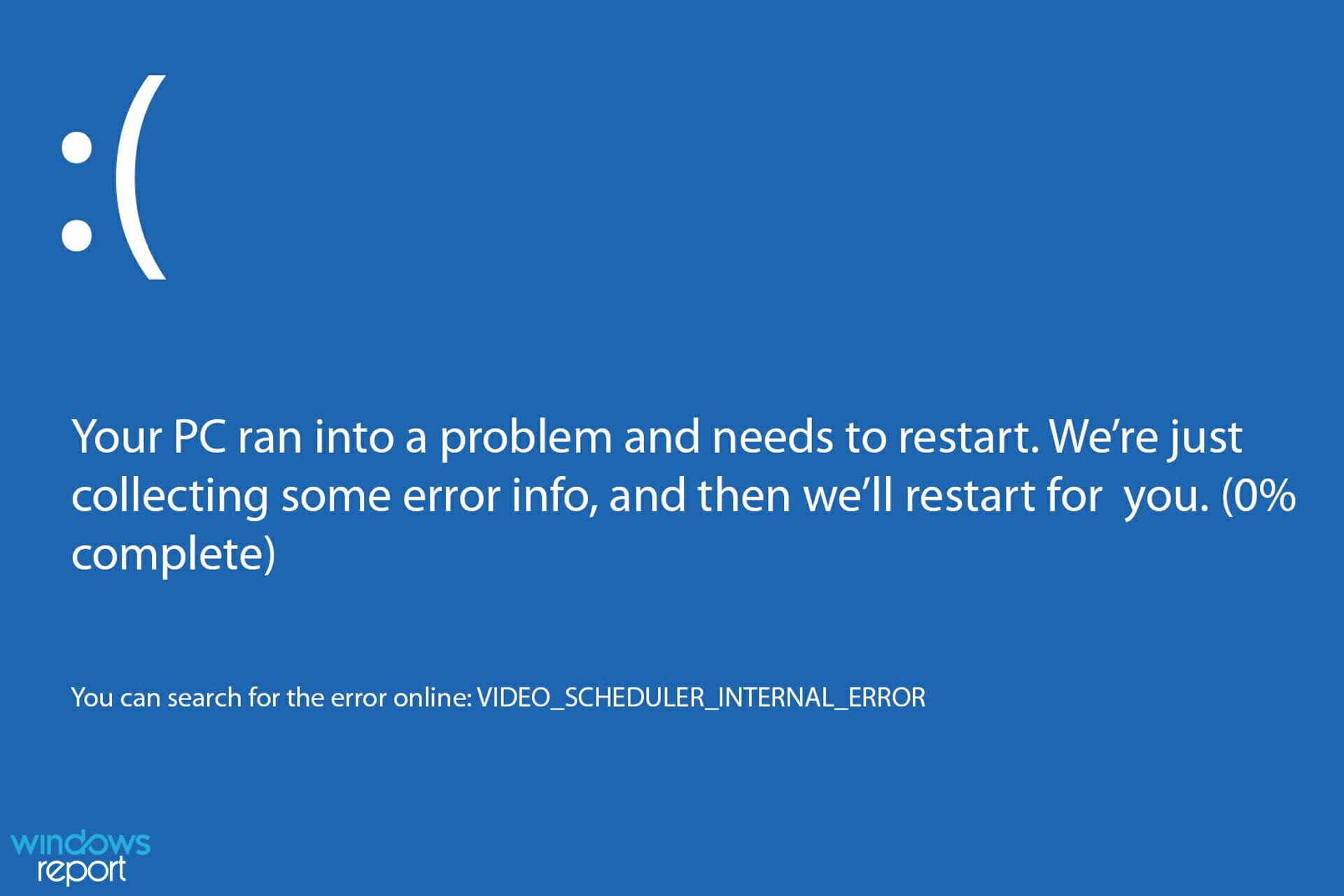
If you have been experiencing the Video Scheduler Internal Error coupled with the Blue Screen of Death, you should know that this is a common issue faced by Windows users.
The Windows PC will freeze for a few minutes when this issue occurs, especially when restarting. The stop code Video Scheduler Internal Error happens due to errors associated with the graphics card.
Luckily, we have compiled solutions for solving these problems on your Windows PC, no matter whether you are using Windows 10 or Windows 11. The solutions apply to both operating systems and can be safely used.
What causes the Windows Video Scheduler Internal Error?
You might see the Video Scheduler Internal Error because of faulty or missing drivers. You can fix this quickly by updating your drivers manually or with a dedicated tool.
Another known cause of the issue is corrupt system files. Using the built-in system repair tools can help fix this effectively.
If you get the Video Scheduler Internal Error using an Nvidia GPU, there might be something wrong with its drivers or the card itself.
In some instances, recently installed software may somehow interfere with your graphics card, so be sure to check that.
What do I do if the Video Scheduler Internal Error appears when starting the game?
Download the latest drivers from the manufacturer
- Visit your GPU manufacturer’s driver page. In our case, we went to Nvidia’s website page.
- Select your model on the list and click Start Search.
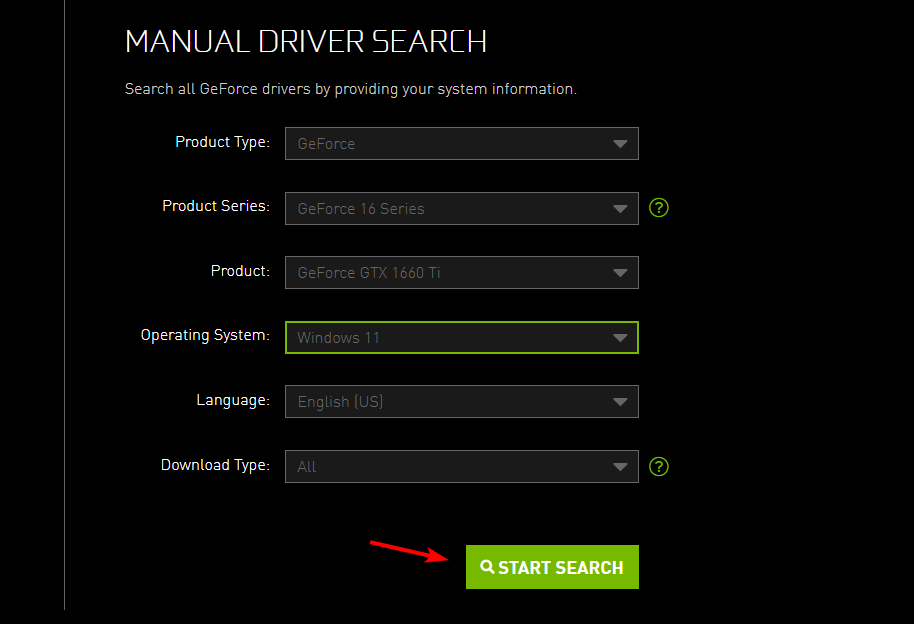
- Locate your model and click on Get download.
- Once the download is finished, install the downloaded file.
The Video Scheduler Internal Error is a driver error similar to Error code 43 on Nvidia and Intel GPUs. Remember that this is a blue screen error, similar to Acpi Driver Internal error in Windows, so be sure to check your hardware and remove overclock settings.
How do I fix the Video Scheduler Internal Error on Windows 11?
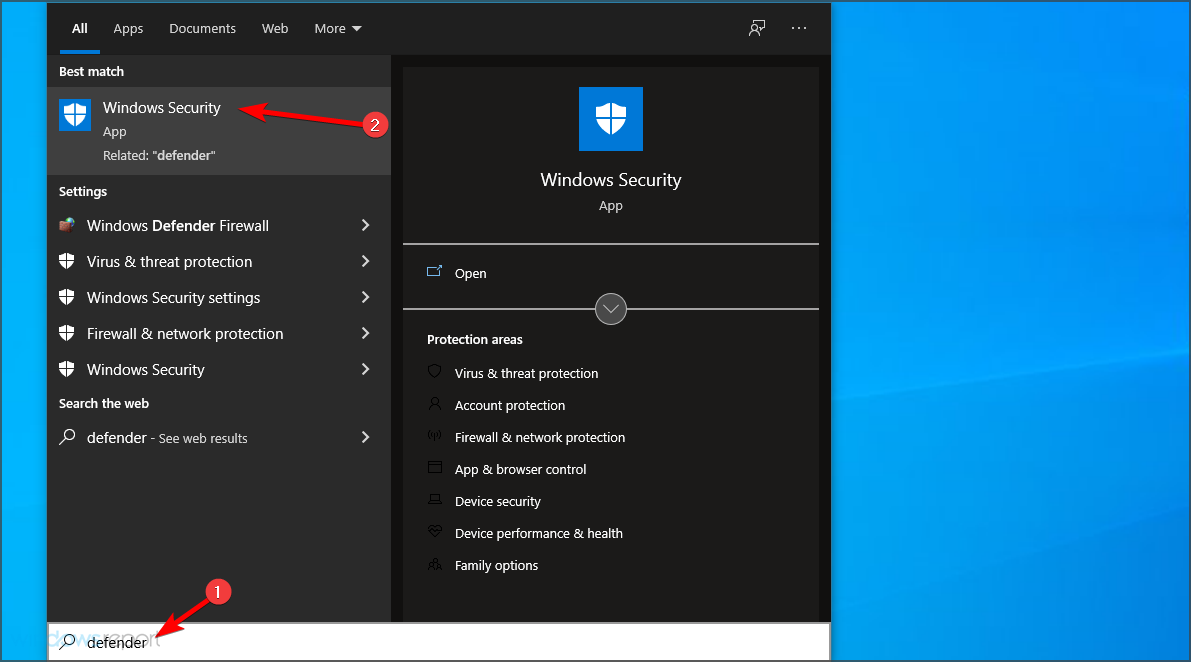
If the problem is software-related, there won’t be any permanent damage to your computer, but you’ll experience random crashes that will disrupt your workflow.
How do I fix video memory on my computer?
The video memory management internal error, like the scheduler error, can cause BSoD on your PC. It is usually caused by outdated or faulty display drivers.
You can quickly fix this error by updating your drivers or running the program that gives the error in compatibility mode. Check our articles for a detailed guide on how to fix the video memory management internal error on Windows 10 and Windows 11.
This error message can be problematic, but we hope our solutions helped you fix the problem on your PC.
If you need more solutions, we have another guide that can help you fix Video Scheduler Internal Error on Windows 10, so be sure to check it out.
Did you find an alternative solution for this issue? If you have, feel free to share it with us in the comments section below.