Convert Exfat To Ntfs Without Data Loss
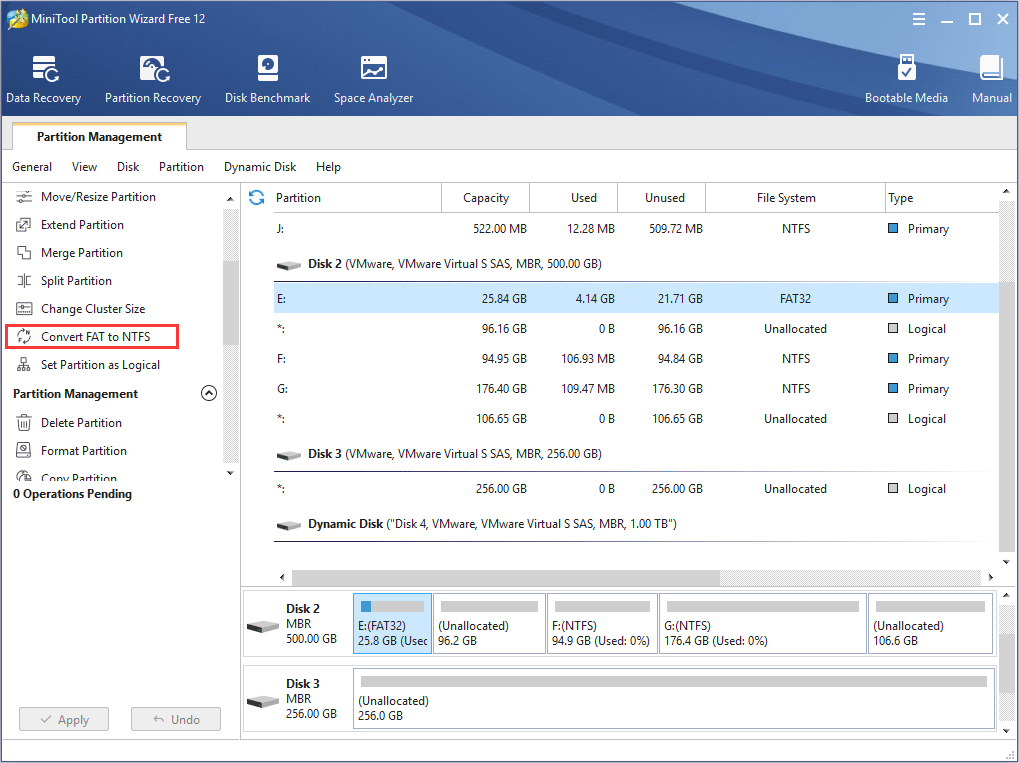
Convert Exfat To Ntfs Without Data Loss. This tutorial will show you different ways on how to convert ntfs to fat32 volumes without data loss in windows 7, windows 8, and windows 10. Every partition you create under windows 10 must have a file system associated with it. For microsoft windows, it is recommended that you use the ntfs file system. To finish this work, you are suggested to convert exfat to fat first, and then convert fat to ntfs.
How to Convert FAT32 to exFAT without Losing Data on From diskpart.com
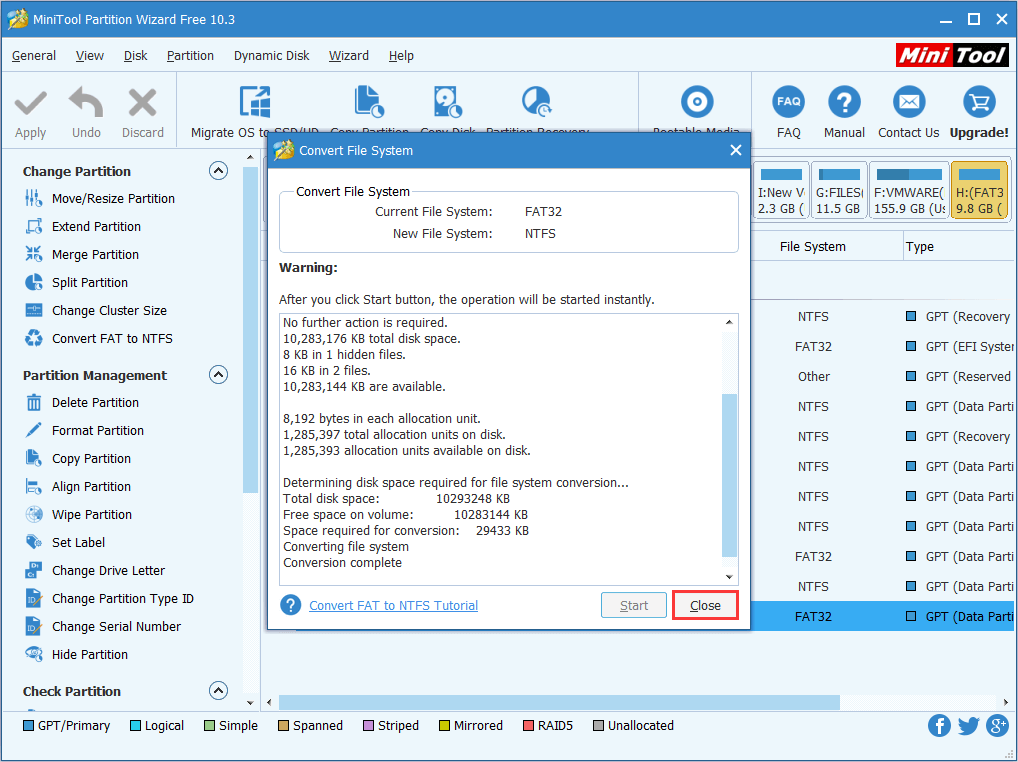
For formatting, connect the hdd to your computer/laptop. This page compares fat32, fat16, fat12, and ntfs to help you choose a suitable file system for your storage device. Convert ntfs to fat32 without data loss 1. Support other file systems including exfat fat16 ext234 etc. Windows comes with a special console tool, convert.exe to converts fat and fat32 volumes to ntfs without data loss. I want to convert it from exfat to ntfs but without losing its contents.
Fat32 (or exfat), and ntfs.
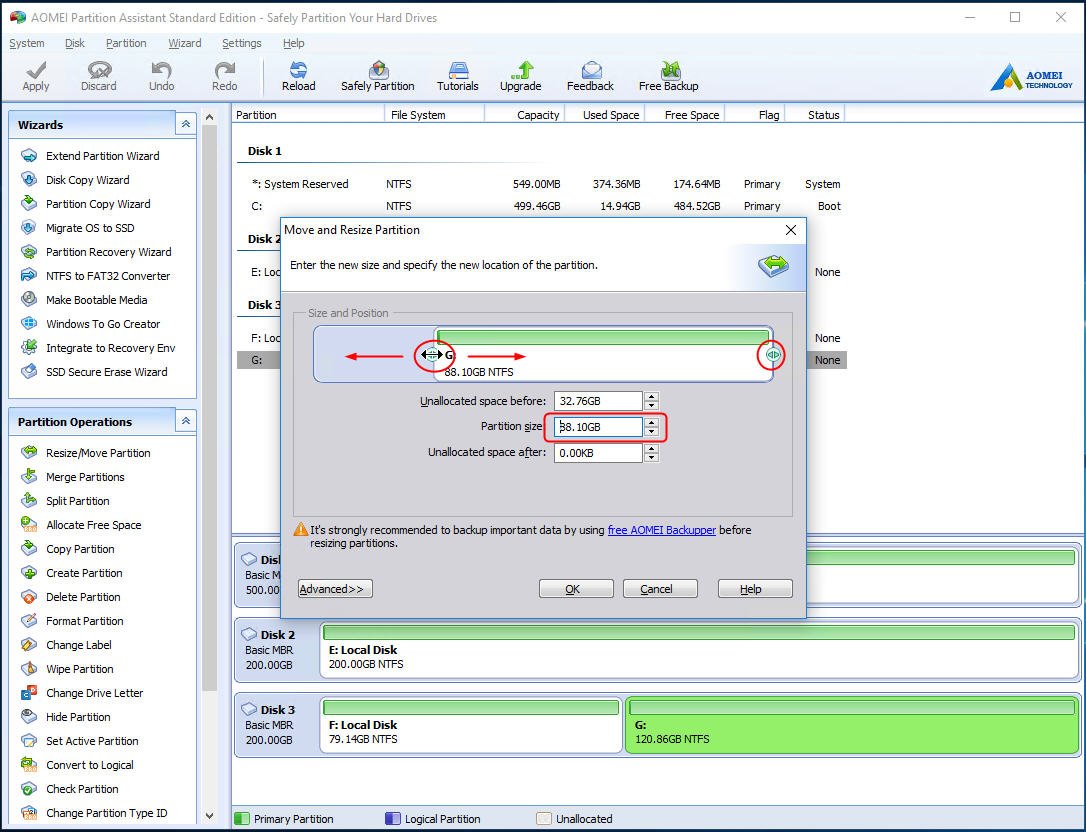
Watch this video to learn about fat32, ntfs, and exfat file systems. This page compares fat32, fat16, fat12, and ntfs to help you choose a suitable file system for your storage device. You can repartition hard disk on windows to change ntfs to fat32 file system. There are 4 methods for that. Before you start, run diskmgmt.msc to open disk management and view the drive letter of the partition you want to convert its file system. It is the perfect disk management tool containing more than 30 functions.
Source: terkaitdata.blogspot.com
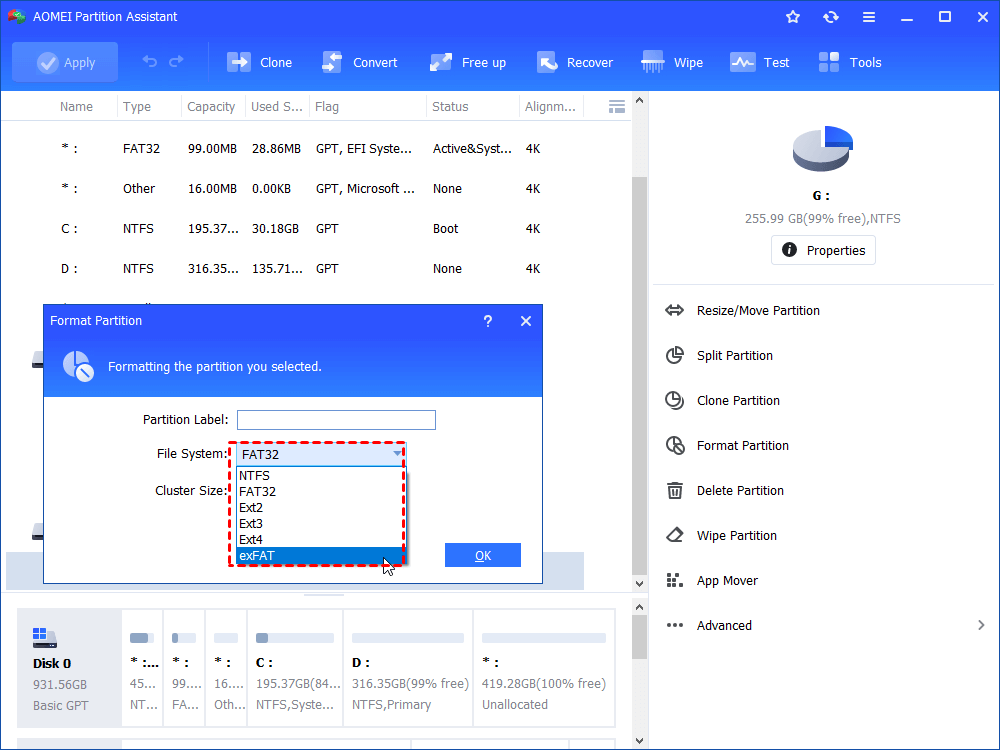
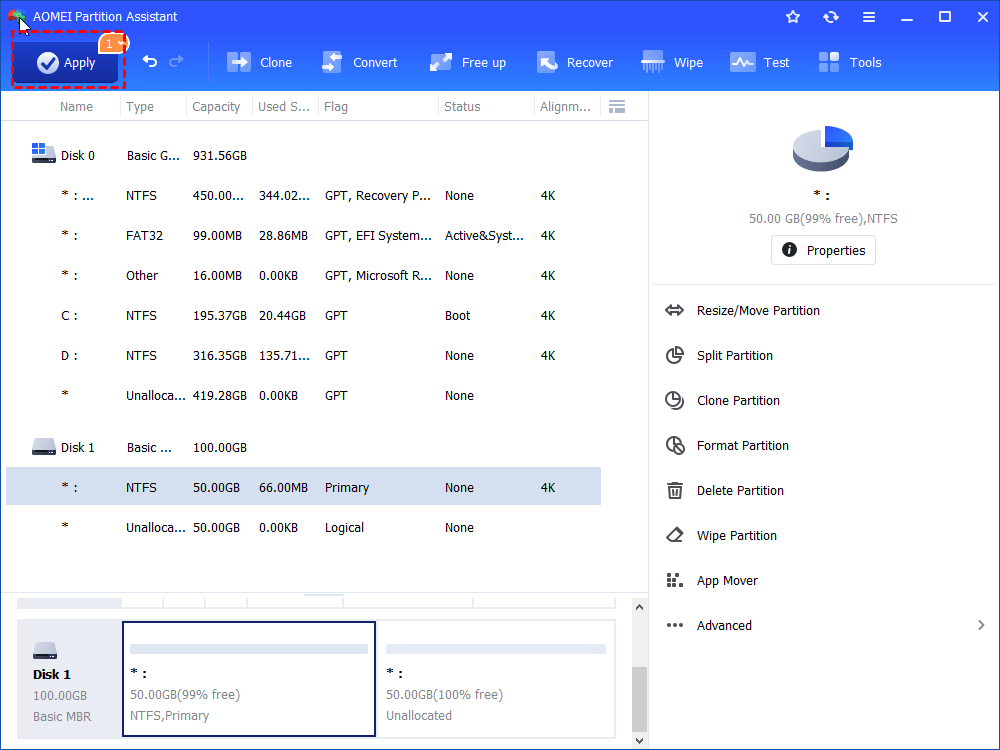
How to convert a usb drive, a memory card or an external hard disk from one file system. Moreover, it can handle and fix a plethora of problems. It is the perfect disk management tool containing more than 30 functions. Aomei partition assistant is packed with the potential of converting fat32 to ntfs without causing any loss of the data. Set the file system to fat32, set the cluster size and volume label, and.

Source: youtube.com
This page compares fat32, fat16, fat12, and ntfs to help you choose a suitable file system for your storage device. This will be at least. For microsoft windows, it is recommended that you use the ntfs file system. Under the option “file system”, change. Use “unformat” mode to recover data from raw partition to ntfs partition convert.
Source: diskpart.com
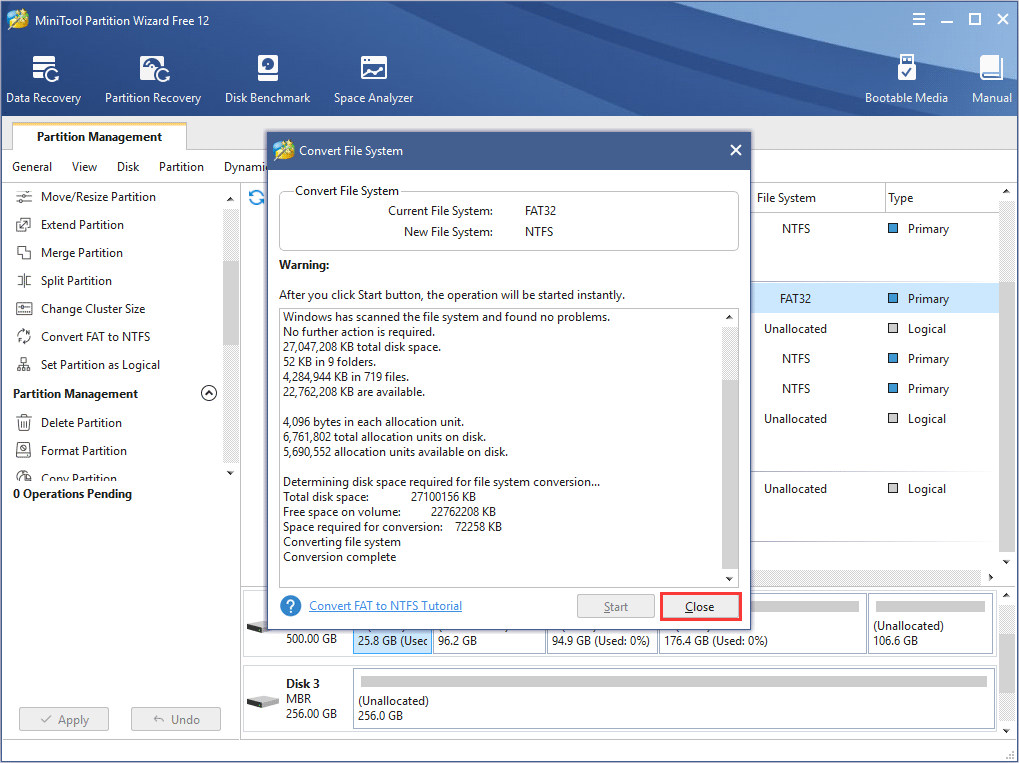
In the following, you will uncover 5 practical ways that will convert fat to ntfs without losing any data.pick up one and follow to switch the file system on your storage device to ntfs by keeping your data intact now: A window will open up wherein “format” is one of the options. *device manager is a better option than installing other extra programs, but this is the way of enjoy ntfs file system option with data loss follow the next steps : Use full scan to recover data from converting exfat to ntfs without losing its data which can not be found with undelete and unformat and recover partition,after showing an error,display as raw file system,unformatted,unknown partition,unpartitioned,needs to be formatted,or the file system is not exfat,not fat32,not ntfs. When you format a partition, you can select either fat32 or ntfs.
Source: partitionwizard.com
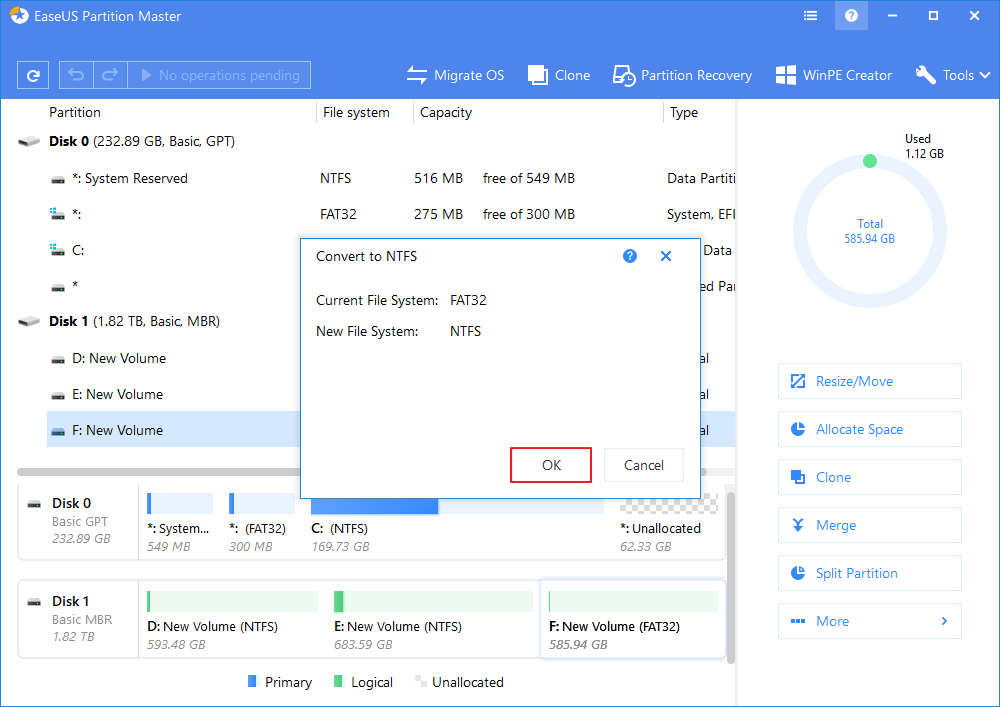
Aomei partition assistant is packed with the potential of converting fat32 to ntfs without causing any loss of the data. If you truly want to format hard drive to solve more potential problems and improve your computer’s performance, then whether it�s a hdd or an ssd, no matter you want to format fat32 to ntfs on local drive, or convert ntfs to fat32 on external hard drive/usb drive. In the following, you will uncover 5 practical ways that will convert fat to ntfs without losing any data.pick up one and follow to switch the file system on your storage device to ntfs by keeping your data intact now: Then, you can use the unallocated space to create a new volume. I�d backup the files from the wd passport, to the hard drive on your current computer, obivously making sure you have enough space, for the backup.
In the following, you will uncover 5 practical ways that will convert fat to ntfs without losing any data.pick up one and follow to switch the file system on your storage device to ntfs by keeping your data intact now: Right click on the icon of this hdd (expansion drive). Please keep it in mind for you will use it later. Actually, it is hard to convert exfat to ntfs directly by using most partition tools. To finish this work, you are suggested to convert exfat to fat first, and then convert fat to ntfs.
Source: techhana.com
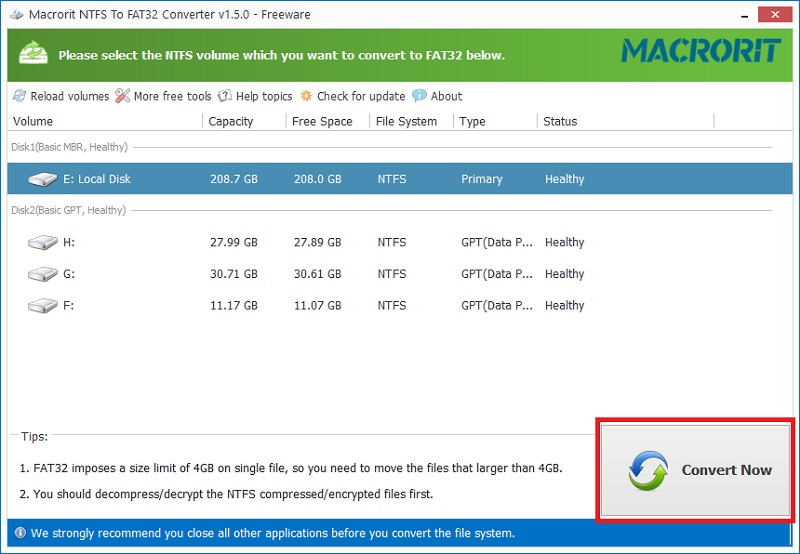
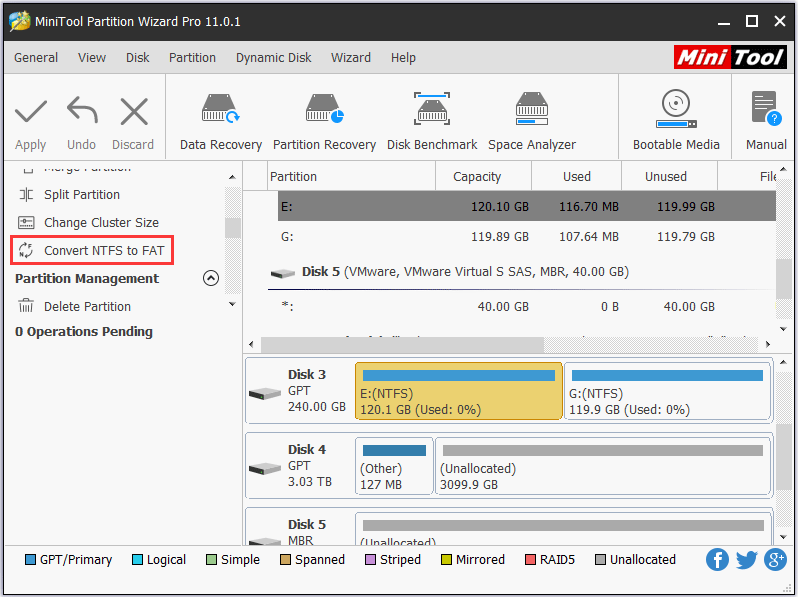
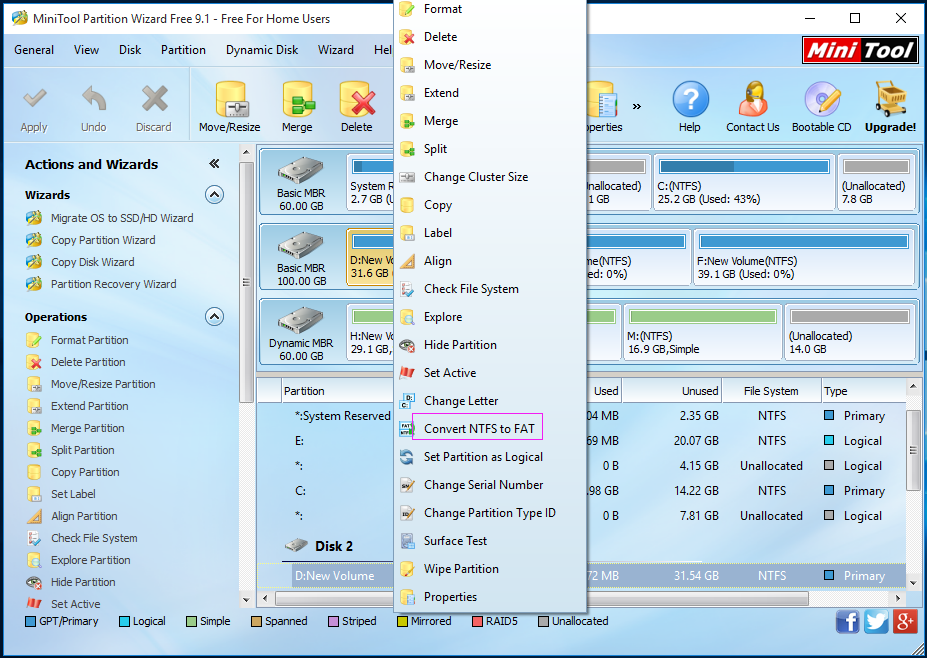
This page compares fat32, fat16, fat12, and ntfs to help you choose a suitable file system for your storage device. Windows comes with a special console tool, convert.exe to converts fat and fat32 volumes to ntfs without data loss. There are 4 methods for that. Please keep it in mind for you will use it later. But you can�t use this command to convert ntfs to fat32 without losing data.
Source: terkaitdata.blogspot.com
Actually, it is hard to convert exfat to ntfs directly by using most partition tools. It really depends on what you wish to keep. If you only care about the directory structure and file data, and limited file metadata [1] then just copying the entire contents of the folder will work. When you format a partition, you can select either fat32 or ntfs. For formatting, connect the hdd to your computer/laptop.
Source: diskpart.com
This will be at least. If you want a long, complicated, and very risky approach, you can shrink the exfat partition, create a new ntfs partition in that empty space, move however much data you can, then rinse and repeat. This will be at least. Before you start, run diskmgmt.msc to open disk management and view the drive letter of the partition you want to convert its file system. Inspired from convert fat32 to ntfs without formatting or losing data, some time ago, but bookmarked it.
Source: ivyporet.weebly.com
To finish this work, you are suggested to convert exfat to fat first, and then convert fat to ntfs. *device manager is a better option than installing other extra programs, but this is the way of enjoy ntfs file system option with data loss follow the next steps : Convert fat32 to ntfs without losing data. To finish this work, you are suggested to convert exfat to fat first, and then convert fat to ntfs. Under the option “file system”, change.
Source: minitool.com
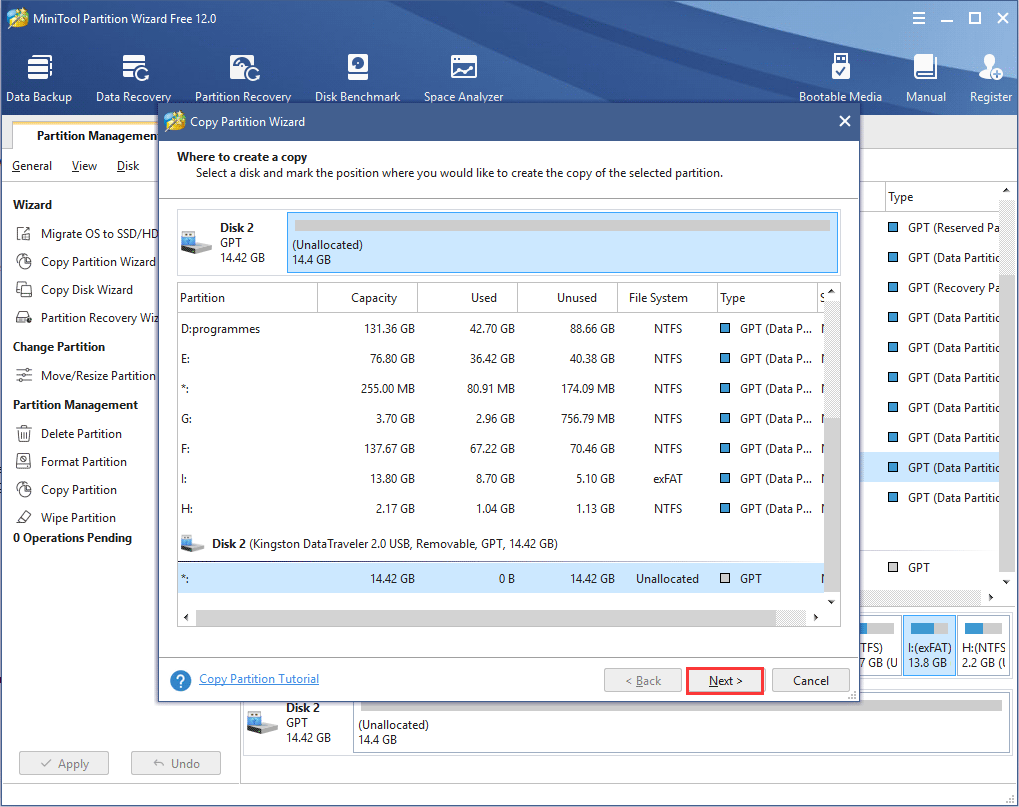
Set the file system to fat32, set the cluster size and volume label, and. Aomei partition assistant is packed with the potential of converting fat32 to ntfs without causing any loss of the data. Actually, it is hard to convert exfat to ntfs directly by using most partition tools. I have a 5tb external drive with about 200gb of data in it. Support other file systems including exfat fat16 ext234 etc.
Source: partitionwizard.com
Ntfs new technology file system was released in 1993 and it breaks the 4 gb file size limitation and 32 gb partition restriction of fat32. In the following, you will uncover 5 practical ways that will convert fat to ntfs without losing any data.pick up one and follow to switch the file system on your storage device to ntfs by keeping your data intact now: Set the file system to fat32, set the cluster size and volume label, and. Windows comes with a special console tool, convert.exe to converts fat and fat32 volumes to ntfs without data loss. This tutorial will show you different ways on how to convert ntfs to fat32 volumes without data loss in windows 7, windows 8, and windows 10.
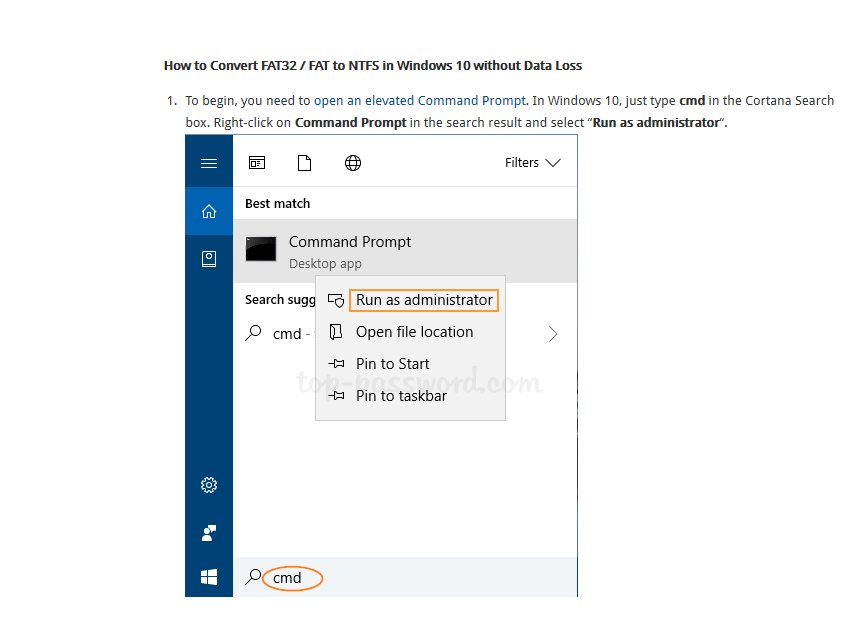
The app should be started from an elevated command prompt. The app should be started from an elevated command prompt. This tutorial will show you different ways on how to convert ntfs to fat32 volumes without data loss in windows 7, windows 8, and windows 10. Fat32 (or exfat), and ntfs. Windows comes with a special console tool, convert.exe to converts fat and fat32 volumes to ntfs without data loss.

Source: upaae.com
Currently i have no way to backup the data on the drive, so i need to do this with the data there. I have a 5tb external drive with about 200gb of data in it. But you can�t use this command to convert ntfs to fat32 without losing data. Moreover, it can handle and fix a plethora of problems. It is the perfect disk management tool containing more than 30 functions.
Source: berbagidatapenting.blogspot.com
To finish this work, you are suggested to convert exfat to fat first, and then convert fat to ntfs. Convert [volume] /fs:ntfs [/v] [/cvtarea:filename] [/nosecurity] [/x] switches are as follows. Support other file systems including exfat fat16 ext234 etc. Currently i have no way to backup the data on the drive, so i need to do this with the data there. If it still shows raw disk, then you need to try the following free format tools to convert raw to ntfs/fat32/exfat.
Overview of ntfs and exfat. Moreover, it can handle and fix a plethora of problems. First of all, you need to open disk management on your computer and then delete the ntfs partition to change it to unallocated space. Actually, it is hard to convert exfat to ntfs directly by using most partition tools. Things like file permissions and ownership cannot be expressed in fat.
Source: berbagidatapenting.blogspot.com
» ntfs (new technology file system) was released in 1993 and it breaks the 4 gb file size limitation and 32 gb partition restriction of fat32. I want to convert it from exfat to ntfs but without losing its contents. The app should be started from an elevated command prompt. But you can�t use this command to convert ntfs to fat32 without losing data. Free usb removable drive raw file system to ntfs fat32 converter download to change external hard drive raw to ntfs file system without losing data or change raw external drive fat32 exfat etc.
It is the perfect disk management tool containing more than 30 functions. Convert [volume] /fs:ntfs [/v] [/cvtarea:filename] [/nosecurity] [/x] switches are as follows. This tutorial will show you different ways on how to convert ntfs to fat32 volumes without data loss in windows 7, windows 8, and windows 10. Its general syntax is as follows: Fat32 (or exfat), and ntfs.
Source: iniberbagidata.blogspot.com
You can repartition hard disk on windows to change ntfs to fat32 file system. That aside, the safest way to do the conversion is to save all the files somewhere else, reformat the device with fat32, and then copy. This will be at least. When you format a partition, you can select either fat32 or ntfs. Actually, it is hard to convert exfat to ntfs directly by using most partition tools.
This site is an open community for users to submit their favorite wallpapers on the internet, all images or pictures in this website are for personal wallpaper use only, it is stricly prohibited to use this wallpaper for commercial purposes, if you are the author and find this image is shared without your permission, please kindly raise a DMCA report to Us.
If you find this site beneficial, please support us by sharing this posts to your own social media accounts like Facebook, Instagram and so on or you can also save this blog page with the title convert exfat to ntfs without data loss by using Ctrl + D for devices a laptop with a Windows operating system or Command + D for laptops with an Apple operating system. If you use a smartphone, you can also use the drawer menu of the browser you are using. Whether it’s a Windows, Mac, iOS or Android operating system, you will still be able to bookmark this website.
Как форматировать флешку exfat в ntfs
Флешки и другие съемные носители – удобное и популярное средство для хранения и передачи данных. Однако иногда возникает необходимость изменить файловую систему флешки с exFAT на NTFS. NTFS – это более распространенная и удобная система, поддерживающая большее количество функций.
В этой статье мы расскажем, как преобразовать флешку exFAT в NTFS. Мы предоставим пошаговую инструкцию, которая поможет вам выполнить данный процесс без особых проблем.
Перед тем как начать, обязательно сделайте резервную копию всех данных, хранящихся на вашей флешке. Преобразование файловой системы может потерять все данные, поэтому будьте внимательны и предусмотрительны.
Как перекодировать флешку exFAT в NTFS: пошаговая инструкция
Шаг 1: Подключите флешку exFAT к компьютеру.
Шаг 2: Откройте проводник и найдите флешку в списке устройств.
Шаг 3: Щелкните правой кнопкой мыши по флешке и выберите «Форматировать».
Шаг 4: В появившемся окне выберите файловую систему «NTFS».
Шаг 5: Убедитесь, что опция «Быстрое форматирование» отмечена (если вы хотите быстро перекодировать флешку).
Шаг 6: Нажмите кнопку «Старт» и подождите, пока процесс форматирования завершится.
Шаг 7: После завершения форматирования вы получите флешку с файловой системой NTFS.
Шаг 8: Убедитесь, что все важные данные с флешки сохранены на другом устройстве перед форматированием.
Шаг 9: Проверьте, что ваш компьютер поддерживает файловую систему NTFS перед форматированием.
Шаг 10: Если в процессе форматирования возникнут проблемы, попробуйте использовать специальные программы для форматирования флешек.
Обратите внимание, что процесс форматирования удалит все данные с флешки, поэтому не забудьте создать резервную копию важных файлов перед началом.
Также учтите, что не все устройства поддерживают файловую систему NTFS. Проверьте совместимость с вашими устройствами перед форматированием.
Подготовка к процессу
Перед тем как приступить к преобразованию флешки exFAT в NTFS, необходимо выполнить несколько подготовительных шагов:
- Сделайте резервные копии данных. Во время процесса преобразования все данные на флешке будут удалены. Поэтому перед началом необходимо сохранить все необходимые файлы и папки на другое устройство или в облачное хранилище.
- Убедитесь, что флешка имеет достаточную свободную память. Процесс преобразования требует определенного количества свободного пространства на флешке. Убедитесь, что на вашем устройстве имеется достаточное количество свободной памяти для осуществления этой операции.
- Отключите все открытые программы и процессы, выполняющиеся с флешкой. Во время преобразования может возникнуть ошибка, если какая-то программа или процесс обращается к данным на флешке. Поэтому перед началом операции закройте все программы и завершите все процессы, связанные с флешкой.
- Проверьте флешку на наличие ошибок. Выполните проверку и исправление ошибок на флешке перед началом операции. Для этого подключите флешку к компьютеру, найдите ее в проводнике, щелкните правой кнопкой мыши и выберите «Свойства». Затем перейдите на вкладку «Сервис» и нажмите кнопку «Проверка» в разделе «Проверка ошибок». Если будет обнаружено какое-либо повреждение, следуйте инструкциям по исправлению ошибок.
После выполнения всех подготовительных шагов вы можете продолжать процесс преобразования флешки из exFAT в NTFS. Убедитесь, что вы точно хотите выполнить эту операцию, потому что после преобразования нельзя будет вернуть флешку обратно в exFAT без форматирования и потери данных.
Подключение флешки и запуск утилиты
Чтобы преобразовать флешку из формата exFAT в NTFS, вам понадобится следовать нескольким простым шагам.
Шаг 1: Подключение флешки
1. Вставьте флешку в свободный USB-порт на вашем компьютере.
2. Дождитесь, пока операционная система автоматически распознает флешку и отобразит ее в проводнике либо на рабочем столе.
Шаг 2: Запуск утилиты
1. Откройте проводник или рабочий стол и найдите флешку в списке устройств.
2. Щелкните правой кнопкой мыши на иконке флешки и выберите опцию «Форматировать».
3. Откроется новое окно с настройками форматирования.
4. В разделе «Файловая система» выберите опцию «NTFS».
5. Укажите желаемое имя для флешки в поле «Метка тома».
6. Внимательно проверьте и убедитесь, что все необходимые данные были скопированы с флешки, так как форматирование удалит все файлы с нее.
7. Нажмите кнопку «Начать», чтобы начать процесс преобразования флешки в формат NTFS.
8. Дождитесь завершения процесса форматирования и закройте окно утилиты.
Теперь ваша флешка успешно преобразована в формат NTFS и готова к использованию.
Выбор режима перекодировки и завершение процесса
После того как вы запустили командную строку и перешли в нужную директорию, вам необходимо выбрать режим перекодировки и завершить процесс преобразования флешки exFAT в NTFS. В данной статье мы рассмотрим два основных режима перекодировки: режим quick и полный режим.
Режим quick — этот режим перекодировки позволяет быстро преобразовать файловую систему флешки, но если на ней уже есть данные, то эти данные могут быть потеряны. Поэтому перед выбором данного режима убедитесь, что на флешке нет важных файлов.
Полный режим — в отличие от режима quick, полный режим перекодировки сохраняет все данные на флешке и переформатирует файловую систему без потери информации. Однако этот процесс занимает больше времени, так как все данные на флешке переформатируются.
Чтобы выбрать режим quick, в командной строке пропишите следующую команду:
- format /FS:NTFS X: /Q
Где X — это буква диска флешки, которую нужно преобразовать в NTFS. Например, format /FS:NTFS E: /Q.
Для выбора полного режима перекодировки, в командной строке пропишите следующую команду:
- format /FS:NTFS X:
Где X — это буква диска флешки, которую нужно преобразовать в NTFS. Например, format /FS:NTFS E:.
После ввода выбранной команды нажмите Enter, и процесс перекодировки начнется. Подождите, пока командная строка завершит работу. По окончании процесса перекодировки флешка будет успешно преобразована в файловую систему NTFS.
Важно помнить, что в процессе перекодировки все данные на флешке могут быть потеряны, поэтому перед началом процесса рекомендуется создать резервную копию необходимых файлов.
How to Convert exFAT to NTFS Windows 10

Have you ever wondered what the words FAT mean when it comes to external storage media? Or maybe you’ve thought about why USB flash drives and other external storage media even have different file types. If you’ve ever contemplated why this is and maybe thought about converting to another file type, keep on reading. In this article, we’ll show you how you can convert exFAT to NTFS.
Convert exfat to ntfs
exFAT and FAT32 are file systems. File systems are a type of organization used by a drive just like filing systems for paper files. It dictates the device how the data will be stored and what kind of information the files would have. File Allocation Table 32 of FAT32 is the earliest version of the file system in Windows. This particular file system is simply too old, dating back to Windows 95. However, many users still convert to this type because it has optimum compatibility with old computers and game consoles. Another caveat of this file system is that it can’t hold files that are larger than 4GB. This is a big hassle for those who use their drives to store large files like videos and programs.
FAT32 is also not an ideal type if you’re going to use it as an internal drive. Extended File Allocation Table or exFAT is a file system that’s used as a replacement to FAT32. It’s very compatible with most operating systems, not limited to Windows. It’s the optimum choice for flash drives. Unlike FAT32, exFAT can store files over 4GB which makes it an ideal file type for flash drives. NT File System or NTFS is the most recent file system employed by Windows. It’s a huge improvement from the older file types. It allows users to increase security by including file permissions and encryptions. It also features a change journal that tracks the changes made within your drive so you can recover any files that may have been lost from unexpected system crashes.
How to Change exFAT to FAT32 File System
One of the reasons for converting exFAT to FAT32 is to enable a device to be compatible with earlier operating systems. Now that you’ve figured out the differences between these file systems, it’s time to choose between which one you’re going to use in your drive. Here are 3 solutions you can employ to change exFAT to FAT32 File System:
Solution 1. Format exFAT to NTFS/FAT/FAT32 Using CMD
Command Prompt is a built-in utility feature of Windows that allows users to make changes to their computer and device’s system using a command-line. It’s a common method used by PC users to want to perform troubleshoots. Carefully follow the instructions below to perform the format:
- Press the Windows key + R to launch Run. Type in cmd then select Enter to go to Command Prompt. Right-click on it to Run as administrator
- Type in the following in the command-line: format E: /FS: NTFS and select Enter
- The format will now start.
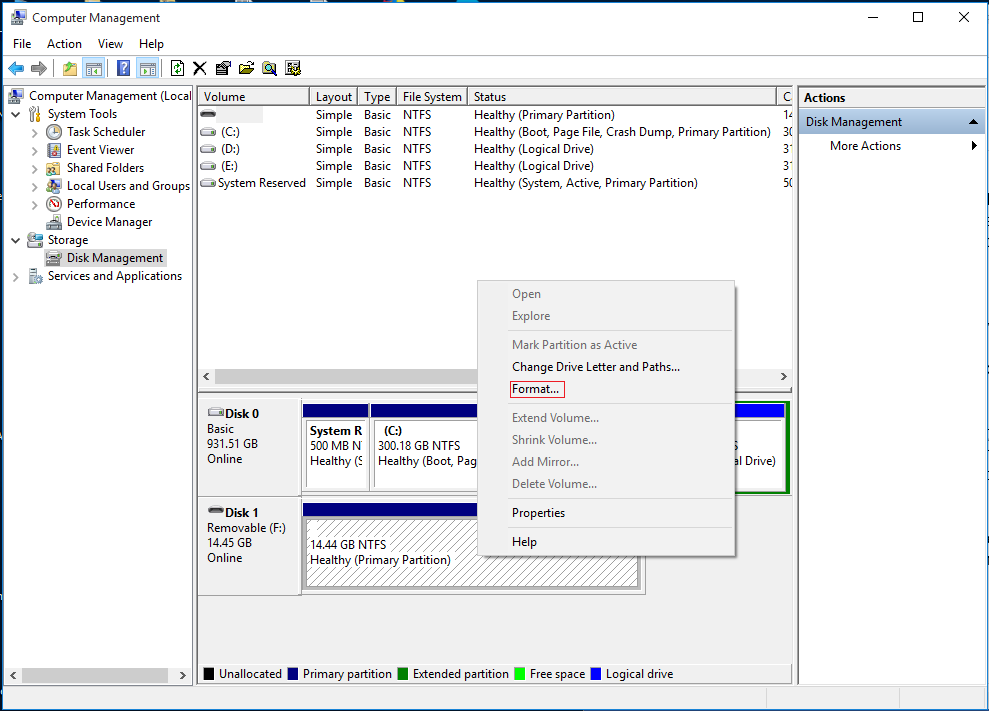
- Launch Disk Management. Right-click on This PC then select Manage. Then, go to Disk Management. You can also do this by opening Run (Windows key + R), then typing in diskmgmt.msc in the box.
- Make a right-click on the icon of the USB drive you want to format. Click on Format. Select NTFS.
- On File Explorer, find and select your USB drive. Click on Format.
- Under the tab File system, select NTFS to format your USB drive to NTFS.
NOTE: E in the command stands for the drive letter. Replace it with the letter of your USB drive.
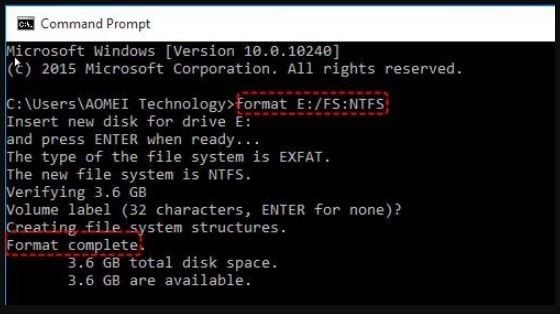
Make sure that you’re writing down the commands correctly to avoid any unexpected errors. Take note of the drive letter you’re going to put in. Make sure it is the one you’re trying to format, otherwise you may end up losing data in that other drive.
Solution 2. Using Windows Disk Management
Disk Management is another built-in tool created by Microsoft Windows to allow users to manipulate settings of the drives within their computer. It’s also the tool used to create partitions with the drive, to format drives, to rename drives, and other disk management tasks.
Solution 3. Format exFAT to NTFS through File Explorer
This is the most convenient and easiest way to perform the format on your computer. This only makes use of what you’re familiar with — the Windows File Explorer. This solution can be performed in two easy steps.
If you cannot find your drive name in File Explorer, you can try using Windows Disk Management to resolve the issue.
Changing the file type of your device is essential if you want to use it in computers running on different operating systems. Each file type has its advantages and disadvantages as previously mentioned. Using the solutions above, hopefully, you can perform the file type change easily and quickly.
Convert exFAT to NTFS Without Losing Data (Converting File Systems with 3 Methods)
There’re some particular reasons behind people tend to convert exFAT (Extensible File Allocation Table) to NTFS (New Technology File System). The exFAT has limitations in partition size and can’t contain larger-size files. Meanwhile, NTFS doesn’t have such constraints.
When you want to do the conversion without losing data, you must back them up. No matter in which way you’re going to convert it, you’ll end up facing formatting the drive.
So, it’ll be wise to put your necessary documents securely in another secure storage. To do the conversion, you can use one among the Command Prompt, Windows Disk Management, and a partition manager.

Here, we’re providing step-by-step guidelines for converting to NTFS without losing data. So, without any further ado, let’s get into the procedures.