Обновление драйверов видеокарты AMD Radeon
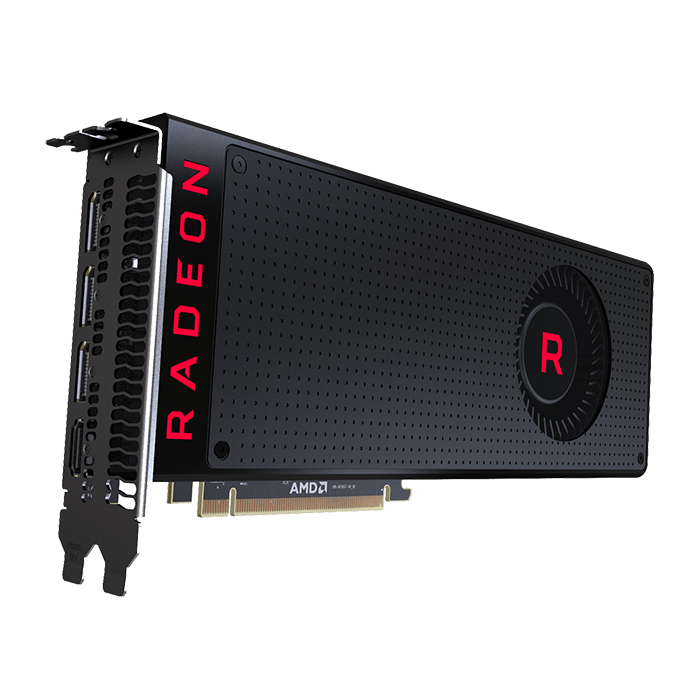
Рано или поздно любое программное обеспечение нуждается в обновлении. Видеокарта — комплектующее, которое в особенности зависит от поддержки производителя. Новые версии ПО делают работу этого устройства более стабильной, настраиваемой и мощной. Если у пользователя нет опыта в апгрейде программной части компонентов ПК, такая задача как установка актуальной версии драйвера может оказаться непростой. В этой статье мы рассмотрим варианты его инсталляции для видеокарт AMD Radeon.
Обновление драйвера для видеокарты AMD Radeon
Каждый владелец видеокарты может установить один из двух типов драйвера: полный пакет программного обеспечения и базовый. В первом случае он получит утилиту с основными и расширенными настройками, а во втором — лишь возможность устанавливать любое разрешение экрана. Тот и другой вариант позволяют комфортно пользоваться компьютером, играть в игры, смотреть видео в высоком разрешении.
Перед тем, как перейти к основной теме, хочется сделать два замечания:
-
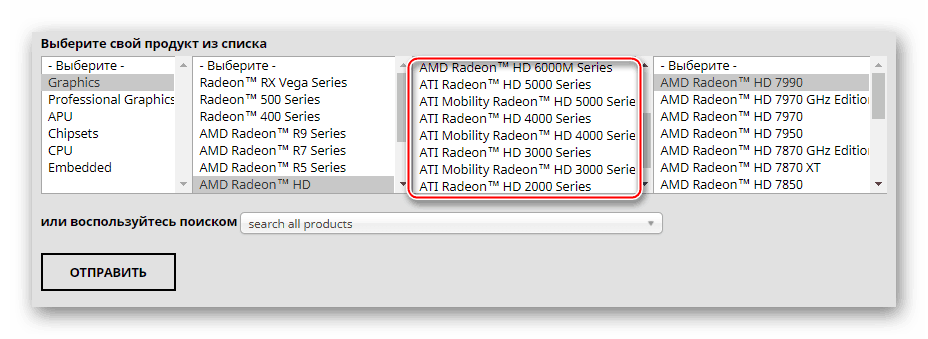
Если вы — обладатель старой видеокарты, например, Radeon HD 5000 и ниже, то название этого девайса носит имя ATI, а не AMD. Дело в том, что в 2006 году корпорация AMD выкупила ATI и все разработки последних перешли под руководство АМД. Следовательно, разницы между устройствами и их программным обеспечением нет никакой, а на сайте AMD вы найдете драйвер под устройство ATI.
Способ 1: Обновление через установленную утилиту
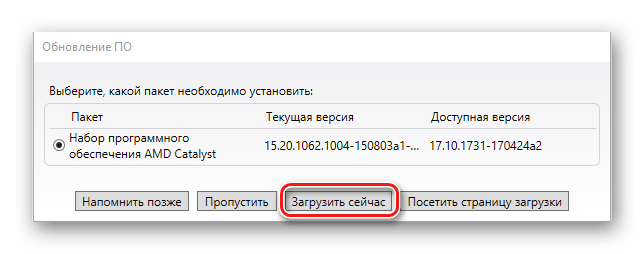
Как правило, у многих пользователей стоит фирменное программное обеспечение от AMD, где происходит тонкая настройка комплектующего. Если его у вас нет, сразу же переходите к следующему способу. Всем остальным юзерам достаточно запустить утилиту Catalyst Control Center или Radeon Software Adrenalin Edition и выполнить обновление. Более подробно об этом процессе через каждую из программ написано в наших отдельных статьях. В них вы найдете всю необходимую информацию по получению последней версии.
Способ 2: Официальный сайт программы
Правильным выбором станет использование официального интернет-ресурса AMD, где находятся драйверы для всего программного обеспечения, выпускаемого этой корпорацией. Здесь пользователь может найти последнюю версию ПО для любой видеокарты и сохранить ее на свой ПК.
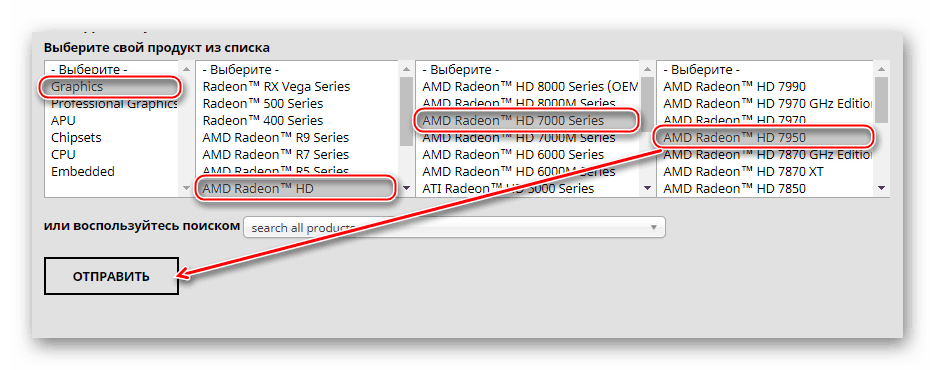
Такой вариант подойдет тем пользователям, у кого еще не установлена ни одна из соответствующих его видеокарте утилит. Однако при возникновении проблем со скачиваем драйвера через Catalyst Control Center или Radeon Software Adrenalin Edition вам также подойдет этот метод.
Подробное руководство по скачиванию и инсталляцию необходимого ПО было рассмотрено нами в других статьях. Ссылки на них вы найдете чуть выше, в «Способе 1». Там же сможете прочитать и о последующей процедуре ручного обновления. Разница заключается лишь в том, что вам нужно знать модель видеокарты, иначе скачать верную версию не получится. Если вы вдруг забыли или вообще не в курсе, что установлено в вашем ПК/ноутбуке, прочитайте статью, которая расскажет, как легко определить модель продукта.
Способ 3: Стороннее ПО
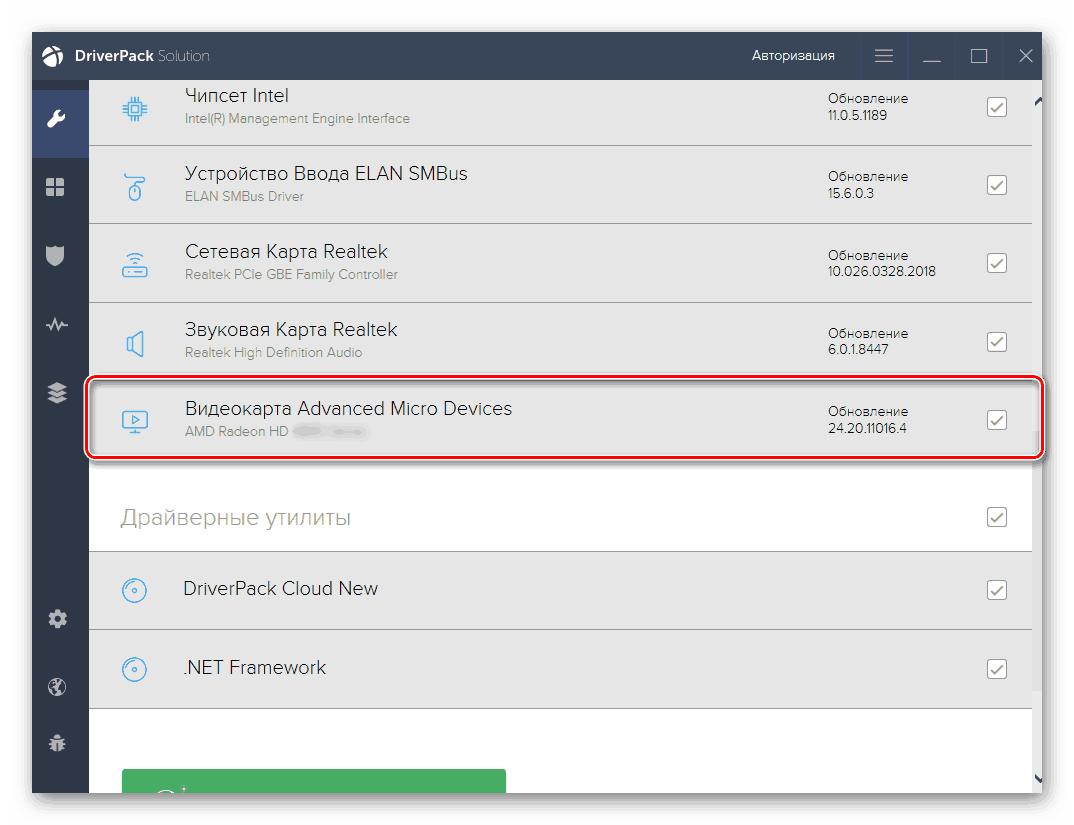
Если вы планируете обновить драйверы для разных комплектующих и периферии, удобнее автоматизировать этот процесс, используя специальный софт. Такие приложения занимаются сканированием компьютера и выдают список того программного обеспечения, которое нуждается в обновлении или первичной установке. Соответственно, вы можете выполнять как полное, так и выборочное обновление драйвера, например, только видеокарты или еще некоторых компонентов на свое усмотрение. Список таких программ — тема для отдельной статьи, ссылка на которую чуть ниже.
Если вы этого перечня вы решили выбрать DriverPack Solution либо DriverMax, советуем ознакомиться с инструкциями по работе в каждой из этих программ.
Способ 4: Идентификатор устройства
Видеокарта или любое другое устройство, являющееся физическим отдельным компонентом компьютера, обладает уникальным кодом. У каждой модели он свой, благодаря чему система знает, что вы подключили к ПК, к примеру, AMD Radeon HD 6850, а не HD 6930. ID отображается в «Диспетчере устройств», а именно в свойствах графического адаптера.
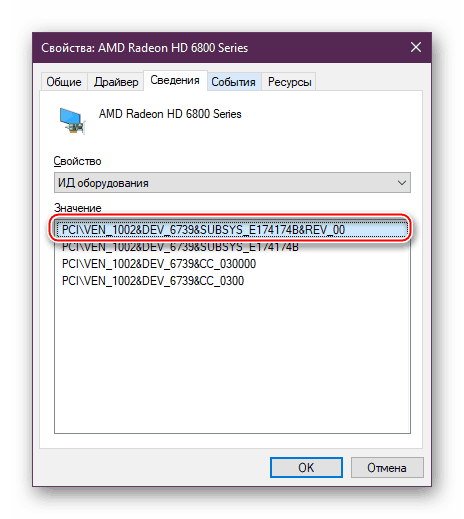
Используя его, через специальные онлайн-сервисы с базами данных драйверов вы можете скачать нужный и установить его вручную. Такой способ подойдет пользователям, нуждающимся в обновлении до конкретной версии ПО ввиду возможных несовместимостей утилиты и операционной системы. Стоит отметить, что на таких сайтах последние версии программ появляются не сразу, зато есть полный список предыдущих ревизий.
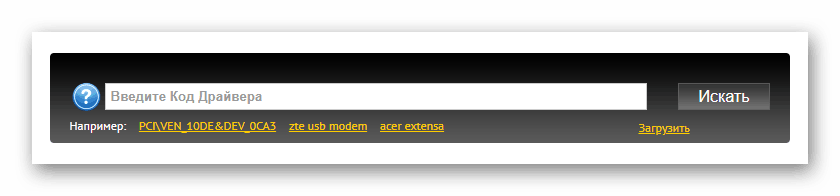
В скачивании файлов таким образом важно правильно определить ID и использовать безопасный онлайн-сервис, чтобы при инсталляции не заразить Windows вирусами, которые злоумышленники нередко добавляют к драйверам. Для людей, незнакомых с таким методом поиска программного обеспечения, мы приготовили отдельную инструкцию.
Способ 5: Штатные средства Windows
Операционная система умеет установить минимальную версию драйвера, позволяющую работать с подключенной видеокартой. В этом случае у вас будет отсутствовать дополнительное фирменное приложение от AMD (Catalyst Control Center/Radeon Software Adrenalin Edition), однако сам графический адаптер задействуется, позволит поставить максимально доступное собственной конфигурацией разрешение экрана и сможет определяться играми, программами с 3D и самой Виндовс.
Этот способ — выбор самых непритязательных юзеров, не желающих выполнять ручную настройку и повышать производительность устройства. По сути, такой метод и не нуждается в обновлении: достаточно установить драйвер на GPU один раз и забыть об этом до переустановки ОС.
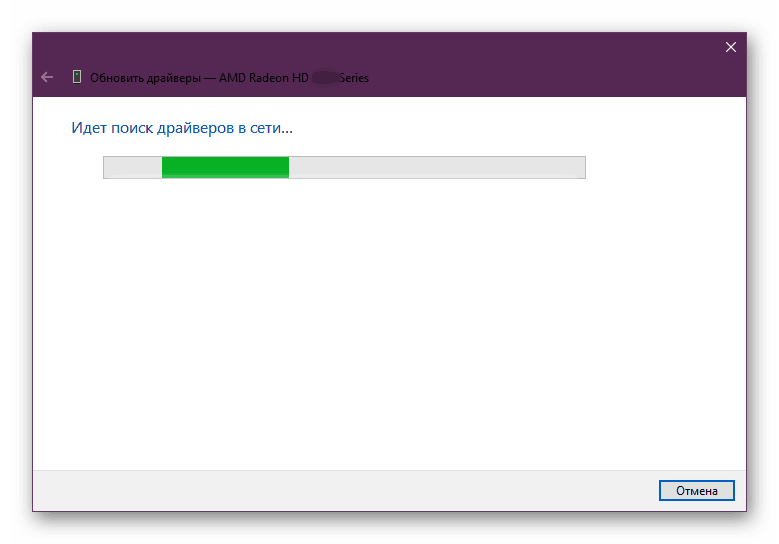
Все действия опять же выполняются через «Диспетчер устройств», а что именно нужно сделать для обновления, читайте в отдельном руководстве.
Мы рассмотрели 5 универсальных вариантов обновления драйвера видеокарты AMD Radeon. Рекомендуем выполнять эту процедуру своевременно вместе с выходом свежих версий ПО. Разработчики не только добавляют новые возможности в собственные утилиты, но и повышают стабильность взаимодействия видеоадаптера и операционной системы, исправляя «вылеты» из приложений, BSOD и другие неприятные ошибки.
How To Install Or Update AMD Drivers
Installing the latest drivers for your GPU and always keeping them updated is very important to get the best out of your gaming experience.
This article has been written by a vetted expert and fact-checked by other experts. The author has been certified as an expert in this topic. Learn more on our about page.

Getting a new Radeon graphics card and installing it into your PC isn’t all you need to do. You also need to know how to install and update your AMD driver.
Driver installation is essential, and you have a couple of options.
Windows 10 will automatically search for drivers when you first install the card.
Unfortunately, this option is far from perfect, but AMD has excellent driver support, which is one reason they have remained a leader in graphics card technology for so long.
There are two relatively simple ways to download and install your new AMD drivers.
- Radeon Software – This is probably the simplest way to install your Radeon drivers. Most modern AMD graphics cards come with this software out of the box, and you usually won’t even have to do anything extra as updating is automatically taken care of. However, some caveats are involved with this, which we will take a closer look at below.
- Manually Installing The Drivers – This is a more traditional way to install your updates. There’s nothing wrong with doing this, but it’s preferred by users who like to have everything that happens inside their PC under their control. We’re looking at you, Linux users.
Table of Contents Show
Getting New Drivers Via Radeon Software

Before installing Radeon Software, your first step is to uninstall the old drivers on your PC. This applies if you’re upgrading an AMD card or if you’re switching from NVIDIA to AMD. This is as simple as uninstalling any other program from your computer.
Step 0 – Uninstalling The Previous Drivers
To uninstall your previous drivers, go to the Control Panel, then Add or Remove Programs.
From here, find the AMD Software and click uninstall. The process is pretty standard and will be the same for any other application. It’s important to note that your screen might blink or turn black for a few seconds during the uninstallation. There’s no need to panic as this is normal when making changes to your graphics drivers.

Before the process can be completed, a system restart is necessary, so be sure to save and exit any programs you have been working on.
If you previously had an NVIDIA GPU, you should look for NVIDIA Control Panel and uninstall it. This will delete all the additional software that came with the driver.

It’s possible that there will be some “leftovers” in the system’s registry and that you might need a deeper uninstallation process.
For this, we recommend that you use Display Driver Uninstaller. However, to use this program, you will need to enter Safe Mode. Here’s what to do:
Download the file and extract the folder before you head over to Safe Mode.
To enter Safe Mode, hold down shift and click on the Restart button in the taskbar. This will take you to the Windows Troubleshooting screen. From there, open Advanced options, Start-up Settings, and then restart.
Once your computer restarts, you will see multiple boot options. Select Safe Mode with the number 4 on your keyboard.
Once your computer boots up, go to your downloaded folder where you extracted DDU. Start the application, select AMD or NVIDIA graphics driver on the right and then press Clean and restart.

Be patient, as the process can take a while. After a few minutes, your computer will automatically restart using a normal boot.
Step 1 – Preparing For The Installation Of The New Driver
The first thing you need to do is download the actual software from AMD’s website. Once you are on their official download page, you will be presented with two choices: downloading the AMD Driver Auto-Detect Tool or downloading the exact drivers for your graphics card.
Before starting the installation process, it’s important to close all running applications, including your firewall and anti-virus. Don’t worry, AMD won’t damage your machine, and you will be perfectly safe. Closing all applications is necessary because the installation wizard can access any files that those running processes might have been using.
Step 2 – The Installation
Once the installation process begins, you will be prompted by a standard End User Licence Agreement. You will need to accept it and move forward. However, there are two different options for accepting.
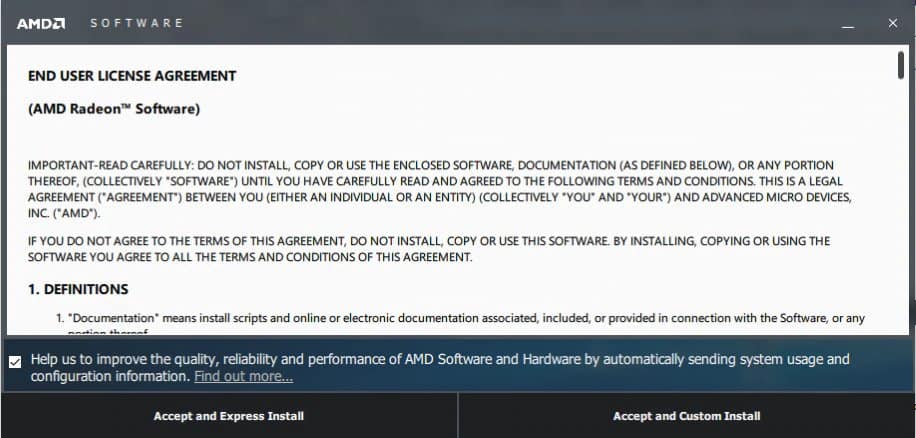
You will either need to use the Express Install or Custom Install.
Before choosing either option, be aware that your screen might flicker or turn black for a few seconds during the installation. Again, this is nothing to worry about.
The Express Install
The Express Install is exactly what it sounds like. It is designed to require minimal user interaction while still performing its task. It will install all driver components and core software to the default location: C:Program FilesAMD
Once the installation process is completed, you will be prompted to restart your computer or close the installer. If a restart isn’t necessary, you will only be given the option to exit to your desktop.
The Custom Install
The Special Installation is slightly more complex, but that is the cost you bear for personalization.
You will first see a screen with two options. If you already uninstalled the previous driver version, the left side of the window will simply show that there are no drivers installed, and you can proceed with your custom installation.

However, if you haven’t already removed your previous drivers, Radeon Software will offer to do it for you. There are two additional options here, Express Uninstall and Custom Uninstall. The first option will automatically find all components associated with Radeon Software and remove them, while the latter will allow you to delete only certain components or all of them.
There is also a third option on the same screen: Search for Legacy Drivers. This will redirect you to AMD’s download page, where you can search for any older drivers that you might need.
It’s important to note that after you choose and execute one of these three options, you will need to rerun the application to begin the installation itself.
When you open it again, there should now be no previous drivers found. You can proceed to the custom installation of your new drivers.
On this screen, you will be given options of which components you wish to install. Simply check or uncheck whatever you want, and you can proceed.
Before proceeding, it’s recommended that you choose the default installation location (C:Program FilesAMD).
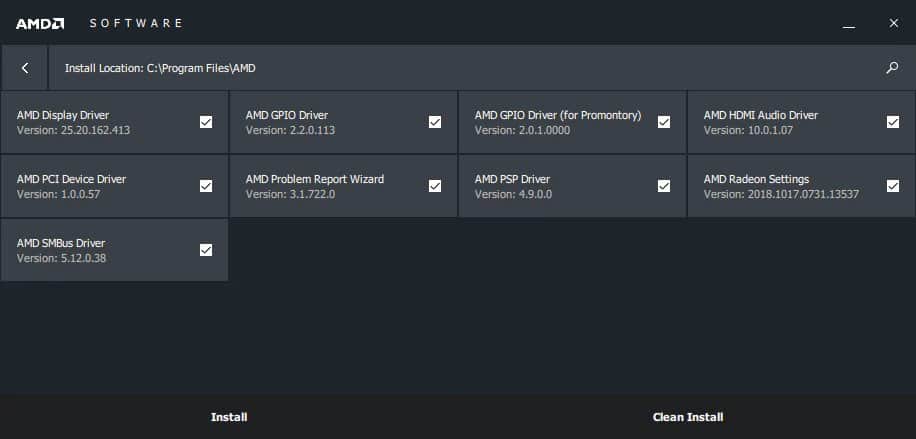
You will also have two additional options: Install and Clean Install. The latter will attempt to remove any remnants of the previously installed drivers before installing new ones.
If you’ve followed this guide so far, the previous driver files are probably already deleted, and you won’t see this option. If that’s the case, click Install and wait for the installer to finish.
Once this is done, you will be offered the option of installing Radeon ReLive if your system is eligible. ReLive is essentially a screen capture software by AMD, which also allows you to stream. While there are better options, it’s still a relatively useful tool and comes free with your graphics card, so it’s worth a try.
Again, if a reboot is necessary, you will be offered that option alongside the option to close the installer. If there’s no need for a reboot, the only option offered will be to close the installer. You have now successfully installed new drivers for your graphics card.
Manually Installing The Drivers
To do this, you will need to repeat the process in the previous section by going to the Control Panel and then Add or Remove Programs. Here, you will find the AMD Software and click uninstall.
As before, you should use Display Driver Uninstaller to ensure any files are gone from your PC if they are related to your previous drivers.
After you have done this, you can go to AMD’s website and select the driver for your specific GPU. This menu is easy to navigate and shouldn’t present any issues. After you choose your graphics card, you will see options for each available operating system on which the drivers can be installed. Choose your OS and click ”Download”.

After the executable is downloaded, start it and click ”Install”. Once the process is finished, you are all set to game to your heart’s content.
How To Reinstall AMD Drivers
It’s necessary to address this aspect of driver installation as there are some driver-related issues that can hinder your gaming experience and can only be solved by reinstalling your drivers.
For the most part, the process is the same as installing a new driver, except you’ll be reinstalling the same driver.
Before starting the installation process, you can remove the driver, as we explained in the previous section. If you don’t, you will again be given this option when starting the Custom Install, but not if you choose the Express Install path.
If your problem is more deeply rooted, you can try the Display Driver Uninstaller. This is a relatively simple and straightforward program, but it’s still best to use it while in Safe Mode.
After completing the uninstallation of your drivers, it’s time to reinstall them. The process here is relatively simple. We have described each method in the previous sections, so simply follow those instructions, and you will be all set.
Как обновить AMD Radeon Software
AMD Radeon Software – это драйвер для видеокарт производства компании Advanced Micro Devices (AMD). Этот драйвер обеспечивает оптимальную работу графической карты, улучшает производительность и стабильность системы, а также добавляет новые функции и возможности. Для того чтобы всегда быть в курсе последних разработок и обновлений, необходимо периодически обновлять AMD Radeon Software.
Обновление Radeon Software позволяет получить доступ к новым драйверам, исправлениям ошибок и улучшениям производительности, а также совместимости с новыми играми и программами. В ассортименте AMD можно найти различные версии Radeon Software – от базовых до более продвинутых, которые предлагают дополнительные возможности и настройки для оптимизации графики.
В этой статье мы рассмотрим пошаговую инструкцию по обновлению AMD Radeon Software. Мы расскажем о том, как проверить текущую версию драйвера, где найти и загрузить последнюю версию, а также как установить ее на ваш компьютер. Эти простые шаги помогут вам всегда быть в курсе новых возможностей и обновлений, чтобы наслаждаться лучшей графикой и производительностью на вашей видеокарте AMD.
Проверьте версию текущего драйвера
Перед обновлением AMD Radeon Software необходимо проверить текущую версию драйвера, чтобы убедиться, что требуется обновление. Чтобы выполнить эту задачу, следуйте инструкциям ниже:
- Откройте меню «Пуск» и найдите пункт «Панель управления».
- В панели управления найдите раздел «Установка и удаление программ» или «Программы и компоненты» (в зависимости от вашей версии операционной системы).
- Прокрутите список установленных программ и найдите «AMD Radeon Software», «AMD Graphics Driver» или что-то подобное. Это может также называться «AMD Catalyst Control Center».
- Нажмите на название программы и посмотрите версию драйвера в открытом окне.
- Запомните версию драйвера или запишите ее на лист бумаги.
Теперь вы знаете текущую версию драйвера и готовы приступить к обновлению AMD Radeon Software. Более новая версия драйвера может предложить улучшенную производительность, исправления ошибок и новые функции, поэтому обновление является важным шагом для всех пользователей AMD Radeon.
Подготовьте компьютер к обновлению
Чтобы успешно обновить программное обеспечение AMD Radeon, необходимо выполнить некоторые предварительные действия. В этом разделе мы расскажем о подготовке компьютера к обновлению.
Создайте резервную копию
Перед началом любых изменений важно создать резервную копию важных данных и файлов. Обновление драйверов графической карты может вызвать непредвиденные проблемы, поэтому предосторожность — наш главный принцип.
Проверьте, что у вас есть свежие копии всех важных файлов, а также сохраните все настройки и профили, связанные с текущими версиями драйверов Radeon.
Очистите систему от предыдущих установок
Перед установкой новой версии программного обеспечения AMD Radeon рекомендуется удалить все предыдущие версии. Это поможет избежать конфликтов и проблем при установке.
Выполните следующие действия:
- Откройте «Панель управления» на вашем компьютере.
- Выберите «Установить или удалить программу».
- Найдите программу AMD Radeon Software в списке установленных программ.
- Щелкните правой кнопкой мыши на программе и выберите «Удалить».
Повторите эти шаги для всех предыдущих версий драйверов AMD Radeon, чтобы полностью удалить их с вашего компьютера.
Проверьте наличие обновлений
Перед тем, как устанавливать новую версию AMD Radeon Software, убедитесь, что у вас нет актуальных обновлений операционной системы. Обновления операционной системы могут затрагивать работу видеокарты и ее драйверов, поэтому важно иметь последнюю версию системы.
Проверьте наличие обновлений, перейдя в «Настройки» вашей операционной системы. Обычно такие настройки находятся в меню «Обновление и безопасность» или «Обновление системы». Выполните все доступные обновления и перезапустите компьютер, если это необходимо.
Теперь ваш компьютер готов к обновлению программного обеспечения AMD Radeon. Переходите к следующему шагу и узнайте, как установить новые драйверы.
Скачайте последнюю версию AMD Radeon Software
Прежде чем обновлять драйверы и программное обеспечение для видеокарты AMD Radeon, необходимо скачать последнюю версию AMD Radeon Software.
Вы можете скачать последнюю версию AMD Radeon Software с официального веб-сайта AMD. Для этого следуйте этим шагам:
- Откройте веб-браузер и перейдите на официальный сайт AMD (https://www.amd.com).
- Наведите курсор на раздел «Поддержка» и выберите «Драйверы и ПО».
- На странице «Драйверы и ПО» найдите раздел «Драйверы AMD Radeon Software» и выберите свою модель видеокарты. Если вы не знаете модель своей видеокарты, можно воспользоваться функцией автоматического определения.
- После выбора модели видеокарты, нажмите на кнопку «Скачать».
Теперь у вас есть последняя версия AMD Radeon Software, готовая к установке.
Установка нового драйвера
Чтобы установить новый драйвер AMD Radeon Software, следуйте этим простым шагам:
- Подготовка к установке:
- Перед установкой нового драйвера рекомендуется создать точку восстановления системы, чтобы иметь возможность вернуться к предыдущей версии драйвера в случае проблем.
- Проверьте актуальность вашей версии ОС Windows и сравните ее с требованиями нового драйвера. Убедитесь, что ваша ОС поддерживает новый драйвер.
- Скачивание драйвера:
- Откройте официальный веб-сайт AMD и перейдите на страницу загрузки драйверов.
- В разделе драйверов найдите подходящую версию для вашей видеокарты и ОС.
- Нажмите на ссылку для скачивания драйвера. Обычно файл загрузки будет иметь расширение .exe или .zip.
- Установка драйвера:
- Запустите загруженный файл драйвера.
- Пройдите через мастер установки, следуя инструкциям на экране. Обычно вам будет предложено прочитать и принять условия лицензионного соглашения, выбрать путь установки и т.д.
- После завершения установки перезагрузите компьютер, чтобы изменения вступили в силу.
Примечание: В ходе установки драйвера может потребоваться временное отключение антивирусного программного обеспечения или брандмауэра.
После перезагрузки компьютера новый драйвер должен быть успешно установлен. Вы можете проверить, установлен ли новый драйвер, открыв AMD Radeon Settings и проверив его версию. Теперь вы можете наслаждаться улучшенной производительностью и функциональностью вашей видеокарты AMD Radeon.
Перезагрузите компьютер и проверьте работу драйвера
После успешного обновления драйвера AMD Radeon Software рекомендуется перезагрузить компьютер, чтобы изменения вступили в силу и новая версия драйвера полностью установилась.
Перезагрузка поможет избежать непредвиденных ошибок и улучшит стабильность работы вашей графической карты.
После перезагрузки компьютера следует проверить работу драйвера и убедиться, что установленная версия соответствует ожиданиям. Для этого можно выполнить следующие действия:
- Откройте AMD Radeon Software, щелкнув правой кнопкой мыши на рабочем столе и выбрав соответствующий пункт меню.
- Проверьте, что вкладки и функционал Radeon Software доступны без проблем. Если вы заметили какие-либо ошибки или неполадки, рекомендуется повторить процесс обновления драйвера или связаться с технической поддержкой AMD.
- Запустите некоторые ресурсоемкие приложения или игры, чтобы проверить производительность графической карты с новым драйвером. Обратите внимание на работу игр, возможные артефакты или снижение производительности.
В случае, если вы заметили неполадки после обновления драйвера, рекомендуется вернуться к предыдущей версии драйвера или обратиться за помощью к производителю графической карты.
How To Update AMD Drivers On Windows 11 & 10

Are you struggling with the No AMD graphics driver is installed, error on your Windows PC? Here’s how to deal with hardware problems regarding monitor and updating the outdated AMD Radeon graphics card driver leading to display issues.
Need For AMD Driver Update Windows 11/10
In Windows, a graphics card is also known as a video card. It is a vital component for graphics output and display. This is why when it is outdated, you may encounter issues related to graphics cards like monitor not displaying, screen flickering issues, etc. This makes installing the right graphics driver and keeping it updated is a must.
Apart from this, in some other cases, like installing a new 3D game, enhancing performance, and fixing driver conflicts updating the AMD driver is a must.
So, without further delay, let us learn how to update AMD drivers for Windows 10.
Why Update AMD drivers on Windows 10?
New game or software – If you have recently installed a new operating system, 3D game, or application, you should update drivers.
Inferior Graphics – If facing issues with the display, hardware readability, connectivity, or driver conflicts, update drivers.
Latest features – Looking for feature upgrade and enhancement? Upgrade drivers.
Top 3 Ways to Update AMD Drivers in Windows 10,11
Method 1 – Updating AMD drivers Windows 10 via Device Manager
Method 2 – Updating AMD driver Windows 10 via AMD software download
Method 3 – Automatically updating AMD driver (Recommended)
If you face issues with AMD drivers Windows 10 using any of the above methods, you can easily update outdated drivers and fix any issues. Methods 1 and 2 are manual and require technical knowledge, system information, and device details; method 3 is automatic.
It is less complicated, time-consuming, and doesn’t involve any risk. For security reasons, the tool takes a backup of old drivers before updating drivers.
Knowing what each method offers lets us learn how to use them in detail.
Method 1 – Download & Install the AMD driver Through Device Manager
To update AMD drivers via the Device Manager, follow these steps:
1. Open Device Manager by pressing Windows + X and selecting Device Manager from the context menu.

2. Go to Display adapters > double-click it.

3. Right-click AMD video card driver > Update driver

4. Select Search automatically for updated driver software. Wait for Windows to look for a driver update. If available, you will be notified. However, if you get the message, The best driver for your device is already installed.

You can either click Search for updated drivers on Windows Update & look for an update for Windows and install it. Alternatively, go to the AMD website to update the graphics driver. For that, you need to know the card details.
To do so, press Windows + X > Device Manager > Display adapter > right-click AMD Radeon > Properties > General tab. You will get the details about the driver.
Updating AMD driver Windows 10 via Official Website
Once you have all the information follow these steps for the AMD driver download.
1. Visit AMD’s official website
2. Search for your product or select from the list.

3. Choose the right operating system you are running.
4. Select the driver version > Download.
5. Once the file is downloaded, double-click the .exe file & start the driver installation.
6. Restart the system, and that’s it; you will now have to update the AMD driver on your Windows 10.
Method 2 – Updating AMD driver via AMD software download
1. Right-click on the empty area on the desktop > AMD Radeon Settings
2. Click Updates > Check for Updates
3. You will now get two options, New Recommended and New Optional (version is still in testing). So, it’s best to go with New Recommended.
4. Follow the on-screen instructions and download the AMD Radeon driver on your Windows.
5. Restart the PC to apply changes.
This is how using AMD software download; you can update the AMD driver. In addition to this, you can also check for available Windows updates and update drivers manually.
Method 3 – Automatically updating AMD driver (Recommended)
If the above two methods don’t suit you, you find them too much work. Try Advanced Driver Updater. This driver updating tool for Windows in no time helps update all outdated drivers. Most importantly, you don’t need to provide details to use this tool. Advanced Driver Updater automatically scans all this information and shows the latest and compatible driver update. To use it, follow the steps below:
1. Download and install Advanced Driver Updater. Visit Here
2. Open Advanced Driver Updater.
3. To scan, click Start Scan Now.

4. Review scan results and hit Update All.

Remember, if you use a trial product version, you will be redirected to the purchase page as Update All works for the Pro version. However, click Update driver next to AMD Radeon update if you want to update the driver using the trial version.
5. Wait for the process to finish and restart the system.
Now check the PC; you should no longer face any display issues.
Frequently Asked Questions
Do outdated drivers affect computer performance?
Not updating the driver affects computer performance and impacts complete system stability. As device drivers become obsolete, they cause several issues. Therefore, drivers should be regularly updated to keep the performance and the system running smoothly.
What Happens When You Don’t Update Drivers?
When device drivers are not updated, the Pc becomes slow and sluggish, and users experience noticeable performance issues that hamper work causing frustration.
Where can I find AMD driver updates?
The easiest way to find the update for the AMD driver is to use the Radeon software. However, if you don’t have it installed, you can use Device Manager, the traditional way to install and update drivers. Alternatively, you can use a driver updating tool like Advanced Driver Updater, which scans the PC for outdated drivers and show the latest and most compatible driver updates.
How to identify the Graphics Card through the Operating System
Do I need drivers for AMD?
To avoid facing graphics or performance-related issues, you need updated AMD drivers.
How do I find my AMD drivers on Windows 11?
The easiest information about AMD drivers is to use AMD Radeon software. With its help, you can access both hardware and software details.
How do I know if my AMD driver is updated 2022?
To know if you’ve updated AMD drivers, you can use AMD Radeon software or can use Advanced Driver Updater, the best driver updating tool for Windows.
What is the latest AMD driver?
Radeon Software Adrenalin 2020 Edition 20.1. 4 Driver Version 19.50. 17.01 (Windows Driver Store Version 26.20. 15017.1005) is the latest AMD driver.
How to update Radeon drivers?
Radeon drivers can be updated through Device Manager, using AMD Radeon software or using a driver updating tool like Advanced Driver Updater.
AMD Driver Download
Running outdated drivers can do strange things. Hence, it is best to update drivers to enjoy seamless device performance. You can update the AMD driver on your system using either of the abovementioned methods.
The best and easiest way to update drivers is to use Advanced Driver Updater, the best driver updating utility. Using it in no time, you can update all outdated drivers.
We hope we could provide you with the information you were looking for. Do share your feedback in the comments section. Also, for any product-related assistance, contact the technical team at support@systweak.com.
About The Author
A UX writer who loves explaining technical details in a clear, crisp, and concise manner. She loves writing about technical troubleshooting, How-To’s, product reviews, etc. In her free time, she loves reading, meditating, and traveling.
Related Posts

Adobe Premiere Pro Keeps Freezing While Opening a Project? Here’s What You Can Do!

Fix Issues With Skype Call Quality- Microphone Not Working and More
One thought on “ How To Update AMD Drivers On Windows 11 & 10 ”
Leave a Reply
Seen on


All product names and registered trademarks belong to their respective owners. All the names of the products, companies and services used in this website are for identification purposes only. Use of brand names and trademarks doesn not imply endorsement. Systweak does not have any relationship with any of the companies, products, or services in any form.
Being an independent website, Systweak has not been authorized, sponsored, or otherwise approved by Apple Inc. Also, Systweak is not affiliated with Microsoft Corporation, nor does it claim any such implied or direct affiliation.