What is USOCLIENT.EXE and How to Disable it?
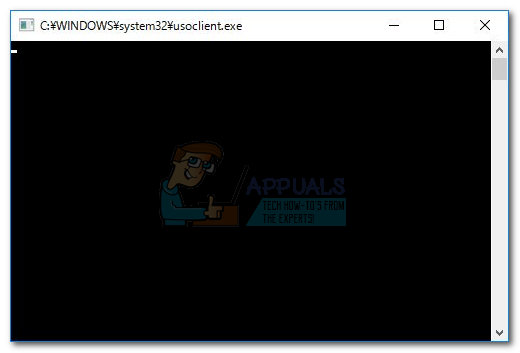
Most users get interested in the usoclient.exe process after noticing a brief CMD popup every time they start Windows 10. Because of this odd behavior, some users are confused about whether the UsoClient executable is a legitimate system process or a malware executable. The reason why you end up seeing the brief CMD prompt of UsoClient is that the process is called through Task Scheduler.
While a brief (under 1 second) uscoclient.exe CMD prompt is normal, there’s also a WU (Windows Update) bug that causes it to remain on the user’s screen indefinitely.
This article is meant as an explanatory guide to explain the purpose of the usoclient.exe client, how to distinguish security threat from legitimate component and how to disable the program altogether.
What is usoclient.exe?
The legitimate usoclient.exe is a genuine Windows Update (WU) component used to check for updates automatically. The acronym USO stands for Update Session Orchestrator and is the replacement for the Windows Update Agent on Windows 10. It’s the main purpose (similar to its predecessor), is to run tasks that scan, install or resume Windows updates.
Potential security threat
We weren’t able to identify any associated malware program capable of posing as the UsoClient executable. But looking at other similar scenarios, it’s entirely possible for a malware program to pose as system file with elevated privileges in order to avoid detected by security scans.
Luckily, we can easily verify this scenario by discovering the location of the UsoClient executable. To do this, open Task Manager (Ctrl + Shift + Esc) and locate the usoclient.exe by scrolling through the Processes list. Then, right-click on usoclient.exe and click on Open File Location.
If the revealed location is anywhere else than in C: / Windows / System32 /, there’s a high chance that your system is struggling with a system infection. In this case, it’s advisable to use a powerful scanner to remove the virus infection. If you don’t have one at the ready, consider using Malwarebytes to clean your system of malware infections.
If the revealed location was indeed in C: / Windows / System32 /, you can probably rest assured as you’re not dealing with a malware executable. But if you want even more peace of mind, you can still trigger a security scan on the executable in order to be sure. If you want to save time, upload just the executable to VirusTotal and let the software analyze it.
Is it ok to delete the UsoClient executable?
Deleting the usoclient.exe program is certainly not advisable since you might trigger unwanted behaviors. Even more, since it’s a system file commonly used by Windows, you’ll likely find that your OS will promptly recreate the file at the next startup.
A better solution would be to disable the program, or better yet, start by letting Windows Troubleshooter fix the bug that will cause the CMD prompt of UsoClient to cling on your screen indefinitely. Please follow the methods below in order until you encounter a fix that manages to remove the usoclient.exe CMD prompt.
Note: Keep in mind that if you end up disabling the usoclient.exe you’ll likely prevent your system from staying up to date with the latest updates.
Method 1: Running Windows Troubleshooter
Some users have reported managing to fix the issue by running the Windows Update troubleshooter. But keep in mind that this method is only effective you the usoclient.exe CMD prompt stays on-screen indefinitely.
Note: Completing the steps below will not disable the usoclient.exe – you will still be able to receive Windows updates. The fix is only aimed at resolving the bug that causes the usoclient.exe CMD prompt to remain on screen until closed manually.
Here’s a quick guide on how to resolve the bug with the Windows Update troubleshooter:
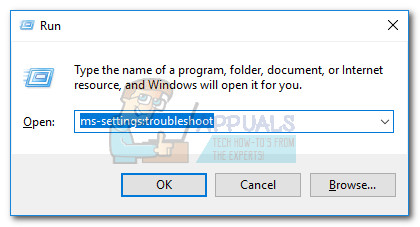
- Press Windows key + R to open up a Run window. Type or paste “ms-settings:troubleshoot” and hit Enter to open the Troubleshoot tab of Windows 10 Settings.
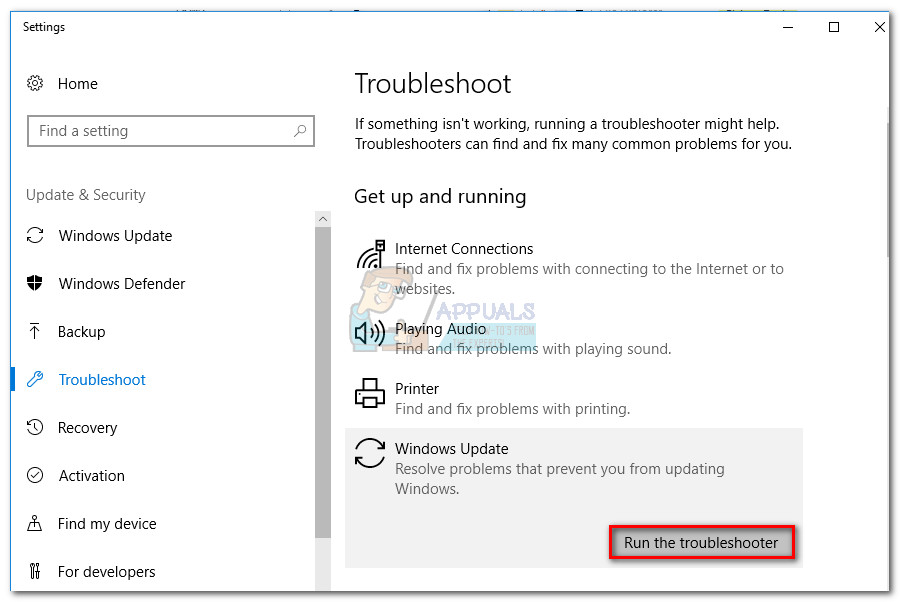
- In the Troubleshoot tab, click on Windows Update then choose Run the troubleshooter.
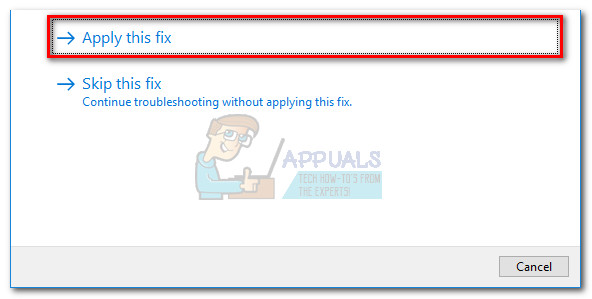
- Wait for the troubleshooting component to investigate for problems, then follow the on-screen prompts to trigger the repair strategies. You’ll probably have to click on Apply this fix. When the process is complete, restart your computer manually if not prompted to do so automatically.
If this method hasn’t resolved the issue or if you’re looking for a permanent fix to disable the UsoClient executable, continue with the other methods below.
Method 2: Disabling usoclient.exe from Task Scheduler
Although we certainly don’t recommend this without an apparent reason, it is possible to prevent the UsoClient.exe pop-up CMD prompt from appearing by disabling the process from the task scheduler
Here’s a quick guide to disabling the usoclient.exe pop up from the Task Scheduler:
- Press Windows key + R to open up a Run command. Type “taskshcd.msc” and hit Enter to open the task scheduler.
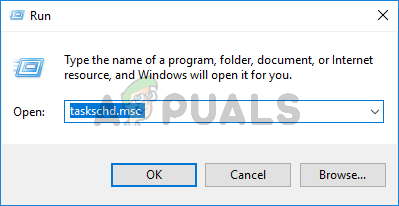 Type taskschd.msc in the Run to open Task Scheduler
 - In the task scheduler window, navigate to Task Scheduler Library > Microsoft > Windows > UpdateOrchestrator using the left pane.
- Once you open the UpdateOrchestrator folder, move over to the center pane and select the Schedule Scan task.
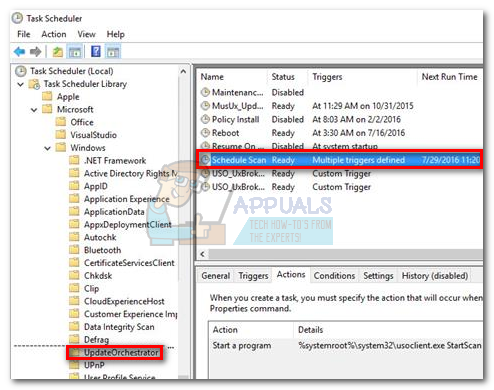
- With the Schedule Scan selected, move over to the right pane and click on Disable (under Selected item).
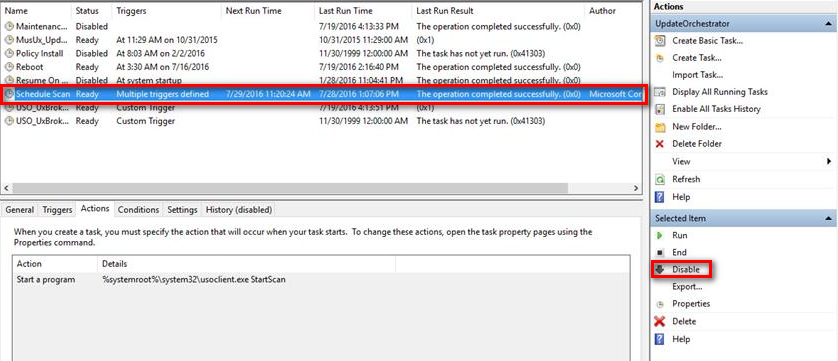
- Close the task scheduler and reboot your computer. At the next restart, you should notice that the UsoClient.exe CMD pop up no longer appears. But keep in mind that leaving this task disabled will not keep the WU (Windows Update) component informed with the latest available updates.
Note: In case you ever decide to resume the normal functionality of the Update Orchestrator component, reverse engineer the steps above and choose Enable at the last step to revert to the normal behavior.
If you cannot access the task scheduler from your Windows 10 version, disable the usoclient.exe using Method 3.
Method 3: Disabling usoclient.exe using Registry Editor
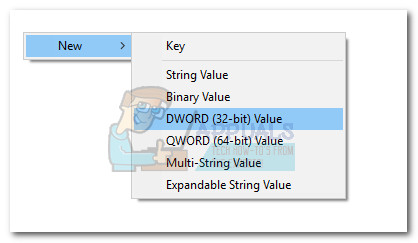
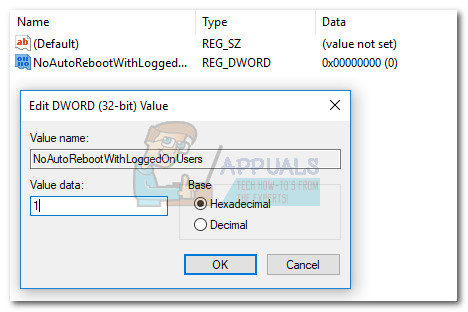
If the first method wasn’t applicable to your system, you can also use Registry Editor to prevent the usoclient.exe pop CMD pop up from ever bothering you again. This method involves creating a Dword 32-bit value called NoAutoRebootWithLoggedOnUsers in order to disable the auto-reboot feature of the UsoClient executable.
Here’s a quick guide on how to disable usoclient.exe from Registry Editor:
- Press Windows key + R to open up a Run window. Type “regedit” and hit Enter to open up the Registry Editor.
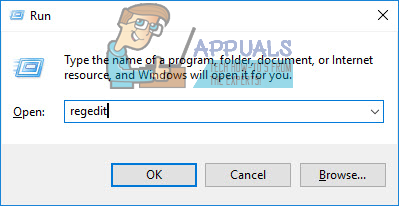
- In Registry Editor, use the left pane navigate to the following location.
In case you ever want to revert to the normal behavior, return to Registry Editor, navigate to HKEY_LOCAL_MACHINE \ SOFTWARE \ Policies \ Microsoft \ Windows \ WindowsUpdate\ AU and delete the NoAutoRebootWithLoggedOnUsers entry or set it’s value to 0.
usocoreworker.exe и usoclient.exe — что это за процессы в Windows 10

В диспетчере задач Windows 10, а также в отчетах о сетевой активности вы можете увидеть процессы с именами usoclient.exe и usocoreworker.exe. Иногда они способны вызывать высокую нагрузку на процессор, а в некоторых случаях просто любопытство пользователей заставляет задать вопрос о том, что это за процессы и безопасны ли они.
В этом материале подробно о назначении usocoreworker.exe и usoclient.exe в Windows 10, для чего они нужны и дополнительная информация, которая может оказаться полезной. Примечание: вы можете и не увидеть таких процессов, они не всегда запущены. Но, если зайти в Параметры — Обновления и безопасность — Центр обновления Windows, usocoreworker.exe сразу запустится. Обновление: про процесс MoUSOCoreWorker.exe в новых версиях Windows 11 и Windows 10
Что представляют собой usoclient.exe и usocoreworker.exe

Usoclient.exe и usocoreworker.exe располагающиеся в папке C:\Windows\System32 и соответствующие им процессы в диспетчере задач являются системными компонентами Windows 10 и относятся к Update Session Orchestrator — системной службе, работающей с обновлениями: их поиском, скачиванием и установкой.
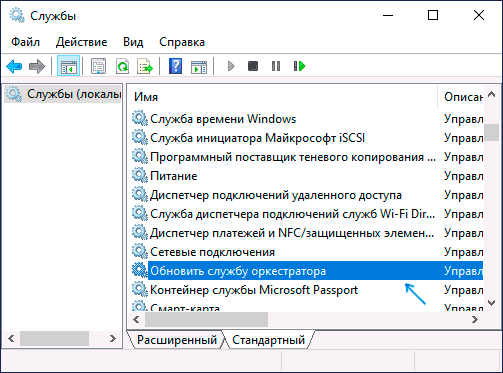
В русской версии Windows 10 служба в списке служб носит название «Обновить службу оркестратора» или «Служба оркестратора обновлений», не исключаю, что в будущем она будет переименована: сейчас название очень похоже на машинный перевод. В английской версии — «Update Orchestrator Service».
Помимо самой службы, запускать процессы, связанные с работой usocoreworker.exe и usoclient.exe могут задания, найти которые можно в планировщике заданий в разделе «Библиотека планировщика заданий» — «Microsoft» — «Windows» — «UpdateOrchestrator».
Что делать, если эти процессы грузят процессор и память
Иногда вы можете столкнуться с тем, что usoclient.exe или usocoreworker.exe грузят процессор компьютера или ноутбука. В большинстве случаев — это нормальная ситуация, которая возникает время от времени, а именно в те периоды, когда система выполняет работу с обновлениями (в том числе в фоновом режиме).
То есть переживать об этом не стоит, если ситуация не носит постоянный характер, и нагрузка никогда не падает. В последнем случае следует разобраться, что мешает нормальной работе системы с обновлениями. В случае, если вы отключали обновления Windows 10, попробуйте дополнительно отключить и службу «Обновить службу оркестратора», а затем перезагрузить компьютер: возможно, это решит проблему.
Использование usoclient.exe в командной строке
При желании вы можете использовать usoclient.exe вручную в командной строке со следующими параметрами для работы с обновлениями:
- usoclient.exeRestartDevice — для перезагрузки и завершения установки обновлений. Может не работать в некоторых версиях Windows 10.
- usoclient.exeResumeUpdate — продолжить процесс обновления при загрузке.
- usoclient.exeScanInstallWait — скачивает, но не устанавливает обновления. До выполнения команды следующие команды exe использовать нельзя.
- usoclient.exeStartDownload — запустить скачивание обновлений.
- usoclient.exeStartInstall — запустить установку обновлений, работает после ScanInstallWait.
- usoclient.exeStartInteractiveScan — интерактивный поиск обновлений (может показать диалоговые окна с информацией и запросами).
- usoclient.exeStartScan — запустить поиск обновлений.
Обратите внимание, для передачи параметров не используются какие-то дополнительные символы (слэш, дефис), просто вводим параметр сразу после usoclient.exe.
А вдруг и это будет интересно:
03.12.2019 в 09:42
У меня служба называется «Служба оркестратора обновлений» по-русски
03.12.2019 в 14:22
Спасибо, что поделились — добавил в статью ваш вариант тоже.
18.01.2020 в 19:05
Эта штука перезагрузила мой компьютер без моего ведома
06.08.2020 в 23:09
Эта служба не даёт пк перейти в спящий режим
08.08.2020 в 17:54
W10-64, автообновления в штатном режиме. Тоже вот на днях столкнулся с проблемой неперехода в спящий режим. «powercfg /requests» тоже говорит, что MoUsoCoreWorker.exe не даёт переходить в спящий режим.
Вопрос ко всем: в чём дело и как грамотно решить проблему бессонницы?
08.08.2020 в 18:15
Хотя нет, разобрался:
Панель управления/ устранение неполадок/ система и безопасность/ центр обновления Windiws/ запустить средство и следовать его простым инструкциям.
Выяснилось, что почему-то в системе торчал отложенный перезапуск, о чём от системы не было уведомления, я так понял это после последних обновлений.
Просто не верилось, что проблему получится решить так штатно и стандартно)
25.02.2021 в 22:06
Спасибо. Мне это тоже помогло. Действительно странно,что нигде не было информации о застрявшем где-то в системе перезапуске
28.02.2021 в 13:34
Привет. Ну мне не помогло решить эту проблему, твоим способом. Аналогичная ситуация, выполняется процесс; \Device\HarddiskVolume3\Windows\System32\MoUsoCoreWorker.exe
USO Worker ; Уже всё варианты перепробовал.
09.08.2020 в 07:43
Та же проблема(. Для чего я Лицензионный Виндовс покупал, чтобы постоянно мучиться с её багами ? Меня уже это бесит, Микрософт. Кусок г, а не операционная система. Задолбал это «дирижер для оркестратора» не даёт уснуть компу. постоянно включается снова……..
20.01.2021 в 15:51
И в очередной раз я поднимаю проблему так надоевших некоторым обновлений десятки.
Обратите внимание на то, что у usoclient-а нет таких параметров, как например: StopDownload, StopInstall, StopScan, ClearDownloaded, InstallManually, CheckManually… В общем, майки в своём реперуаре.
13.03.2021 в 18:15
Здравствуйте. В общем, проблема MoUsoCoreWorker.exe не уходит — Центр Обновлений (откуда родом этот CoreWorker) находится в приоритете над режимом сна, и система не может нормально уходить в сон. Проблема, оказывается, существует уже год, и Microsoft её «как-бы» признают, даже выпускали какое-то спец.обновление, которое, в общем, проблему не решило. Признают и хранят молчание и бездействие, вроде как. Нагугленные методы помогают не надолго — перезапуск службы Центр обновлений, настройка времени обновлений (даже не стал это пробовать), «powercfg -requestsoverride SERVICE UsoSvc EXECUTION» — попробовал, буду смотреть, но верится с трудом..
Понимание сути усложняет следующий момент — MoUsoCoreWorker.exe почему-то запускается с Volume3, а сама система находится на Vol.0, Volume3 у меня = «Том 3 SYSTEM FAT32 Раздел 100 Mб Исправен Системный».
Есть ли на данный момент какое-то нормальное решение этой пользовательской проблемы со сном? Или это приговор от Microsoft?
14.03.2021 в 10:25
Здравствуйте.
Нормальным решением вроде как считалось то самое обновление, которое вы упомянули — KB4568831.
Но тут есть ещё один нюанс, на который стоит обратить внимание: случается, что со сном и всем, что связано с powercfg проблемы начинают возникать не столько из-за процессов (они лишь «пользуются» ситуацией), а из-за драйверов. Чаще всего — что-то связанное с управлением электропитанием, а для Intel — Intel Management Engine Interface (Intel ME).
Причём по последнему вот что важно: 10-ка автоматом обновляет этот драйвер и на самом разном железе случается, что «новый последний драйвер» работает не так, как нужно, выливается в проблемы со сном/гибернацией/быстрым запуском. Решение — брать древний с сайта материнской платы или ноутбука, ставить его принудительно, запрещать обновление.
14.03.2021 в 10:39
Ну теперь вроде бы проясняется, т.е. оказывается, что эта ситуация завязана ещё и на железе.. Буду пробовать. Огромное вам спасибо.
What Is Usoclient Exe And How To Disable It
While a brief (under 1 second) uscoclient.exe CMD prompt is normal, there’s also a WU (Windows Update) bug that causes it to remain on the user’s screen indefinitely.
This article is meant as an explanatory guide to explain the purpose of the usoclient.exe client, how to distinguish security threat from legitimate component and how to disable the program altogether.
What is usoclient.exe?#
The legitimate usoclient.exe is a genuine Windows Update (WU) component used to check for updates automatically. The acronym USO stands for Update Session Orchestrator and is the replacement for the Windows Update Agent on Windows 10. It’s the main purpose (similar to its predecessor), is to run tasks that scan, install or resume Windows updates.
Potential security threat#
We weren’t able to identify any associated malware program capable of posing as the UsoClient executable. But looking at other similar scenarios, it’s entirely possible for a malware program to pose as system file with elevated privileges in order to avoid detected by security scans. Luckily, we can easily verify this scenario by discovering the location of the UsoClient executable. To do this, open Task Manager (Ctrl + Shift + Esc) and locate the usoclient.exe by scrolling through the Processes list. Then, right-click on usoclient.exe and click on Open File Location. If the revealed location is anywhere else than in C: / Windows / System32 /, there’s a high chance that your system is struggling with a system infection. In this case, it’s advisable to use a powerful scanner to remove the virus infection. If you don’t have one at the ready, consider using Malwarebytes to clean your system of malware infections. If the revealed location was indeed in C: / Windows / System32 /, you can probably rest assured as you’re not dealing with a malware executable. But if you want even more peace of mind, you can still trigger a security scan on the executable in order to be sure. If you want to save time, upload just the executable to VirusTotal and let the software analyze it.
Is it ok to delete the UsoClient executable?#
Deleting the usoclient.exe program is certainly not advisable since you might trigger unwanted behaviors. Even more, since it’s a system file commonly used by Windows, you’ll likely find that your OS will promptly recreate the file at the next startup. A better solution would be to disable the program, or better yet, start by letting Windows Troubleshooter fix the bug that will cause the CMD prompt of UsoClient to cling on your screen indefinitely. Please follow the methods below in order until you encounter a fix that manages to remove the usoclient.exe CMD prompt. Note: Keep in mind that if you end up disabling the usoclient.exe you’ll likely prevent your system from staying up to date with the latest updates.
Method 1: Running Windows Troubleshooter#
Some users have reported managing to fix the issue by running the Windows Update troubleshooter. But keep in mind that this method is only effective you the usoclient.exe CMD prompt stays on-screen indefinitely. Note: Completing the steps below will not disable the usoclient.exe – you will still be able to receive Windows updates. The fix is only aimed at resolving the bug that causes the usoclient.exe CMD prompt to remain on screen until closed manually. Here’s a quick guide on how to resolve the bug with the Windows Update troubleshooter: If this method hasn’t resolved the issue or if you’re looking for a permanent fix to disable the UsoClient executable, continue with the other methods below.
Method 2: Disabling usoclient.exe from Task Scheduler#
Although we certainly don’t recommend this without an apparent reason, it is possible to prevent the UsoClient.exe pop-up CMD prompt from appearing by disabling the process from the task scheduler Here’s a quick guide to disabling the usoclient.exe pop up from the Task Scheduler: Note: In case you ever decide to resume the normal functionality of the Update Orchestrator component, reverse engineer the steps above and choose Enable at the last step to revert to the normal behavior. If you cannot access the task scheduler from your Windows 10 version, disable the usoclient.exe using Method 3.
Method 3: Disabling usoclient.exe using Registry Editor#
If the first method wasn’t applicable to your system, you can also use Registry Editor to prevent the usoclient.exe pop CMD pop up from ever bothering you again. This method involves creating a Dword 32-bit value called NoAutoRebootWithLoggedOnUsers in order to disable the auto-reboot feature of the UsoClient executable. Here’s a quick guide on how to disable usoclient.exe from Registry Editor: In case you ever want to revert to the normal behavior, return to Registry Editor, navigate to HKEY_LOCAL_MACHINE \ SOFTWARE \ Policies \ Microsoft \ Windows \ WindowsUpdate\ AU and delete the NoAutoRebootWithLoggedOnUsers entry or set it’s value to 0.
What is “msedge.exe.exe”? and How to Fix It?What is: Toaster.exe and how to disable itWhat Is Cscript.exe and Should I Disable It?What is ‘gamebarpresencewriter.exe’ and How to Disable It 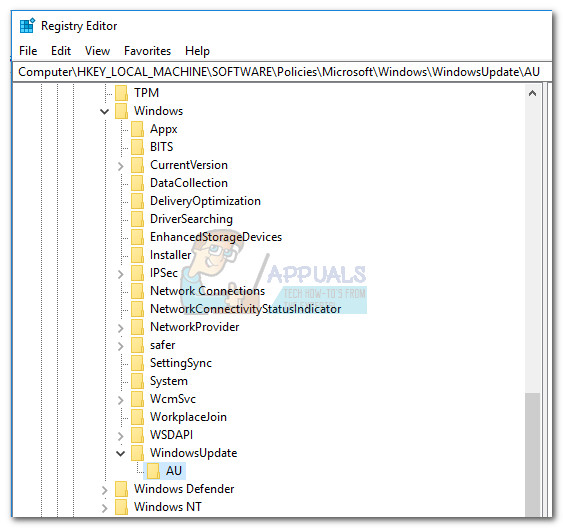
Что такое usoclient.exe в Windows 10?

При каждом запуске Windows 10 вы видите черное окно с надписью WINDOWS\system32\usoclient.exe, которое затем быстро исчезает? Это системный процесс или все же вирус? В этом посте постараемся ответить на некоторые из ваших вопросов.
Файл usoclient.exe находится в папке System32. Свойства файла показывают, что его размер составляет 19.5 Кб. Онлайн-анализаторы подозрительных файлов VirusTotal и Jotti подтверждают, что usoclient.exe абсолютно чист, т.е. не является зловредным. Но если вы обнаружили файл с этим именем в любой другой папке, вполне вероятно, что это вирус.

Оригинальный файл usoclient.exe (тот, что находится в WINDOWS\system32\usoclient.exe) отвечает за выполнение автоматического сканирования Центра обновления Windows. В этом вы можете убедиться сами, открыв штатный Планировщик заданий. Упоминание об этом процессе вы найдете в разделе Библиотека планировщика заданий -> Microsoft -> Windows -> UpdateOrchestrator.

Причиной всплывающего окна консоли при каждом запуске системы является задача Schedule Scan. Это ясно. Не ясно только почему на одних компьютерах окно появляется, а на других нет (в моем случае на 1 из 3), хотя упомянутая выше задача есть на каждом из них. В любом случае, если вам мешает это окно, просто отключите Schedule Scan и больше оно вас не побеспокоит. Отключение этой задачи никак не повредит вашей системе, только не забывайте периодически вручную выполнять проверку на наличие новых обновлений.